
A Formula Field is a calculated field in Jira that automatically displays values based on other fields.
-
Formula fields can only be created or updated by:
-
Jira Admins (global level)
-
Space Admins (space level)
-
-
End users cannot create, edit, or delete formula fields
-
If you need a new formula field or changes to an existing one, contact your Jira Admin or Space Admin
For administrative setup and management instructions, see: Creating and Managing Formula Fields.
What Users Need to Know
Read-Only Behavior
-
Formula fields cannot be edited
-
You will not be able to type into the field
-
This is expected behavior
How Values Are Updated
-
Formula fields depend on other fields (e.g., Story Points, Cost)
-
To change the value:
-
Update the underlying fields
-
-
The formula field will recalculate automatically
Adding a Formula Field as a Column
-
Click Column configuration in the Operation Bar Menu
-
Click the “+” (Add Column) button
-
Search for the formula field name
-
Enable the formula field
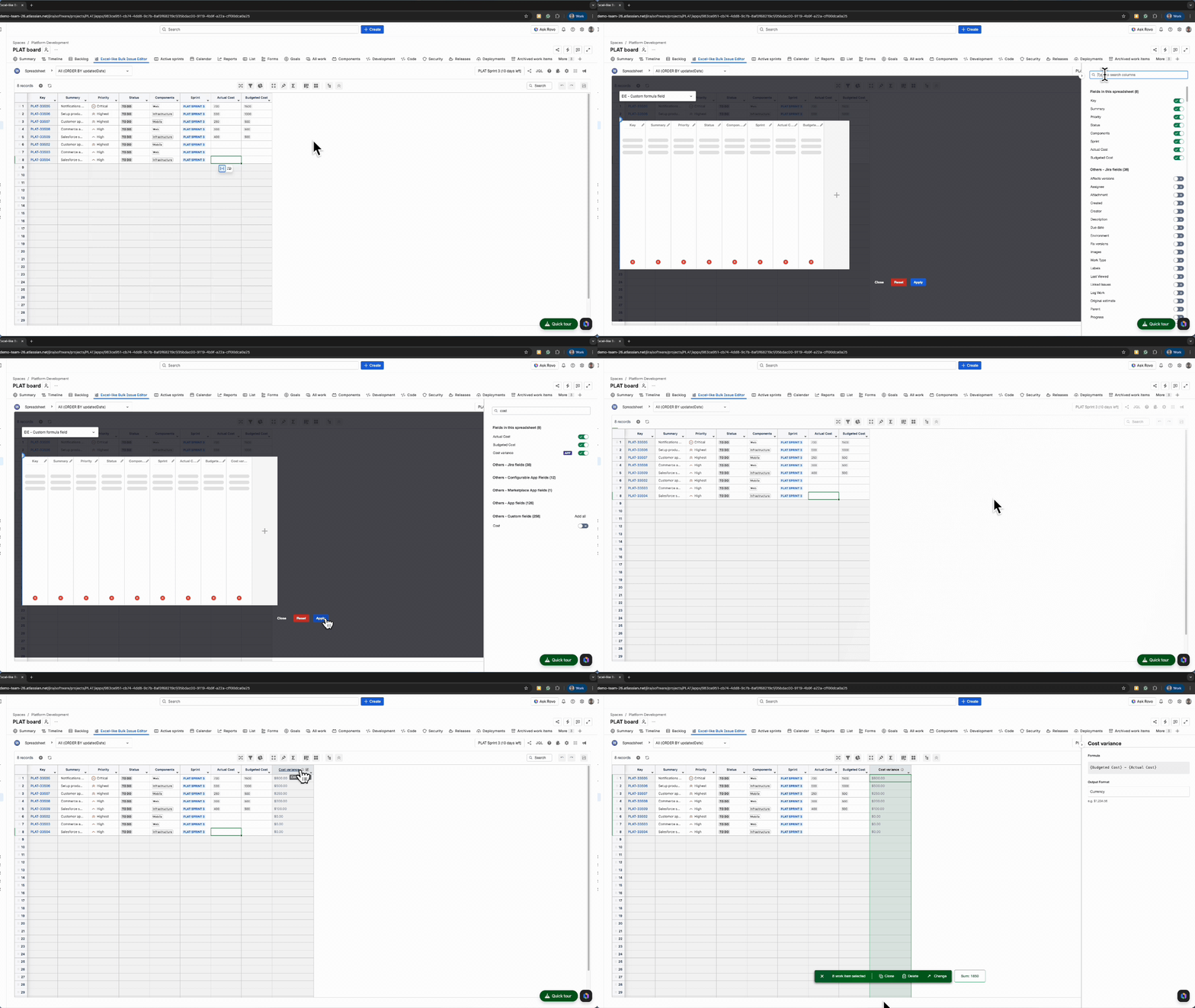
View the Formula Configuration
-
Click on the header of the formula field column
-
The system will display the configured formula
-
This helps you understand how the value is calculated
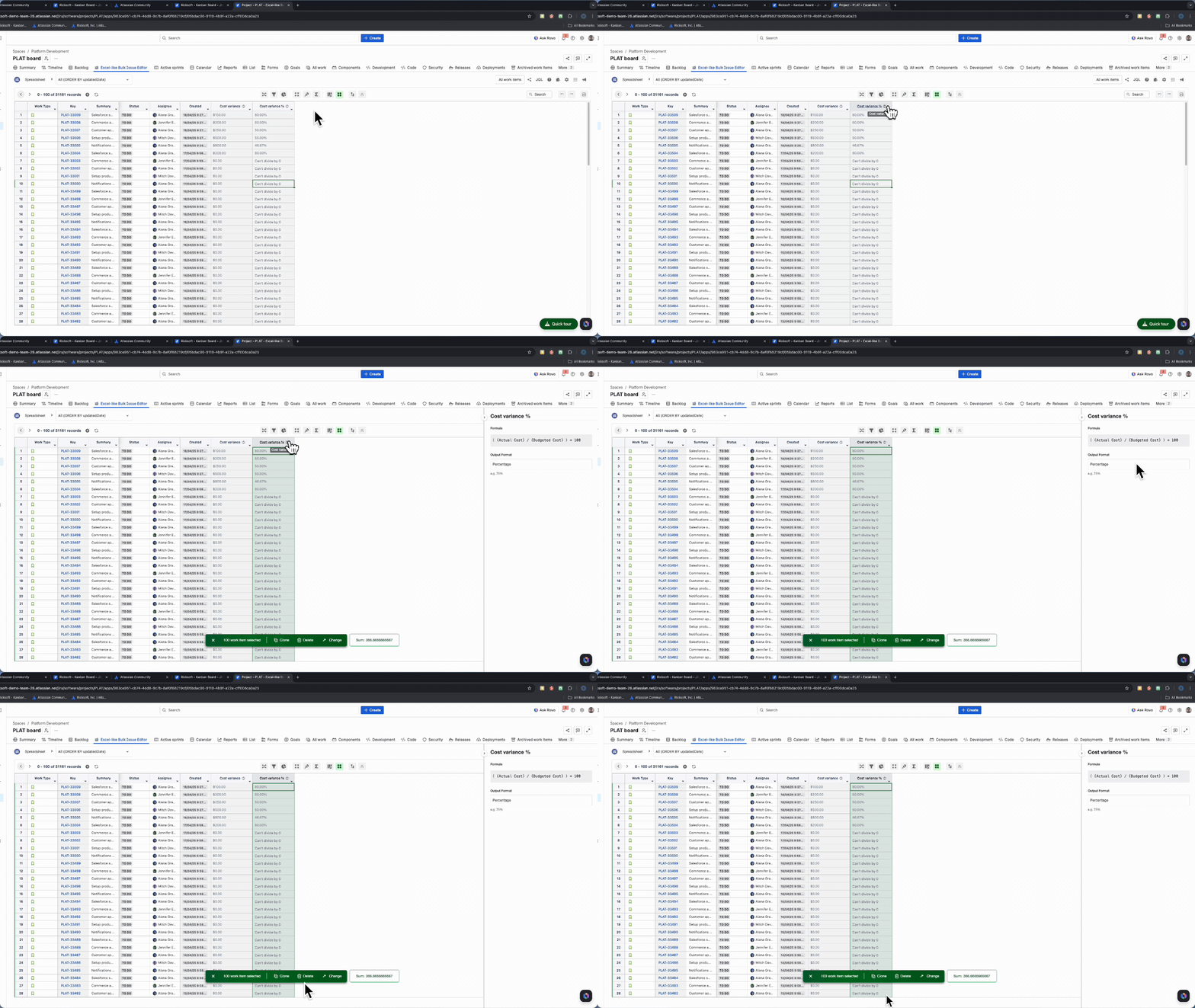
What to Expect After Adding the Field
-
The field appears as a new column
-
Values are automatically populated
-
The column is read-only
Example Use Cases
You may see formula fields used for:
-
Cost calculations
-
e.g., Cost Variance = Budgeted Cost – Actual Cost
-
-
Percentage calculations
-
e.g., Cost Variance %
-
-
Effort calculations
-
e.g., Total Effort
-
Common Questions
Why can’t I edit this field?
-
Formula fields are calculated automatically based on the configured formula
-
Only Jira Admins or Space Admins can change the formula or the field configuration
Why is the field empty?
-
One or more required fields may not have values
-
Fill in the relevant fields used in the calculation
Why does the value change automatically?
-
The field updates whenever related fields are changed
-
This ensures data is always accurate
I don’t see the formula field
-
It may not be added to your view
-
Try:
-
Adding it via “+ Add Column”
-
Or contact your admin
-
When to Contact an Admin
Contact your Jira Admin or Space Admin if:
-
You need a new formula field
-
You need to update or fix an existing formula
-
The calculation appears incorrect
-
The field is disabled in your project or view