
Use private and shared views.
Private and shared views let you save different spreadsheet layouts for different ways of working. Use a private view for your own workflow, or use a shared view to give everyone in a space a consistent team layout.
In this guide: You’ll learn how to switch views, create a private or shared view, pin or unpin views, set a default view, and understand who can edit a view.
What is a view?
A view is a saved spreadsheet layout. It can include column visibility, column order, field aliases, filters, sorting, and other display settings.
|
View type |
Who can use it? |
When to use it |
|---|---|---|
|
Private view |
Only you |
Use it for your own columns, filters, sorting, or temporary workflows. |
|
Shared view |
Users in the space |
Use it for team layouts such as planning, reporting, onboarding, or release tracking. |
|
Default view |
You, or users in the space if set by an administrator |
Use it when you want a specific view to open automatically. |
|
Pinned view |
You, or users in the space if pinned for everyone |
Use it to keep important views easy to find at the top of the view selector. |
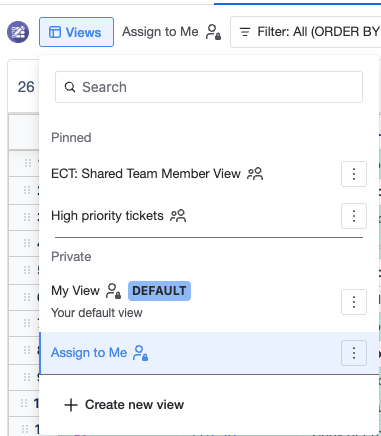
Switch to a view
-
Open the spreadsheet page.
-
Select the View selector at the top of the spreadsheet.
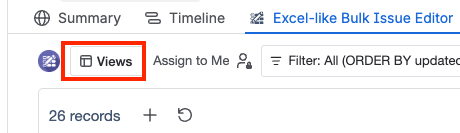
-
Choose the view you want to use.
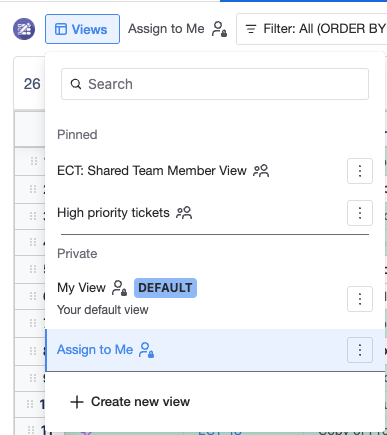
-
The spreadsheet updates using the saved settings for that view.
Create a private or shared view
-
Open the spreadsheet page.
-
Select the View selector at the top of the spreadsheet.
-
Select + Create new view.
-
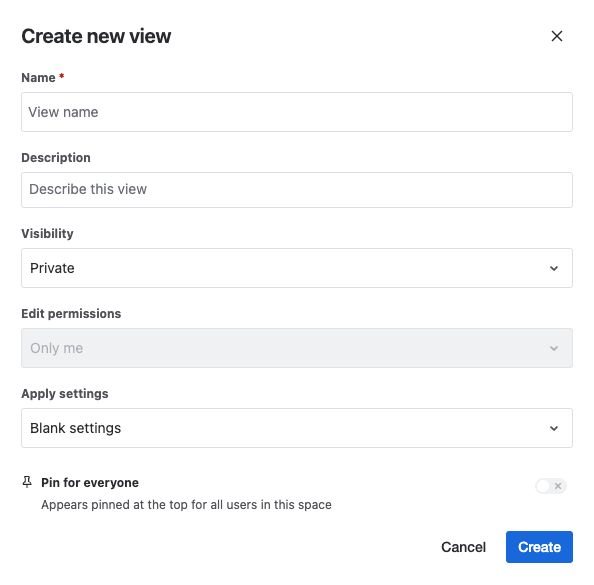
Enter a clear view name, such as My Planning View, QA Tracking View, Team Default, or Release Overview.
-
Choose the view visibility:
-
Private: only you can see and use the view.
-
Shared: users in the space can see and use the view.
-
-
If you choose Shared, set Edit permissions:
-
Only me: only you can edit the view.
-
Admins only: only space administrators can edit the view.
-
-
Under Apply settings, choose how to set up the view:
-
Blank settings: start with default columns, filters, and sorting.
-
Copy settings from view: copy column settings, filters, and sorting from an existing shared view or one of your private views.
-
-
Optional: select Pin this view to keep the view easy to access.
-
Optional: If you are creating a shared view and have permission, selectPinn for everyone to pin the view for users in the space.
-
Select Create to save the view.
Pin or unpin a view
Use pinning to keep important views easy to find.
-
To pin a view, open the view actions menu and selectPinn to top.
-
To unpin a view, open the view actions menu and select Unpin.
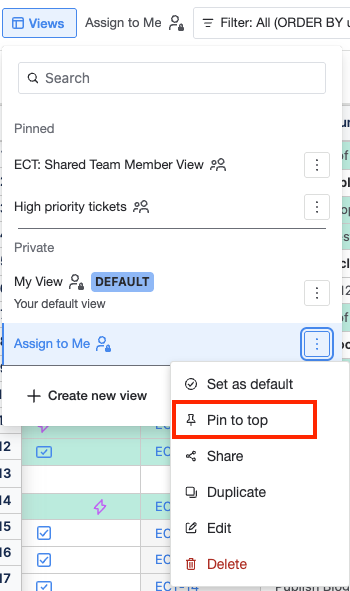
If you have permission to manage a shared view, you may also be able to pin it for everyone in the space.
Set a default view
Your default view opens automatically when you open the spreadsheet.
-
Open the spreadsheet page.
-
Open the View selector.
-
Find the view you want to use as your default.
-
Open the view actions menu next to the view name.
-
Select Set as default view.
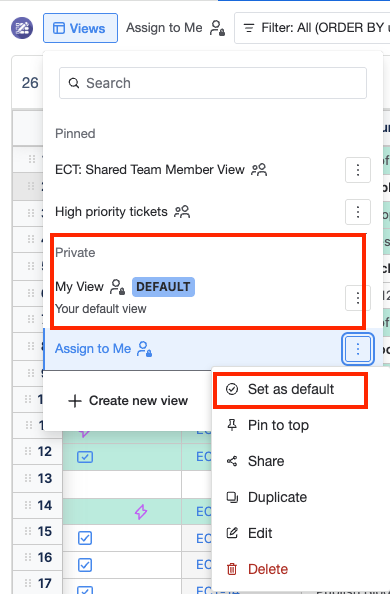
You can change your default view at any time by repeating these steps and choosing a different view.
Administrators may set or pin a shared view as the default for users in a space. If you do not see the option to set a shared view as default, contact your space administrator.
Who can edit a view?
|
Action |
Private view |
Shared view |
|---|---|---|
|
View and use |
Only the creator |
Users in the space |
|
Edit settings |
Only the creator |
Depends on the edit permission: Only me or Admins only. |
|
Pin for yourself |
The creator |
Users who can access the view |
|
Pin for everyone |
Not available |
Users with permission to manage shared views |
|
Set as default |
The creator, for their own account |
Users with permission to manage shared views may set defaults for the space. |
Best practices
-
Use private views for personal preferences, experiments, and temporary workflows.
-
Use shared views for official team processes and standard layouts.
-
Give views clear names so users can choose the right one quickly.
-
Check the edit permission before changing a shared view.
-
Ask a space administrator if your team needs a new standard shared view.
Frequently asked questions
I cannot create a shared view. What should I do?
You may not have the required permission to create shared views. Contact your space administrator if your team needs a new shared view.
I changed a view, but other users do not see it. Why?
You may have edited a private view instead of a shared view. Private view changes are only visible to you.
Who can edit a shared view?
Shared view editing depends on the edit permission set for the view. It can be restricted to Admins only or to me only.
Why did a shared view change unexpectedly?
Another user with edit permission may have updated the shared view. Contact the view owner or your space administrator to review the view settings.
I cannot find my private view. What should I check?
Open the view selector and make sure you are signed in with the same account that created the private view.
Can I copy settings from another view?
Yes. When creating a view, choose Copy settings from view under Apply settings, then select an available shared view or one of your private views.