
Bulk Link Work Items feature helps you create links between multiple Jira work items at once in the Excel-like Bulk Issue Editor app. Instead of opening each work item individually, you can select items in the spreadsheet and link them in a single action.
Use this feature when several work items are related to the same task, depend on each other, block each other, or need to be connected for easier tracking.
What you can do with Bulk Link Work Items
-
Link several selected work items to another work item at once.
-
Choose the relationship type, such as blocks, is blocked by, relates to, or other link types available in your Jira site.
-
Reduce repetitive manual work when organizing dependencies or related tasks.
-
Keep work item relationships visible for your team without opening each Jira ticket individually.
Before you start
Make sure you have the correct Jira permissions before using this feature.
-
You must be able to view the work items you want to link.
-
You must have permission to link work items in the related Jira projects.
-
The work items you want to link should already be loaded in the Excel-like Bulk Issue Editor spreadsheet.
-
If you cannot find or link a work item, check with your Jira administrator.
Step 1: Select the work items you want to link
Select the rows for the work items you want to link. Select one row or multiple rows, depending on what you want to update.
-
To select a single work item, click its row.
-
To select multiple work items, drag across the rows or use your keyboard and mouse selection options.
-
Review your selection carefully before continuing.
Step 2: Open the bulk link action menu
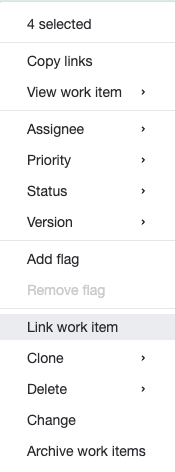
After selecting work items, you can start bulk linking from either the floating bulk operation bar or the right-click operation menu. Both options let you apply actions to the selected work items.
-
Check that the correct rows are selected.
-
Look for the floating bulk operation bar, or right-click a selected work item to open the operation menu.
-
Choose the Link work items action.

Step 3: Choose the work item to link to
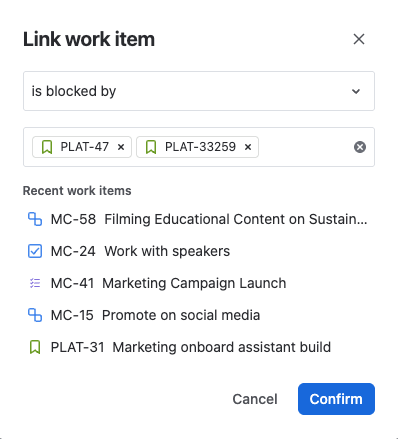
In the link dialog, choose the target work item. This is the work item the selected rows will link to.
-
Search for the target work item by key or summary.
-
Select the correct work item from the search results.
-
Confirm that the target work item is the one you intended to use.
Example: If PROJ-123 blocks several tasks, select those tasks in the spreadsheet, then choose PROJ-123 as the target work item.
Step 4: Select the relationship type
Choose how the selected work items are related to the target work item.
|
Relationship type |
Use it when |
|---|---|
|
Relates to |
The work items are connected, but neither depends on the other. |
|
Blocks |
The selected work items are preventing the target work item from moving forward. |
|
Is blocked by |
The selected work items cannot move forward until the target work item is completed. |
|
Duplicates / is duplicated by |
The work items describe the same or very similar work. |
Your Jira site may show different link types. If you are unsure which one to use, choose Relates to or ask your project lead.
Step 5: Review and apply the change
-
Review the selected work items.
-
Review the target work item.
-
Review the relationship type.
-
Click Apply, Link, or Save to create the links.
Once you complete the action, Jira links the selected work items to the target work item.
Example scenario
You are planning a release and notice that five tasks cannot start until one design task is completed. Instead of opening each task separately, you can:
-
Select the five task rows in the spreadsheet.
-
Click the bulk link action from the floating bulk operation bar.
-
Choose the design task as the target work item.
-
Select is blocked by as the relationship type.
-
Apply the change.
This creates the same relationship for all selected tasks in one action.
Tips for non-technical users
-
Always double-check your selected rows before applying a bulk action.
-
Use Relates to when you only want to show that work items are connected.
-
Use Blocks or Is blocked by only when there is a real dependency.
-
If you link the wrong work items, open the affected Jira work item and remove the incorrect link, or ask your project administrator for help.
-
Refresh the spreadsheet if you do not see the updated links immediately.
Troubleshooting
|
Issue |
What to do |
|---|---|
|
I cannot see the bulk operation bar. |
Make sure at least one row is selected. If it still does not appear, refresh the page. |
|
I cannot find the target work item. |
Search for the exact work item key (e.g., |
|
The link action is not available. |
You may not have permission to link work items, or the feature may not be enabled for your site. |
|
The wrong relationship type was selected. |
Open the affected work item in Jira, remove the incorrect link, and create the correct one again. |