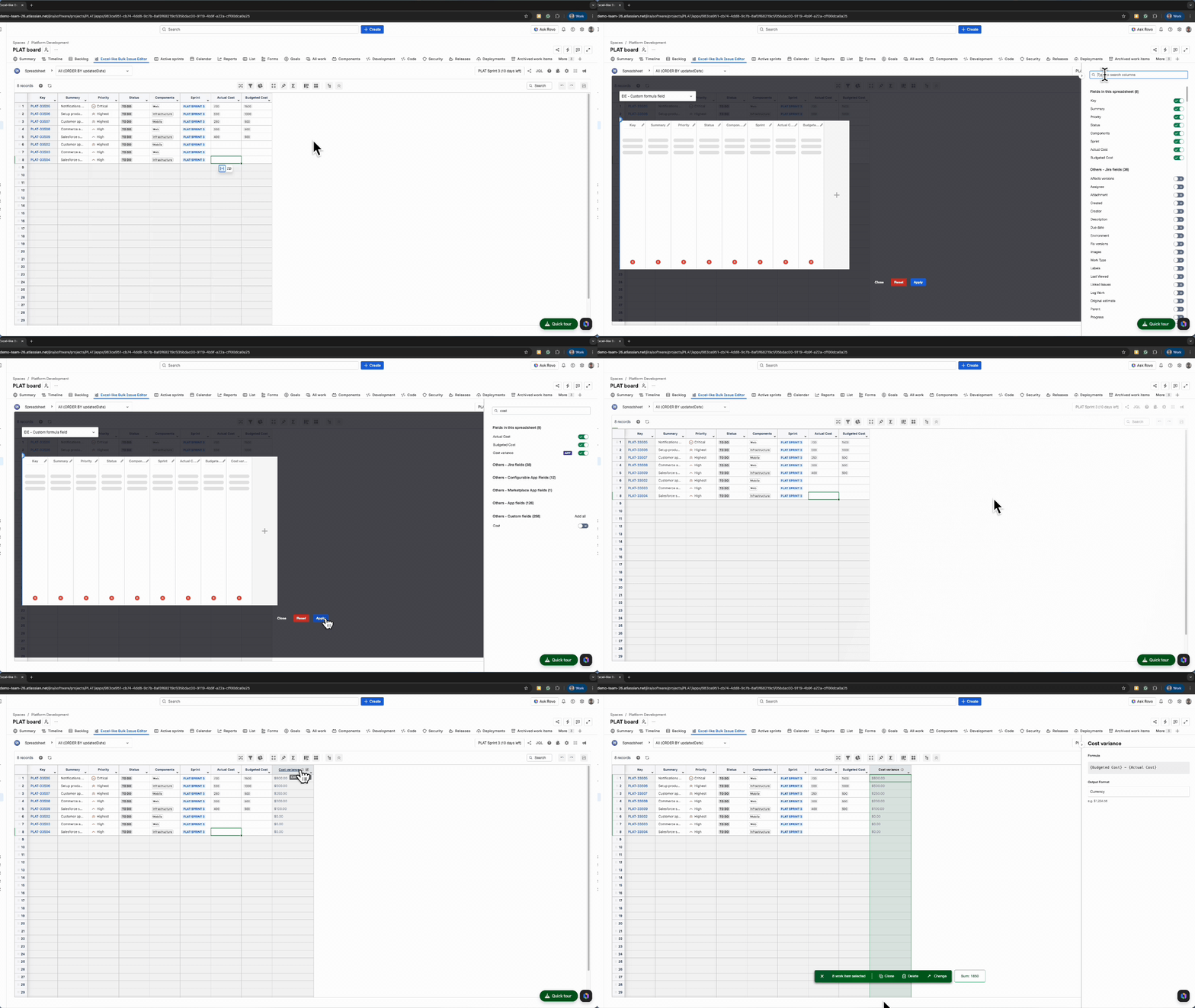
A Formula Field automatically calculates values using arithmetic expressions based on other Number fields in Jira.
Formula fields:
-
Can be configured as Global or Space (project-specific)
-
Are read-only and auto-calculated
-
Can be used as App fields
For end-user guidance on viewing and using Formula Fields, refer to: Formula Field.
Permission required
Only administrators can create and manage formula fields, with access based on their permission level:
-
Jira Administrator (Global level)
-
Can create and manage Global formula fields
-
Can manage Space-level formula fields
-
Has full access across all projects
-
-
Space Administrator (Space level)
-
Can create and manage Space-level formula fields only
-
Cannot manage Global formula fields
-
Regular users cannot create or configure formula fields.
Once created, regular users can view and use these formula fields as App fields in the app.
Create the Formula field
Global level - Jira Administrator
-
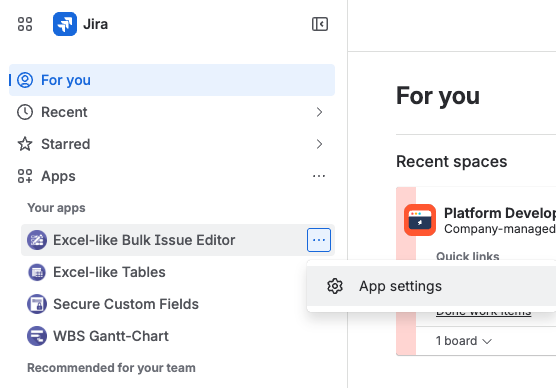
Click on the Apps on the left panel
-
Click the … for the Excel-like Bulk Issue Editor app → App settings
-
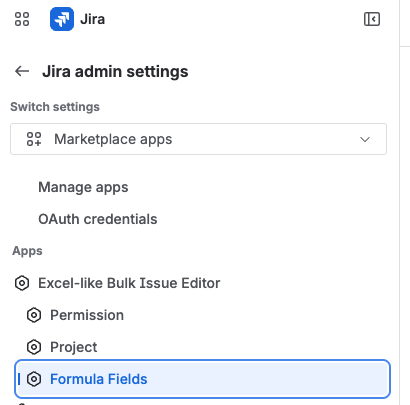
Click Formula Fields under the Excel-like Bulk Issue Editor app
-
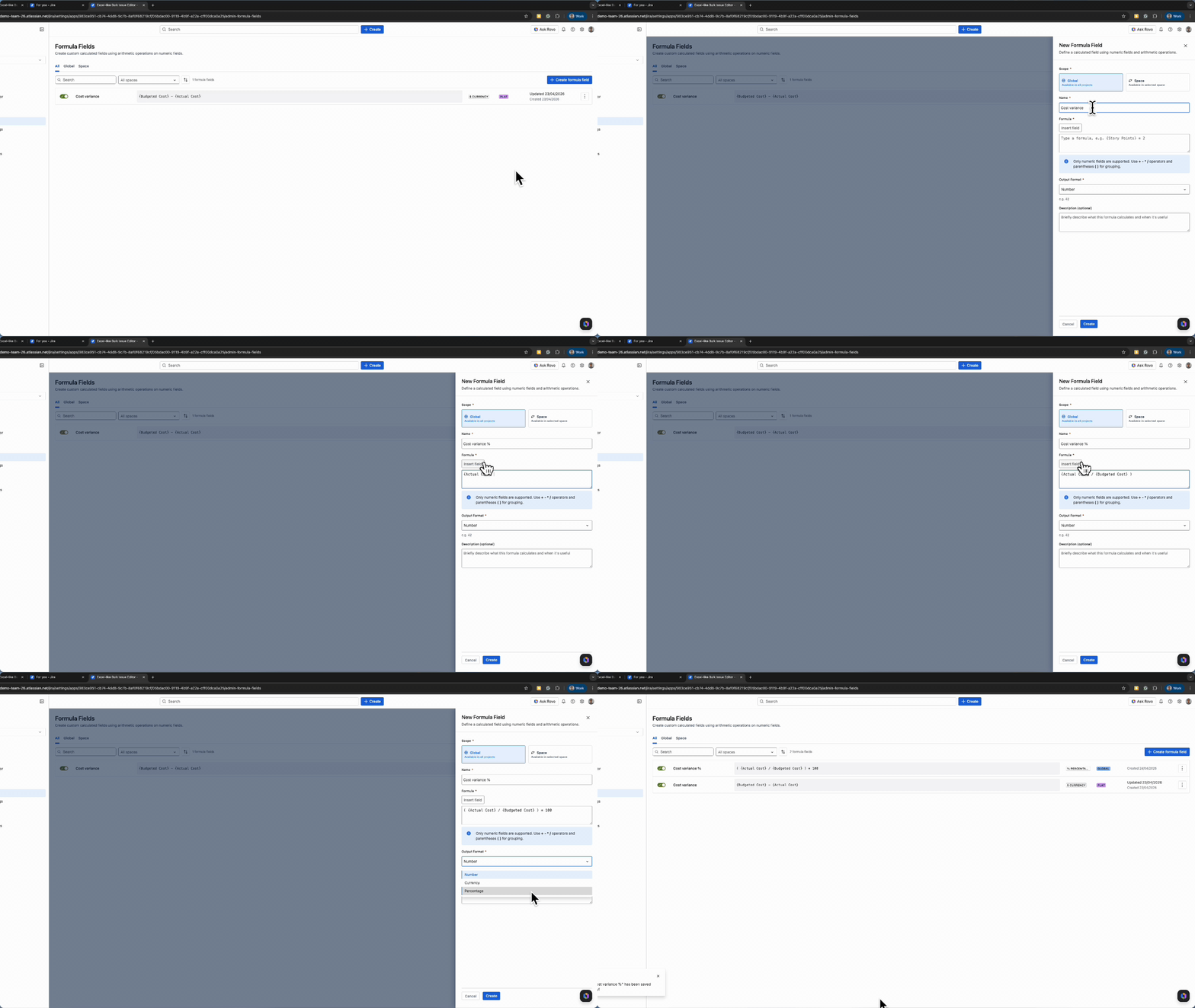
Click the + Create formula field button
-
Choose where the field will be available:
-
Global → Available in all projects
-
Space → Available only in the selected project
-
-
Enter field details
-
Space [Space-level only]
Select the space to associate -
Name
Example:Remaining Cost -
Formula
Click Insert field to select Number fields in Jira -
Select Output Format
-
Number – e.g. 42
-
Currency – e.g. $1,234.56
-
Percentage – e.g. 75%
-
-
Description (optional)
Provide a brief explanation of the formula -
Click Create to save the formula field.
-
Formula configuration rules
Space level - Jira Administrator or Space Administrator
-
Go to the relevant Jira space
-
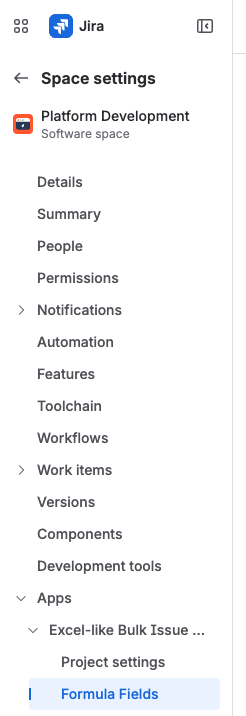
Open the Space settings page, then select Apps
-
Expand the Excel-like Bulk Issue Editor and then Formula Fields
-
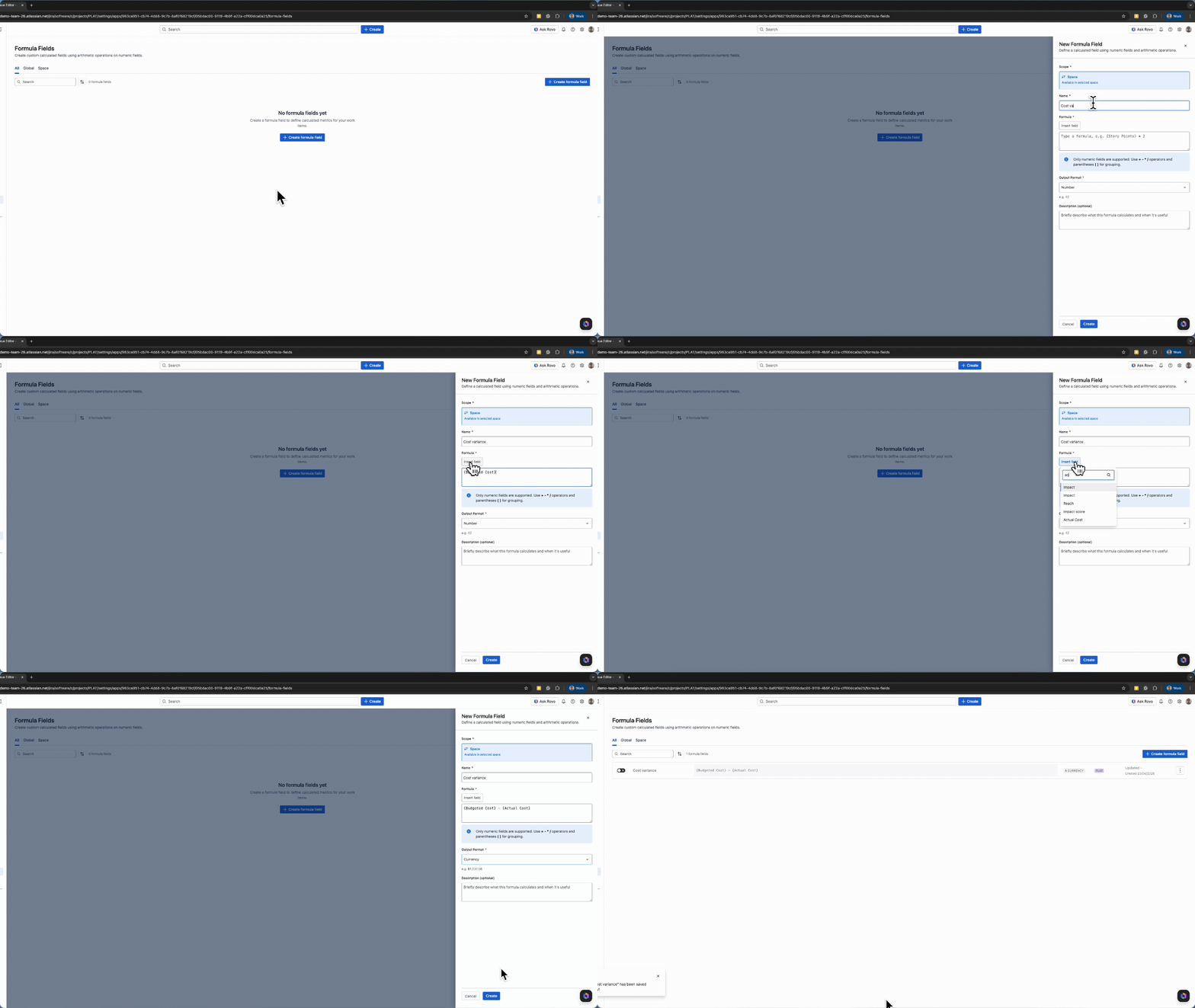
Click the + Create formula field button
-
Enter field details
-
Name
Example:Remaining Cost -
Formula
Click Insert field to select Number fields in Jira -
Select Output Format
-
Number -
e.g. 42 -
Currency -
e.g. $1,234.56 -
Percentage -
e.g 75%
-
-
Description (optional)
Provide a brief explanation of the formula
-
Formula configuration rules
-
Click the Create button. Select Number fields in Jira
-
Select Output Format
-
Number -
e.g. 42 -
Currency -
e.g. $1,234.56 -
Percentage -
e.g 75%
-
-
Description (optional)
Provide a brief explanation of the formula
-
Managing Formula Fields
Updating the formula recalculates the values for all affected work items when they reload or refresh in the app
From the Formula Fields list page, admins can:
-
Enable / Disable a formula field
-
Toggle the switch to control whether the field is active
-
-
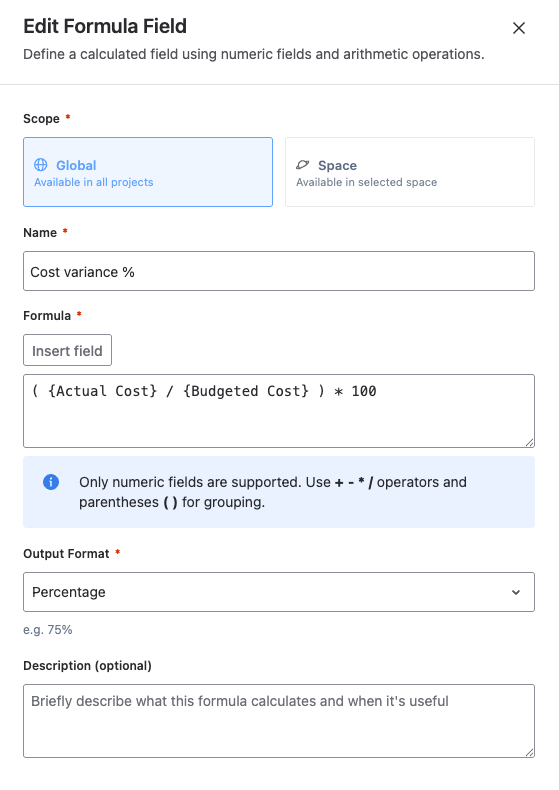
Edit a formula field
-
Update:
-
Name
-
Formula
-
Output Format
-
Description
-
-
-
Delete a formula field
-
Permanently removes the field from the system
-
Add a formula field as a column
-
Click Column configuration in the Operation Bar Menu
-
Click the “+” (Add Column) button
-
Search for the formula field name
-
Enable the formula field