
Operation Bar
The Operation Bar provides quick access to common table actions, display options, sharing tools, and editing controls.
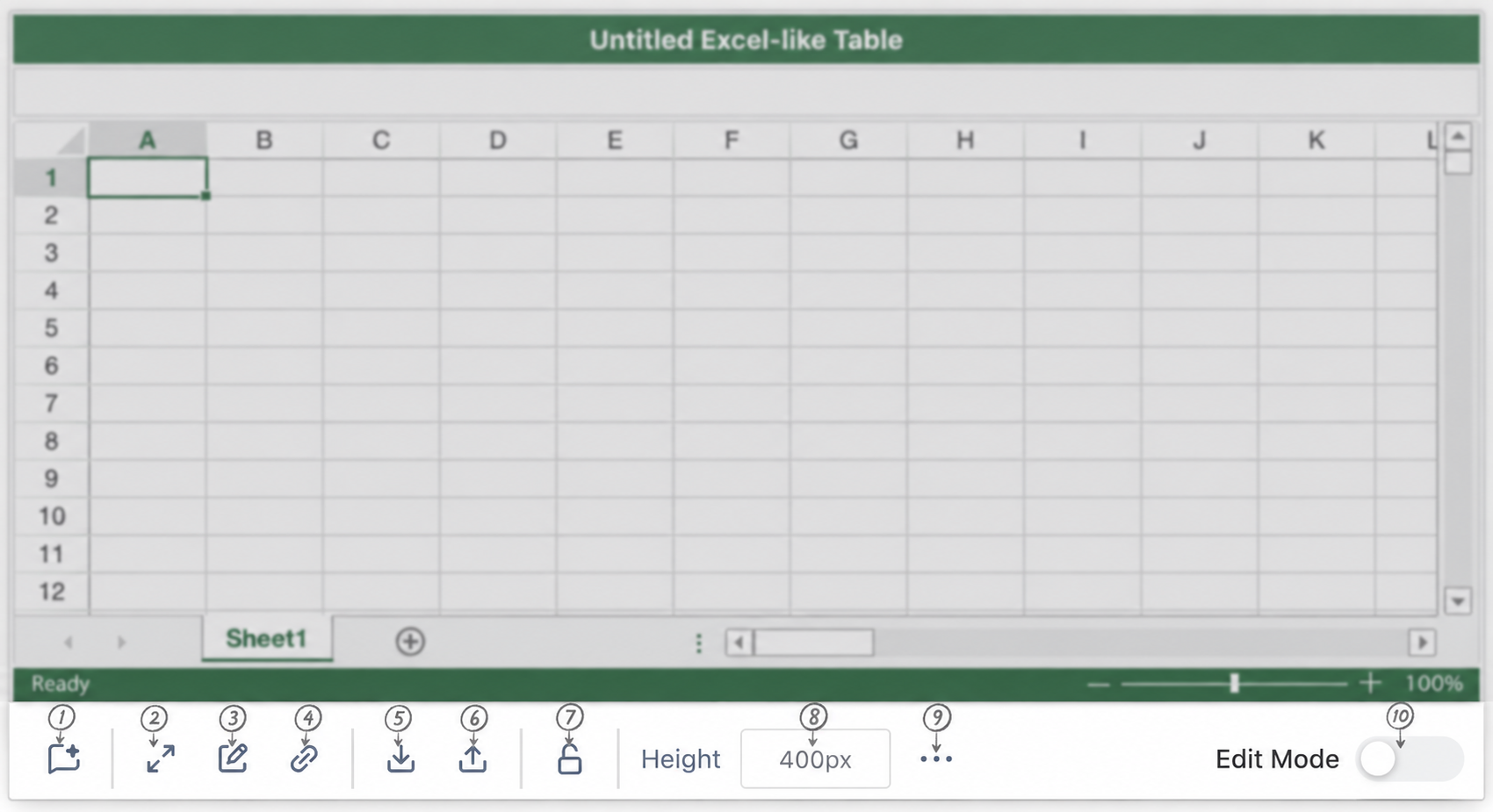
Use the Operation Bar to manage your table directly from the Confluence page. Some options open detailed configuration pages, while others apply immediately to the current table.
Available actions
|
Action |
Description |
Learn more |
|---|---|---|
|
Analyze with AI |
Analyze table data, ask questions, and create reports directly on your Confluence page. |
|
|
Expand Table |
Expand the table to improve visibility on the page. |
|
|
Open Full-Featured Table |
Open the table in fullscreen mode to access all editing and formatting features. |
|
|
Copy Table Link |
Copy a direct link to the table for easy sharing. |
|
|
Download Spreadsheet |
Download the current spreadsheet to your device. |
|
|
Upload Spreadsheet |
Upload a spreadsheet file from your device. |
|
|
Lock Actions |
Prevent editing, filtering, and sorting while the table is in view mode. |
|
|
Adjust Table Height |
Set the inline table height, up to 10,000 px. Higher values may increase browser memory usage. |
— |
|
More Settings |
Open additional table settings, including history, view settings, and clear table options. |
See the section below. |
|
Edit Mode Toggle |
Switch between Edit and View mode. Switching from Edit to View automatically saves your changes. |
— |
More settings
The More Settings menu includes additional options for reviewing, displaying, and resetting your table.
-
Table History — View previous versions and restore an earlier version.
-
Table View Settings — Adjust display options such as gridlines and headers.
-
Clear Table — Remove all data from the table.
Important notes
-
Each user can have only one active editing session at a time.
-
When you switch from Edit mode to View mode, your changes are saved automatically.
-
Setting a very large table height may increase browser memory usage.