
The Excel-like Tables Assistant is a Rovo-powered assistant for Excel-like Tables for Confluence. It reads table data directly from the Excel-like Tables macro and helps you analyse it without leaving the Confluence page.
Rovo credit usage
Using the Excel-like Tables Assistant consumes Rovo credits from your organization's Atlassian Rovo credit allowance. Excel-like Tables for Confluence does not include or provide a separate Rovo credit allowance.
Your available allowance depends on your Atlassian apps, plans, and user counts. If usage exceeds your included allowance, additional usage and any associated charges are managed through your Atlassian subscription.
Organization administrators can monitor Rovo credit usage through the Platform usage section in Atlassian Administration.
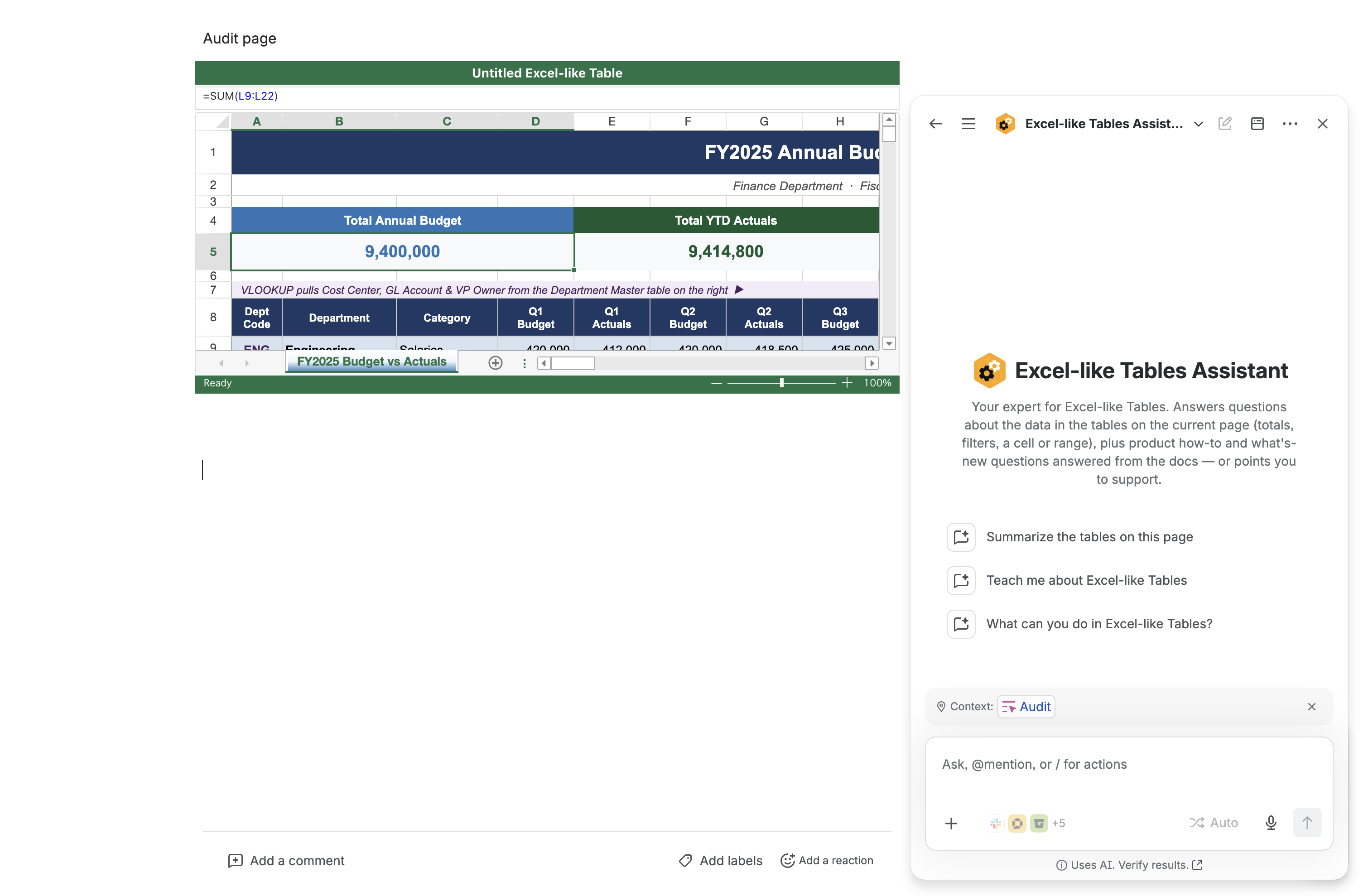
What you can do
|
Use case |
Example prompt |
|---|---|
|
Summarise a table |
Summarise this table and highlight the most important points. |
|
Analyse a sheet or range |
Analyse cells A1:F50 in the Revenue sheet. Summarise trends by month and flag missing values. |
|
Compare sheets or tables |
Compare the Forecast and Actual sheets and explain the largest variances. |
|
Find data issues |
Flag blank values, duplicate IDs, unusual amounts, or missing rows. |
|
Get help using the plugin |
Help me write a better prompt to compare sheets in this table. |
Before you begin
To use Excel-like Tables Assistant, your Atlassian site must have Rovo Chat and Rovo Agents with AI enabled, and the Excel-like Tables Rovo feature must be enabled. You must also have permission to view the Confluence page and table.
Rovo activation and AI requirements: https://www.atlassian.com/software/rovo/guides/admin-guide/rovo-activation
How to use it
-
Open a Confluence page that contains an Excel-like Table macro
-
Open the assistant in either of these ways:
-
From the table operation bar, select Analyse this table with Rovo.
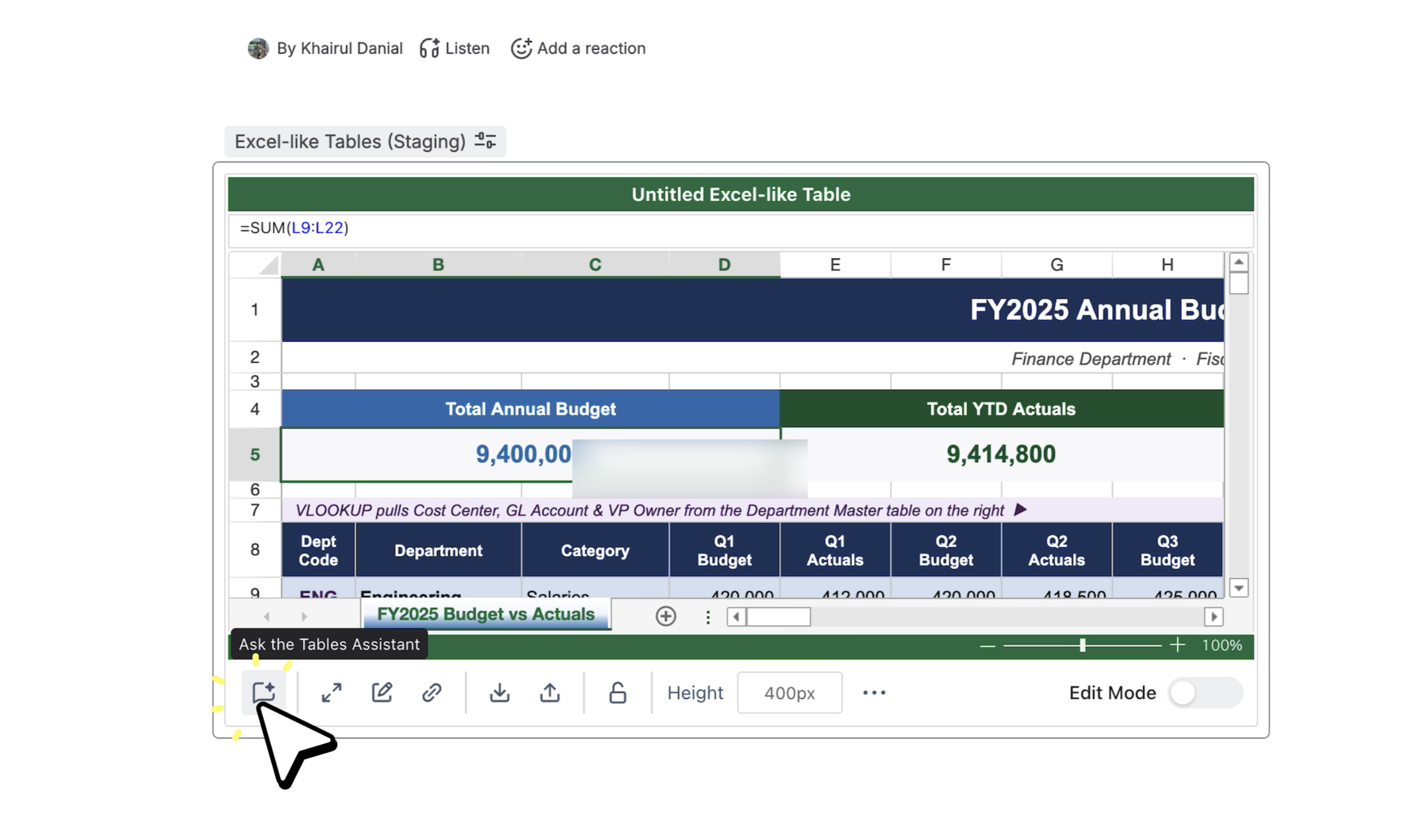
Access directly from the table
-
From Rovo Chat, browse agents and select the Excel-like Tables Assistant. See Atlassian’s guide to browsing agents: https://support.atlassian.com/rovo/docs/browse-agents/
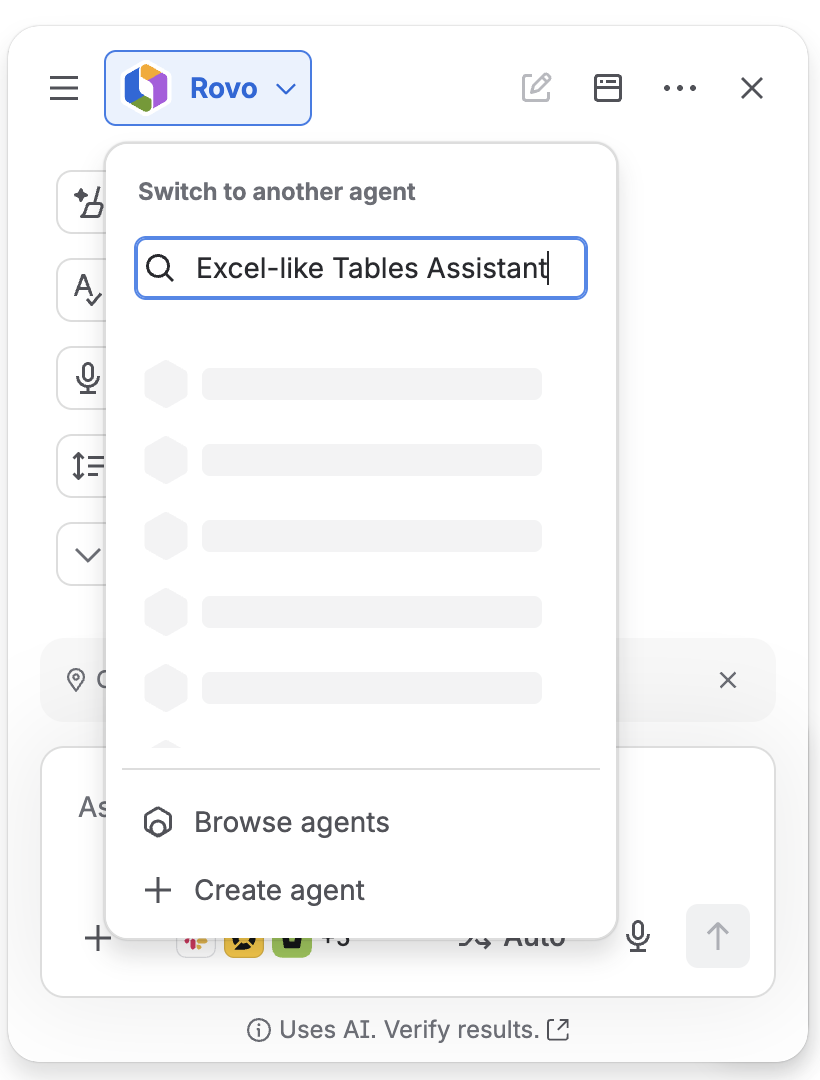
-
-
Use the default summary prompt, or enter your own question.
-
Name the table, sheet, range, or comparison you want analysed.
-
Ask follow-up questions in the same chat to refine the answer, change the focus, or request a different output format.
-
Review the answer and check important results against the source data.
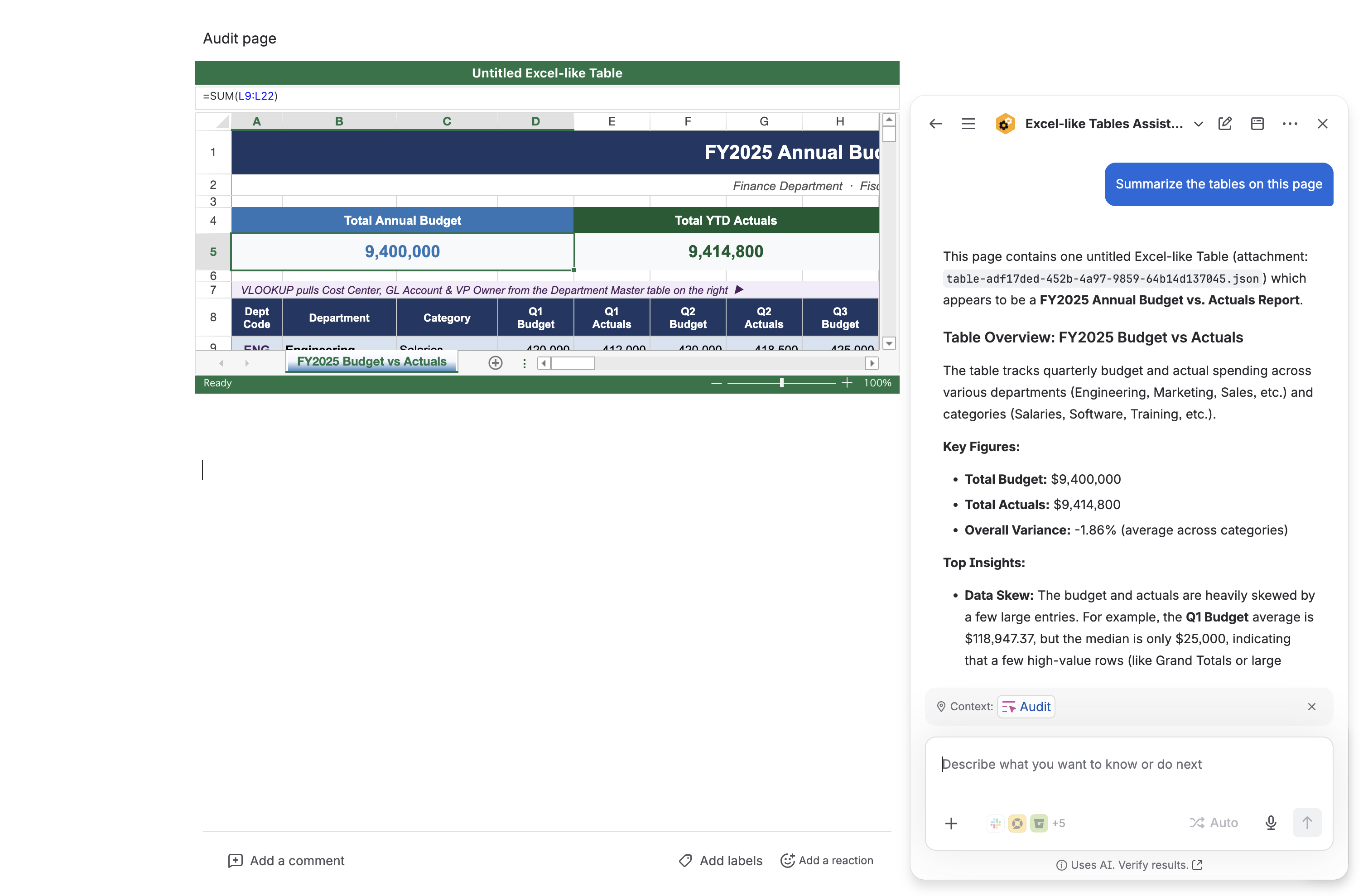
Tip: Clear prompts give better results. Include sheet names, column names, row ranges, and the output format you want.
Recommended prompt format
Basic: Analyse [table, sheet, or range] for [simple goal]. Focus on [key columns]. Return [short summary or bullet list].
Advanced: Cross-check [multiple sheets, tables, or ranges] for [relationship, variance, or correlation]. Match records by [shared key such as ID, SKU, date, or month]. Focus on [metrics to compare]. Return [structured table, findings, assumptions, and exceptions].
Example: Analyse the Actual Sales sheet for regional performance. Focus on columns Region, Revenue, Target, and Variance. Return a bullet summary with the top three over-performing and under-performing regions.
Analysis output examples
The assistant can return a separate analysis table when you ask for a structured comparison. This is useful when comparing different sheets, checking variances, or preparing a quick report from table data.
|
Scenario |
Example prompt |
Expected output |
|---|---|---|
|
Compare forecast vs actual |
Compare the Forecast and Actual sheets. Create a table showing item, forecast value, actual value, variance, variance percentage, and action needed. |
A variance analysis table that highlights gaps, overperformance, and priority follow-up items. |
|
Check sales vs marketing impact
|
Compare the Sales, Marketing Spend, and Website Traffic sheets. Create a table showing campaign, spend, traffic change, sales change, possible correlation, and recommended next step. |
A cross-sheet correlation table showing which campaigns may be driving sales and which need review. |
|
Find customer order risks |
Compare the Customer Orders, Support Tickets, and Delivery Status sheets. Create a table showing customer, order value, ticket issue, delivery status, risk level, and suggested action. |
A risk analysis table that connects order, support, and delivery data for faster decision-making. |
|
Extract a Confluence-ready table |
From the Project Tracker sheet, extract task, owner, status, due date, blocker, and next action. Format it as a clean table that I can paste into a Confluence page. |
A concise reporting table with only the most useful columns for a Confluence update. |
Limitations and risks
Always review AI-generated answers. The assistant can make mistakes. Verify important totals, comparisons, and conclusions against the original table before using the output for reporting, financial, legal, compliance, or operational decisions.
-
Large tables may fail or return incomplete results. If the table, sheet, or selected range is very large, reduce the range or ask one question at a time.
-
Results may be inaccurate. The assistant may misunderstand column meanings, formulas, hidden context, or vague prompts.
-
The assistant is read-only. It reads table data for analysis. It does not directly change cells, formulas, formatting, sheet names, permissions, or table structure.
-
Permissions still apply. The assistant can only analyse content the user is allowed to view in Confluence.
FAQ
Helpful Atlassian resources
-
Rovo activation and AI requirements: https://www.atlassian.com/software/rovo/guides/admin-guide/rovo-activation
-
How Rovo credits work: https://support.atlassian.com/rovo/docs/rovo-usage-limits/
-
Browse Rovo agents: https://support.atlassian.com/rovo/docs/browse-agents/
-
Chat with a Rovo agent: https://support.atlassian.com/rovo/docs/chat-to-a-rovo-agent/
-
What is Rovo Studio?: https://support.atlassian.com/studio/docs/what-is-rovo-studio/
-
Rovo data, privacy, and usage guidelines: https://support.atlassian.com/rovo/docs/rovo-data-privacy-and-usage-guidelines/
-
Main Rovo documentation: https://support.atlassian.com/rovo/