
Available from version: 7 and above
Threaded comments let you discuss spreadsheet data exactly where it lives, on the cell itself. Start a thread on any cell, reply to your teammates, and mention Confluence users, all without leaving the Confluence page.
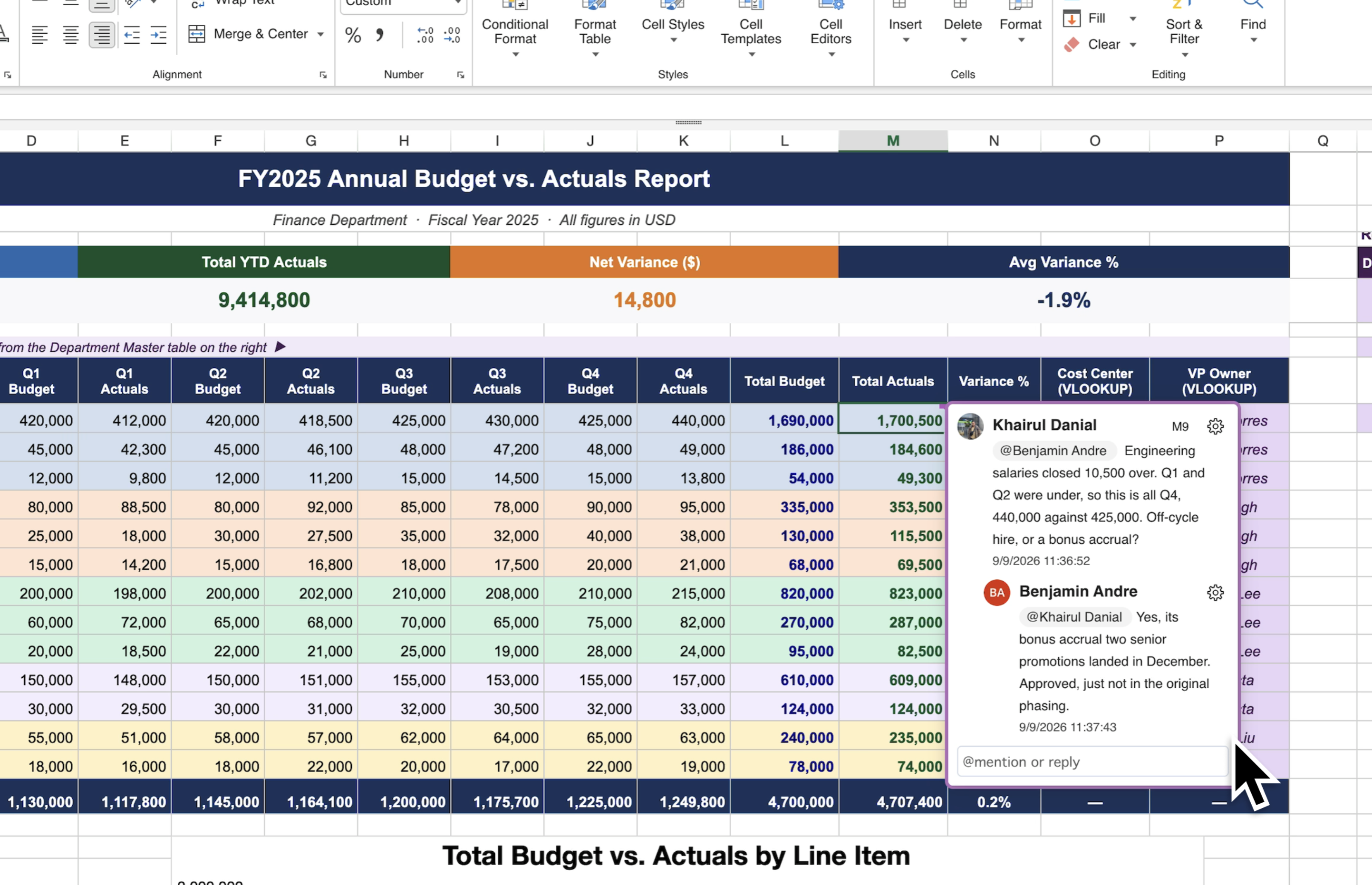
Availability
Threaded comments are only available in the Excel-like Tables macro.
Not supported: Threaded comments are not available in the Excerpt Macro macro or the Embedded Read-Only Table using Permalink macro.
Add a comment
-
Open the Confluence page that contains the Excel-like Table.
-
Right-click the cell you want to discuss.
-
Select New Thread Comment.
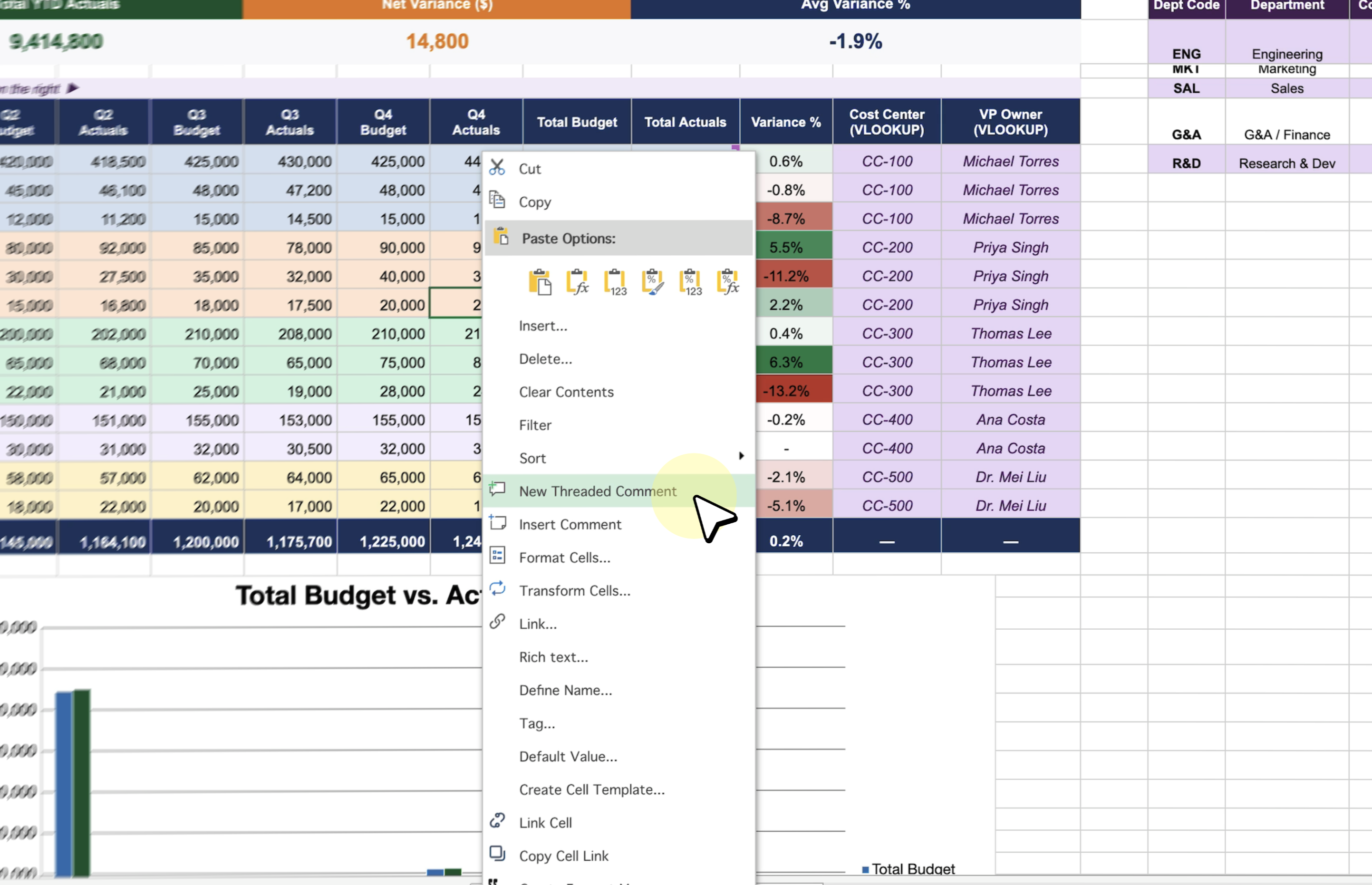
-
Type your comment. To mention someone, type @ followed by their name and pick them from the list.
-
Select Comment.
Commenting while other people are editing
Our macro prevents multiple users editing the same spreadsheet in one session, but comments sit on their own threads. You can add a comment without editing, which improves collaboration.
The spreadsheet edit lock remains: only one person can edit the table at a time to prevent overwriting numbers.
|
Action |
Needs edit mode? |
Works while someone else is editing? |
|---|---|---|
|
Read a thread |
No |
Yes |
|
Start a new thread |
No |
Yes |
|
Reply to a thread |
No |
Yes |
|
Edit or delete your own comment |
No |
Yes |
|
Mention a user |
No |
Yes |
|
Change a cell value, formula or format |
Yes |
No — one editor at a time |
Seeing what other people have added
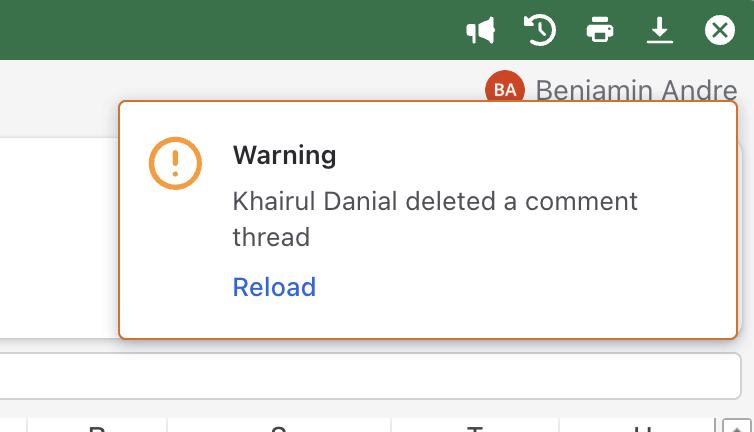
When someone else adds, replies to, resolves or deletes a comment, the table offers to reload the threads. Reloading does not require edit mode and does not interrupt what you are working on.
Comment panel
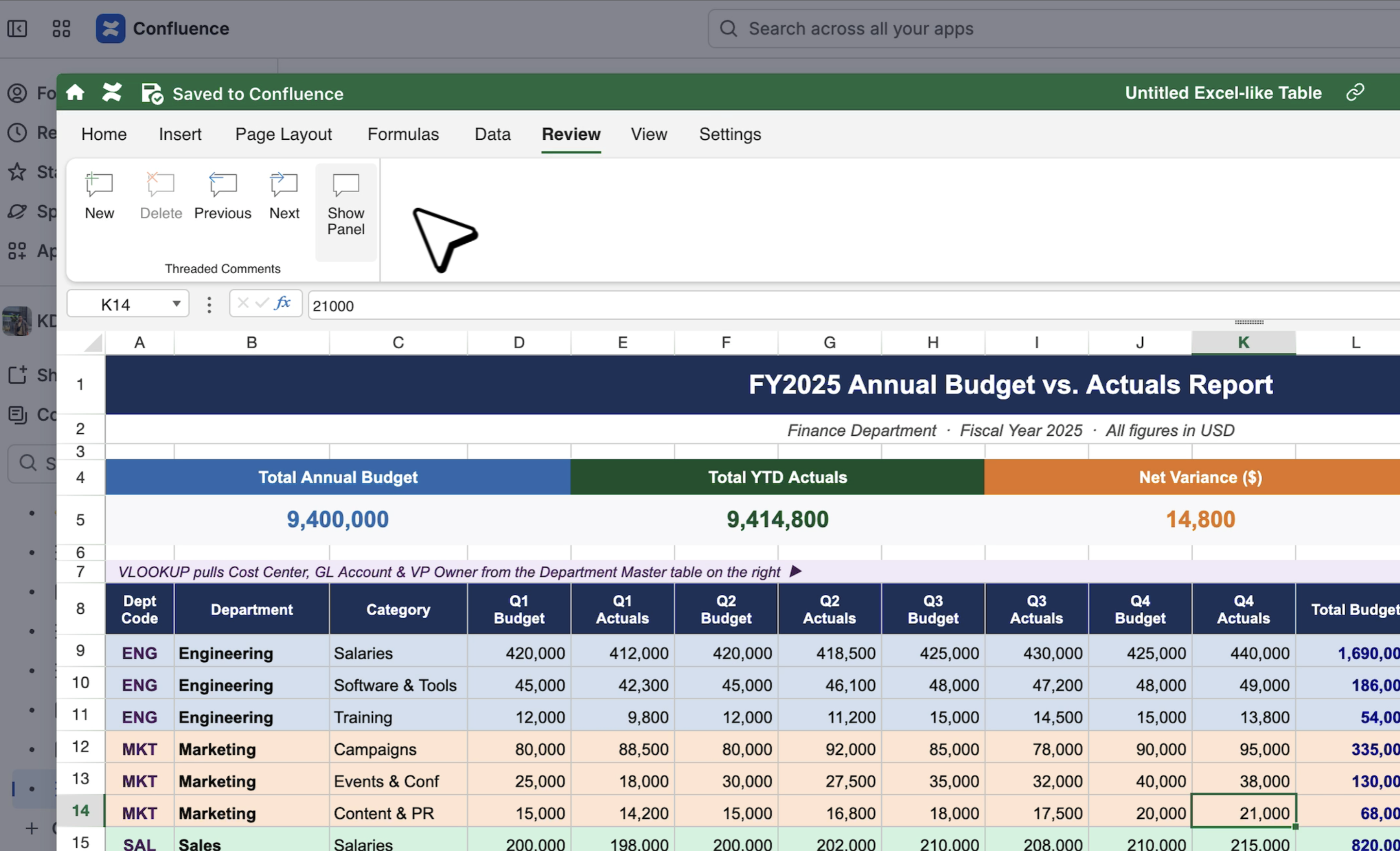
Use the Comment panel to review and manage spreadsheet comments in one place. Open it from the Review tab to see the full comment overview, move between threads, and manage conversations more efficiently.
-
Add a new comment thread when you need to start a new discussion.
-
Delete the current thread when the conversation is no longer needed.
-
Navigate between comments by moving to the previous or next thread.
-
Show the panel overview to view all comment activity in one place.
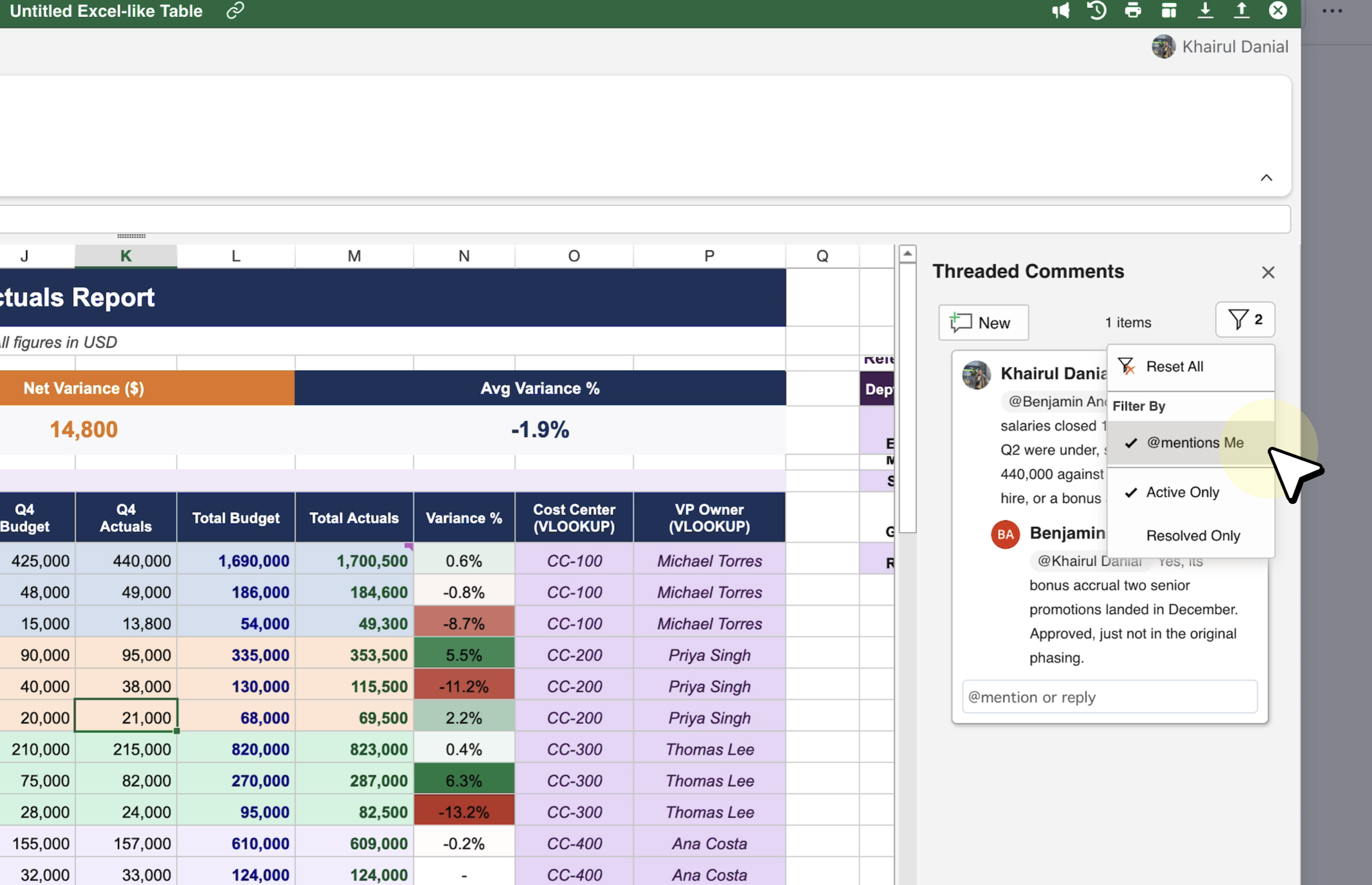
Filter comments that mention you
-
After opening the Comment panel, you can narrow the overview to comments that mention you.
-
Click Show panel.
-
Open the Filter option.
-
Select @mentions me to display only the comments where you are mentioned.
-
Limitations
Please note the following limitations when using threaded comments:
-
Mentions do not trigger Atlassian notifications. Mentioning a user identifies them in the thread, but they will not receive a notification in the Atlassian notification bell.
-
Hidden comments do not save drafts. If a comment thread is closed while you are writing or editing a comment, the unsaved draft is discarded.
-
Mentions are not interactive. Selecting an
@usermention does not open the person’s user card.
Comment vs. Threaded Comment
|
Type |
Description |
Icon |
Example |
|---|---|---|---|
|
Comment |
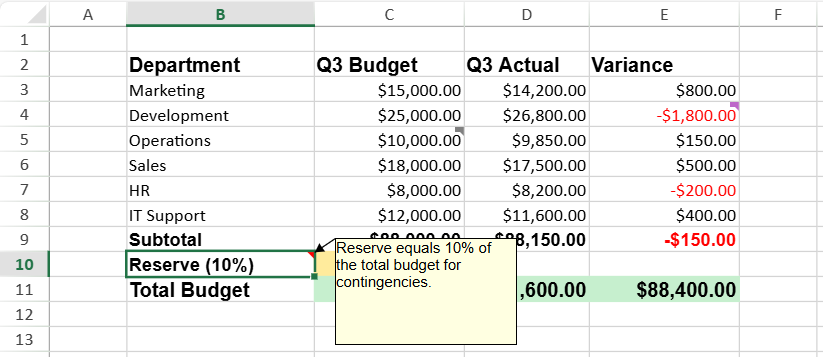
A single text note attached to a cell. It does not support replies or mentions. Similar to Excel’s “Note.” |

|
|
|
Threaded Comment |
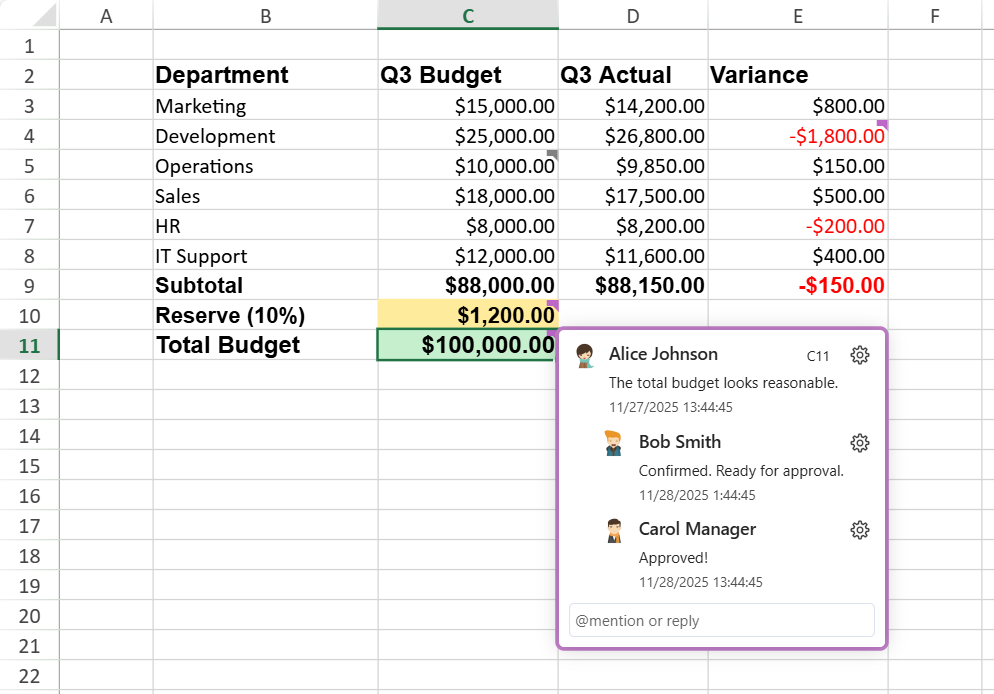
A discussion thread attached to a cell that supports multiple replies, mentions ( |
(Fixed style, auto status color) |
|

