📄 How editing works
Excel-like Tables doesn't support real-time collaborative editing. Only one person can edit a table at a time, so changes never overwrite each other.
To make working together easier, you can request edit access from whoever is editing. They can save their work and hand the table over to you in one click, without you having to message them or wait for them to finish.
🤝 Ask for edit access
When someone else is editing, a notification shows who it is. Click Request edit access.
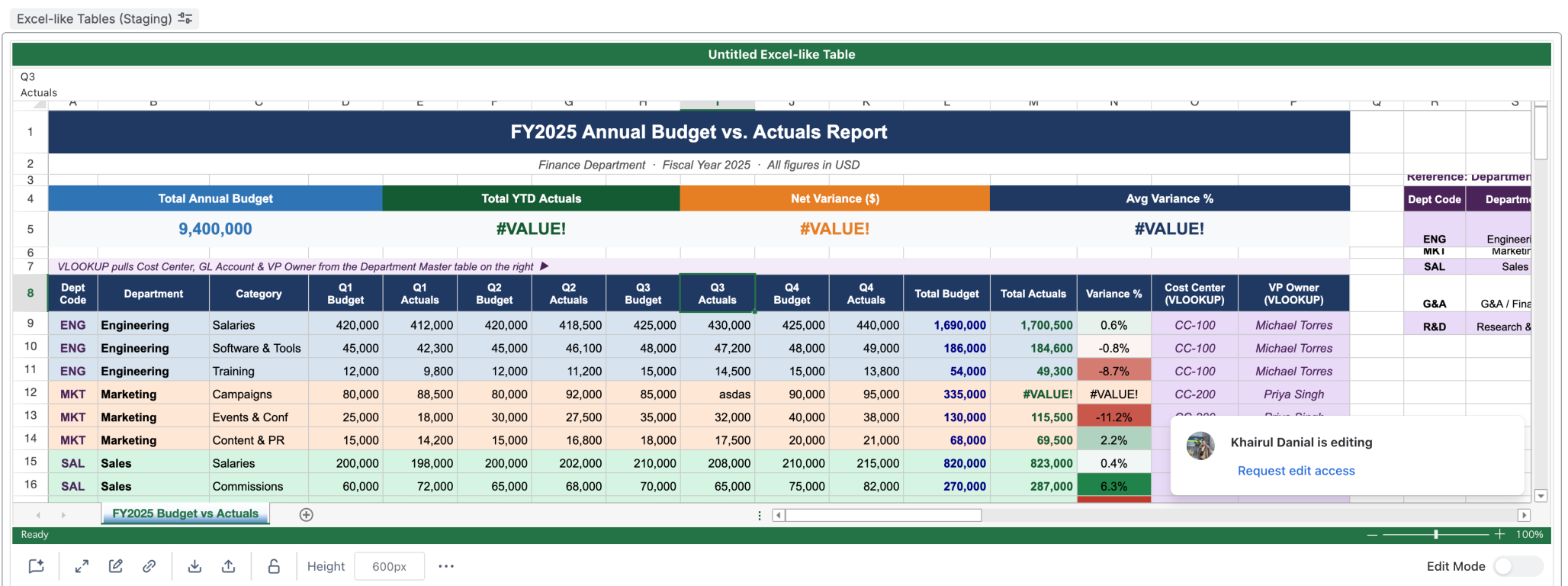
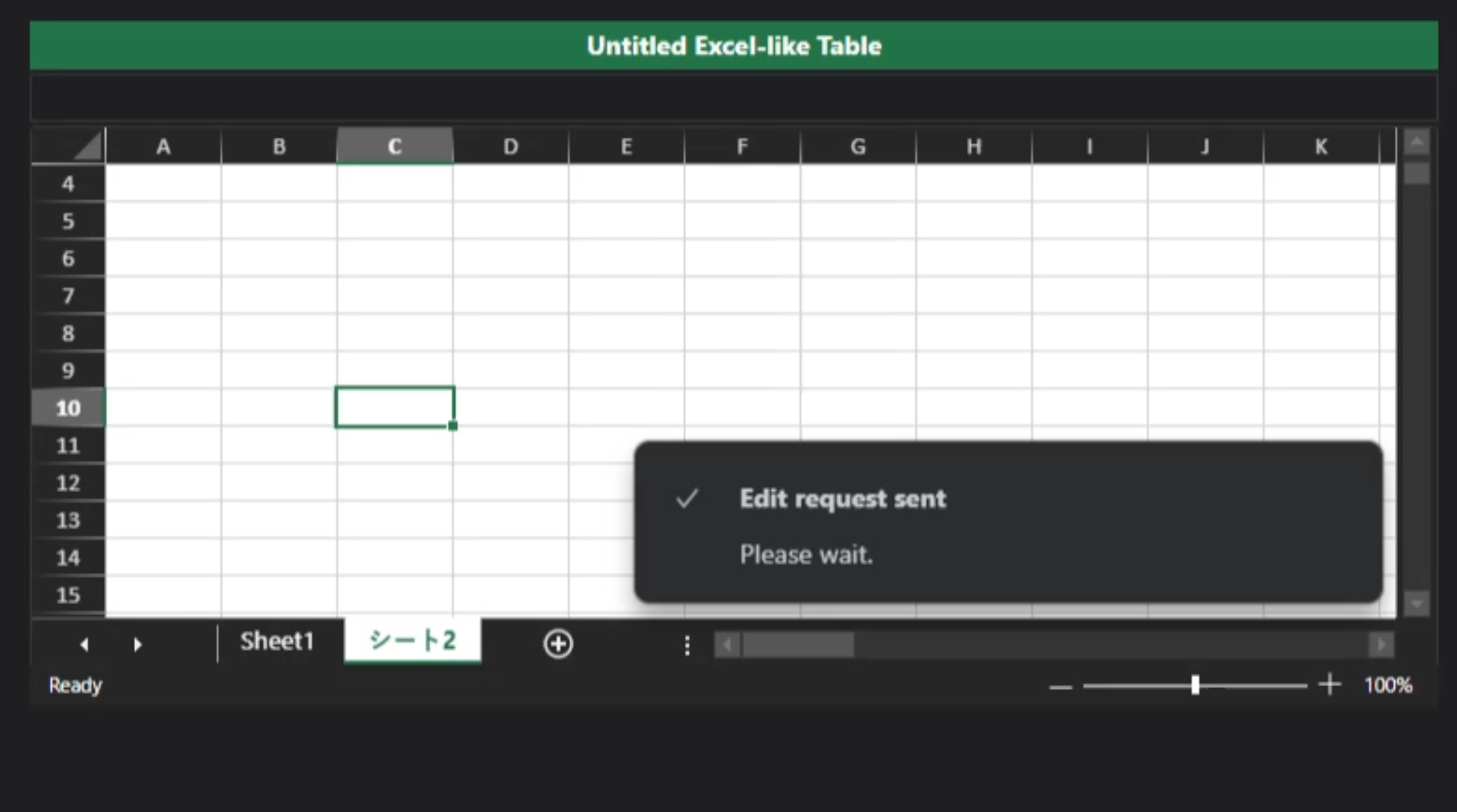
Your request is sent to the editor. If they approve, you can start editing straight away. If they deny it, try again later.
↪️ Hand over the table
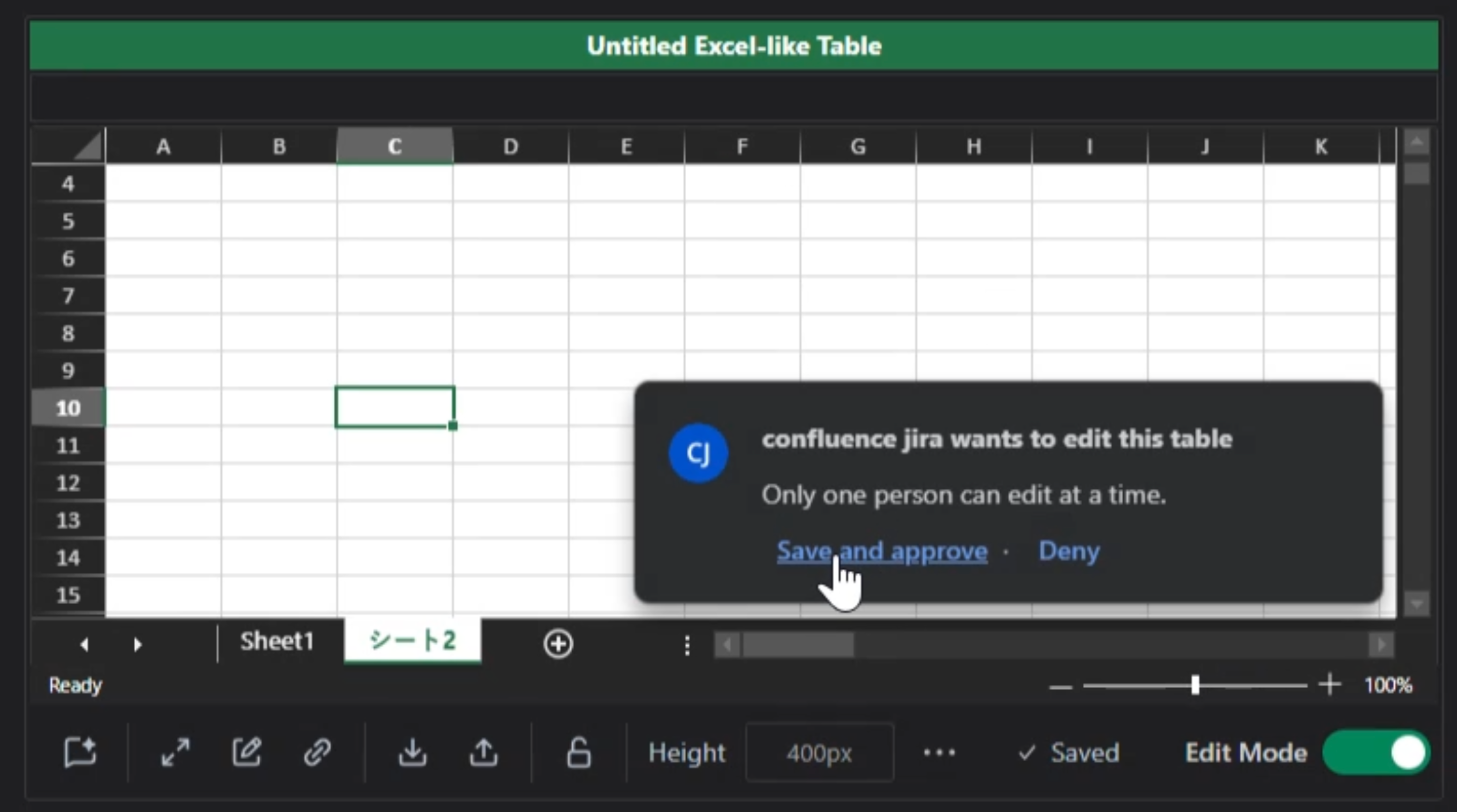
When someone asks for access while you're editing, choose:
|
Option |
Details |
|---|---|
|
Save and approve |
your changes are saved, then they can edit. |
|
Deny |
you keep editing. |
💡 Good to know
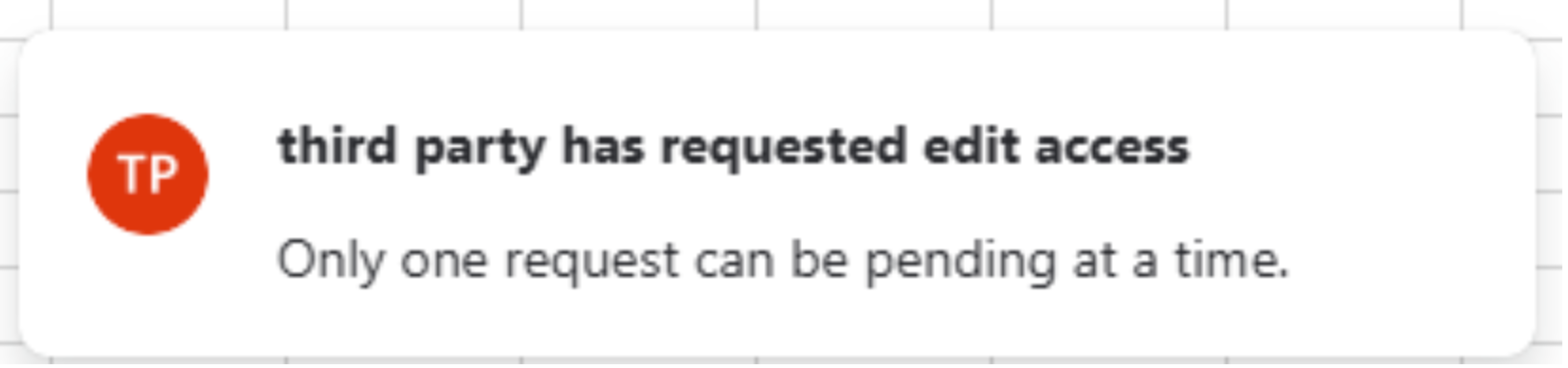
One request at a time. If someone else is already waiting, your request isn't sent. Try again once they've had a reply.
|
Tip |
Details |
|---|---|
|
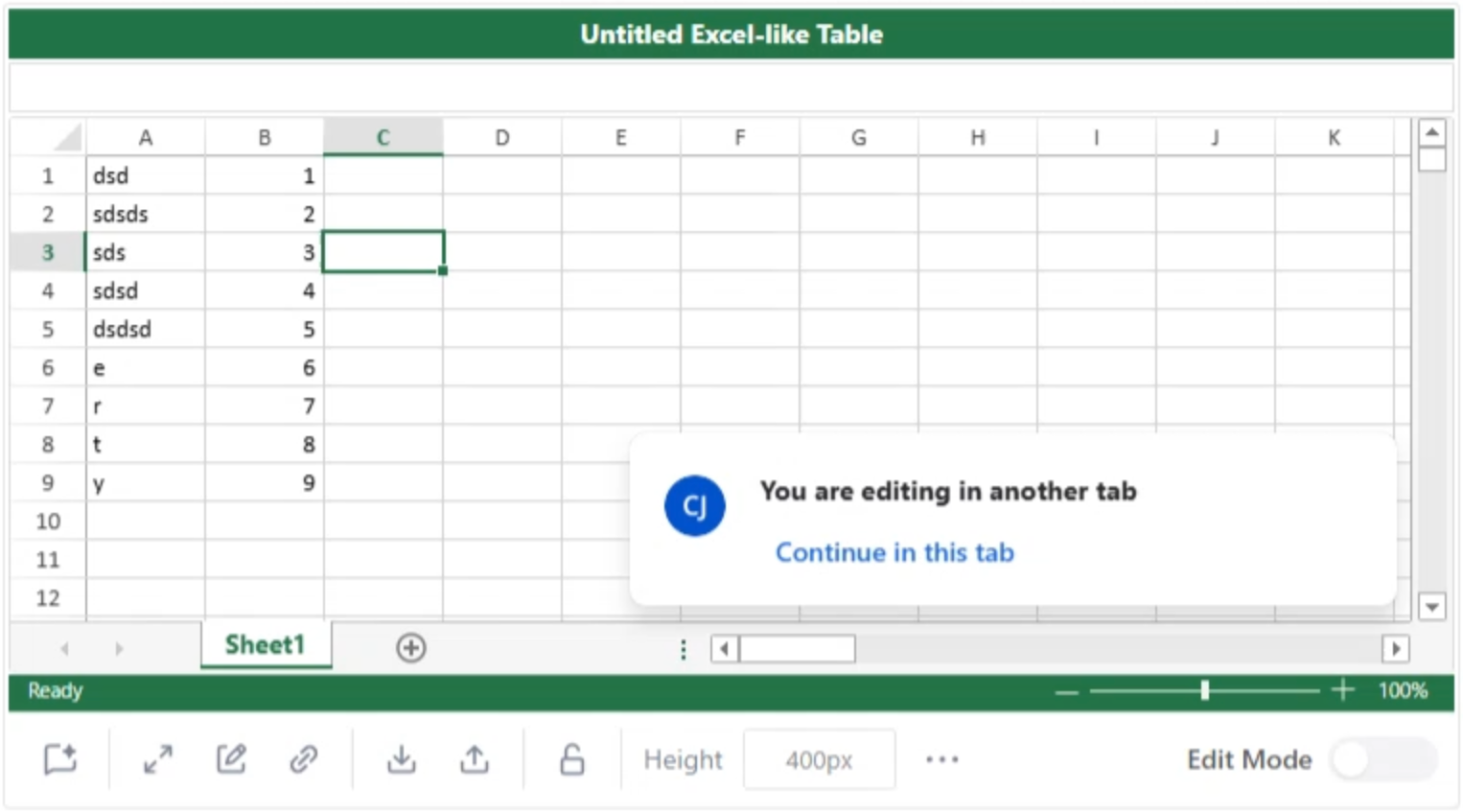
Editing in another tab. |
If you're already editing the table in another browser tab, click Continue in this tab to edit here instead. |
|
Inactivity. |
If an editor is inactive for 4 minutes, they get a 1-minute countdown. If they don't respond, edit mode ends and the table is free for others. |