
The Excerpt Range macro lets you extract and display a specific cell range from an Excel-like Table for Confluence (ETC) on any Confluence page. Use it to share focused, relevant data with different stakeholders without exposing unnecessary details.
✨ Key Benefits
-
Targeted information sharing: Present only the data segments relevant to each stakeholder group.
-
Automatic updates: Changes in the source table are reflected in the excerpted range, helping keep data consistent.
-
Cleaner pages: Display only the data users need, keeping pages uncluttered and easier to navigate.
There are two ways to create the Excerpt Range macro:
-
Create it directly from the fullscreen editor.
-
Create it manually from a Confluence page.
1. Create an excerpt from the fullscreen editor
Available in version 7.0 and later, this faster workflow lets you create an excerpt directly from a selected spreadsheet range.
-
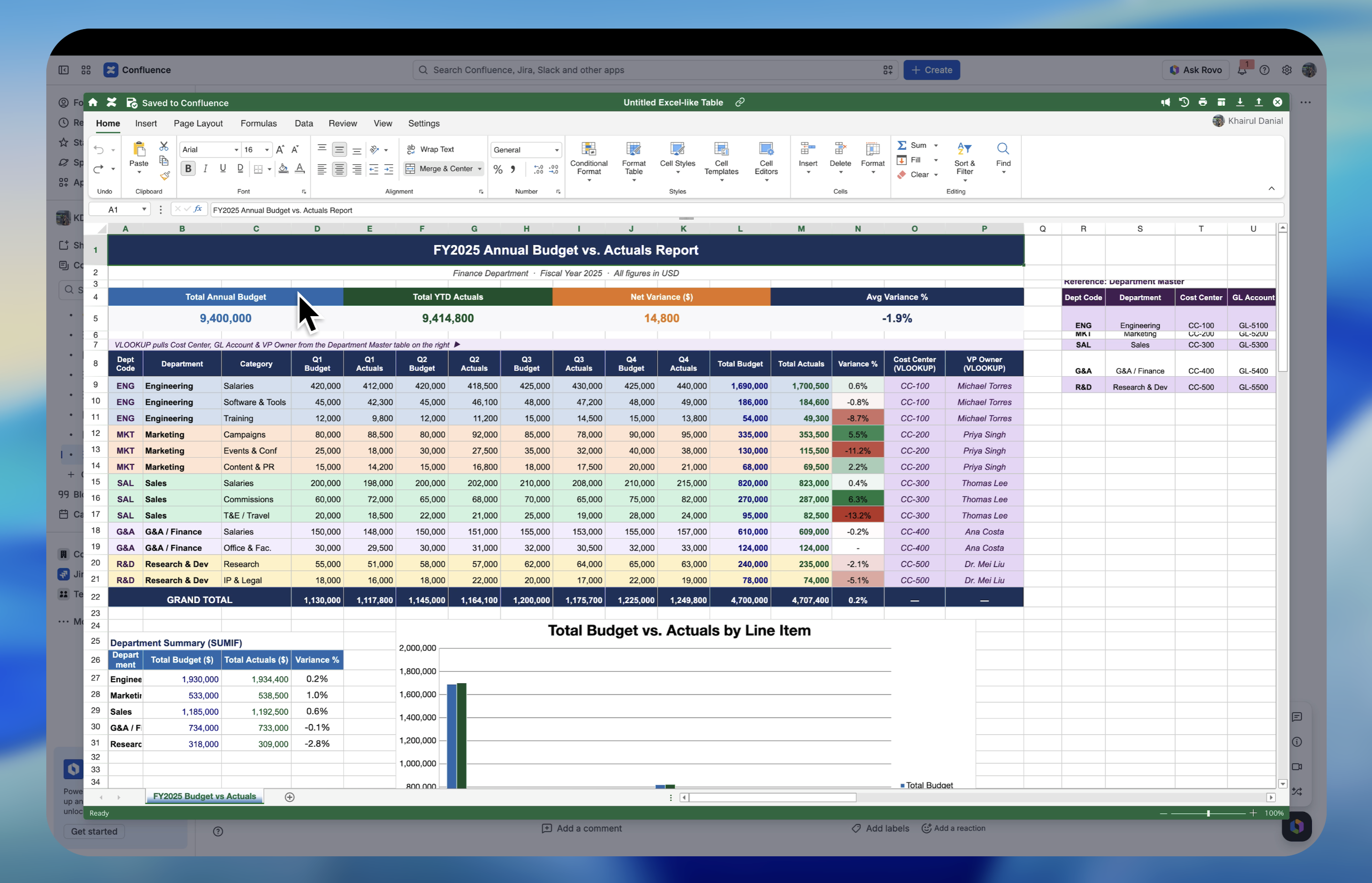
Open the spreadsheet in the fullscreen editor.
-
Select the cells you want to excerpt.
-
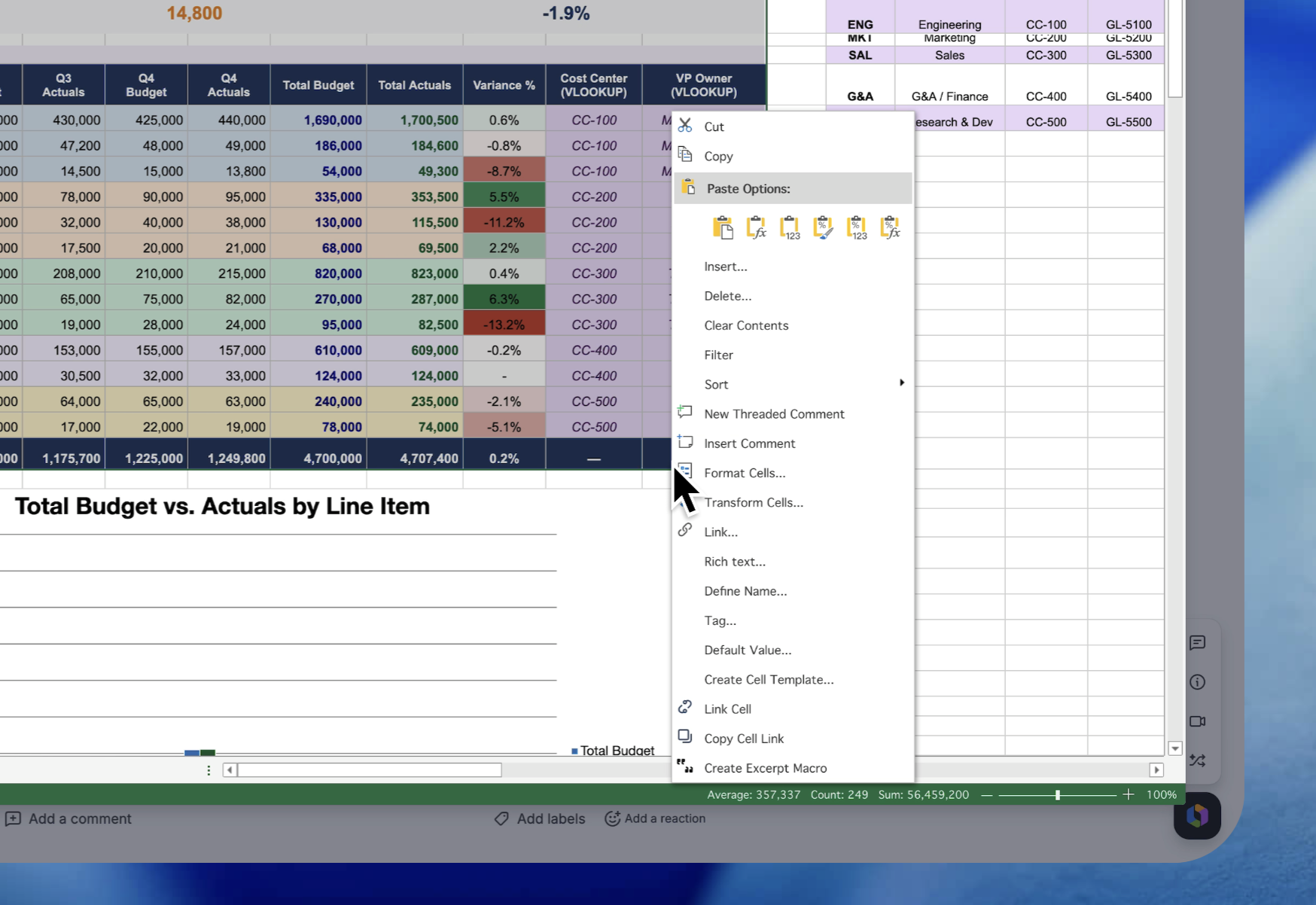
Right-click the selected range to open the context menu.
-
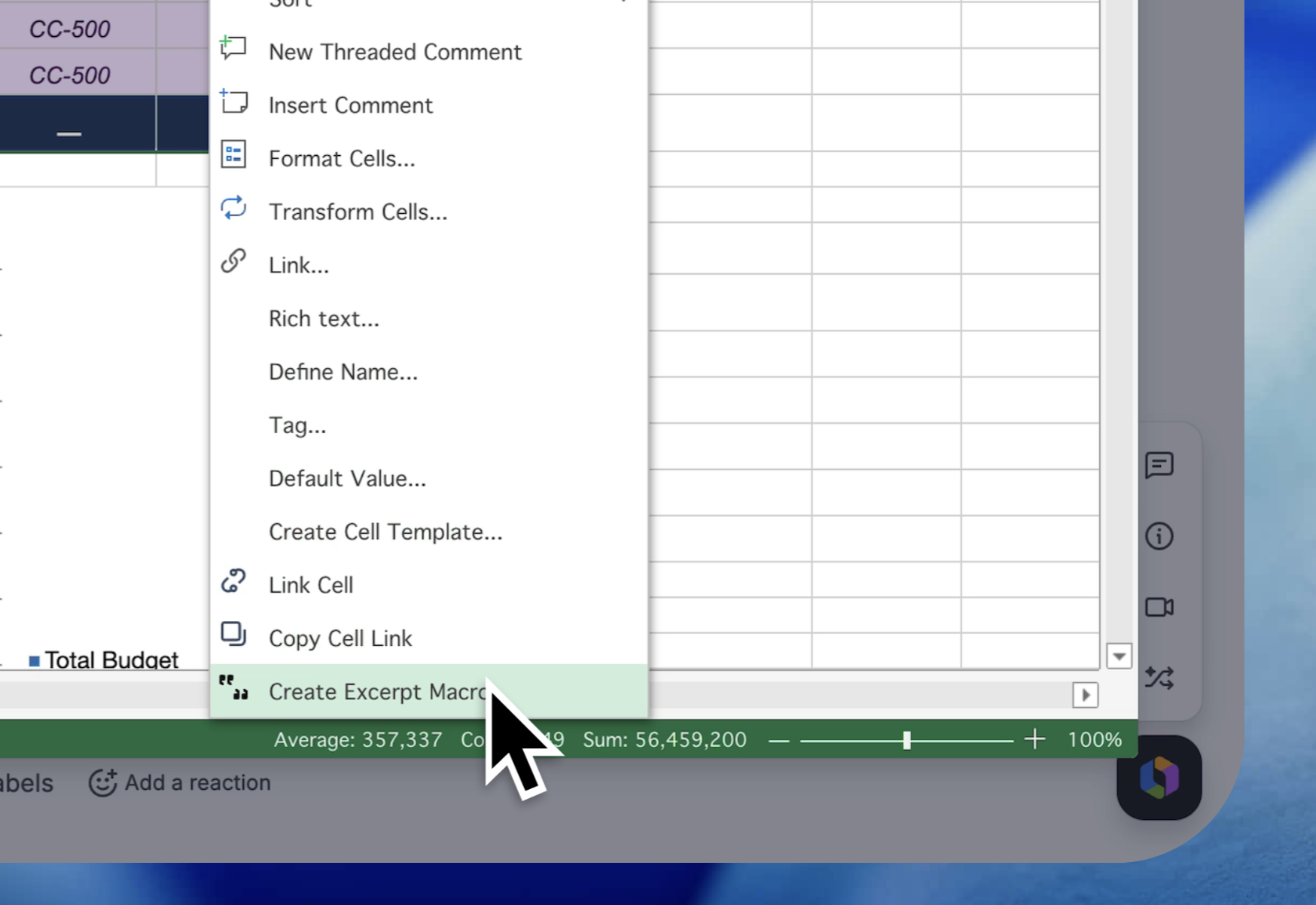
Select Create Excerpt Macro.
-
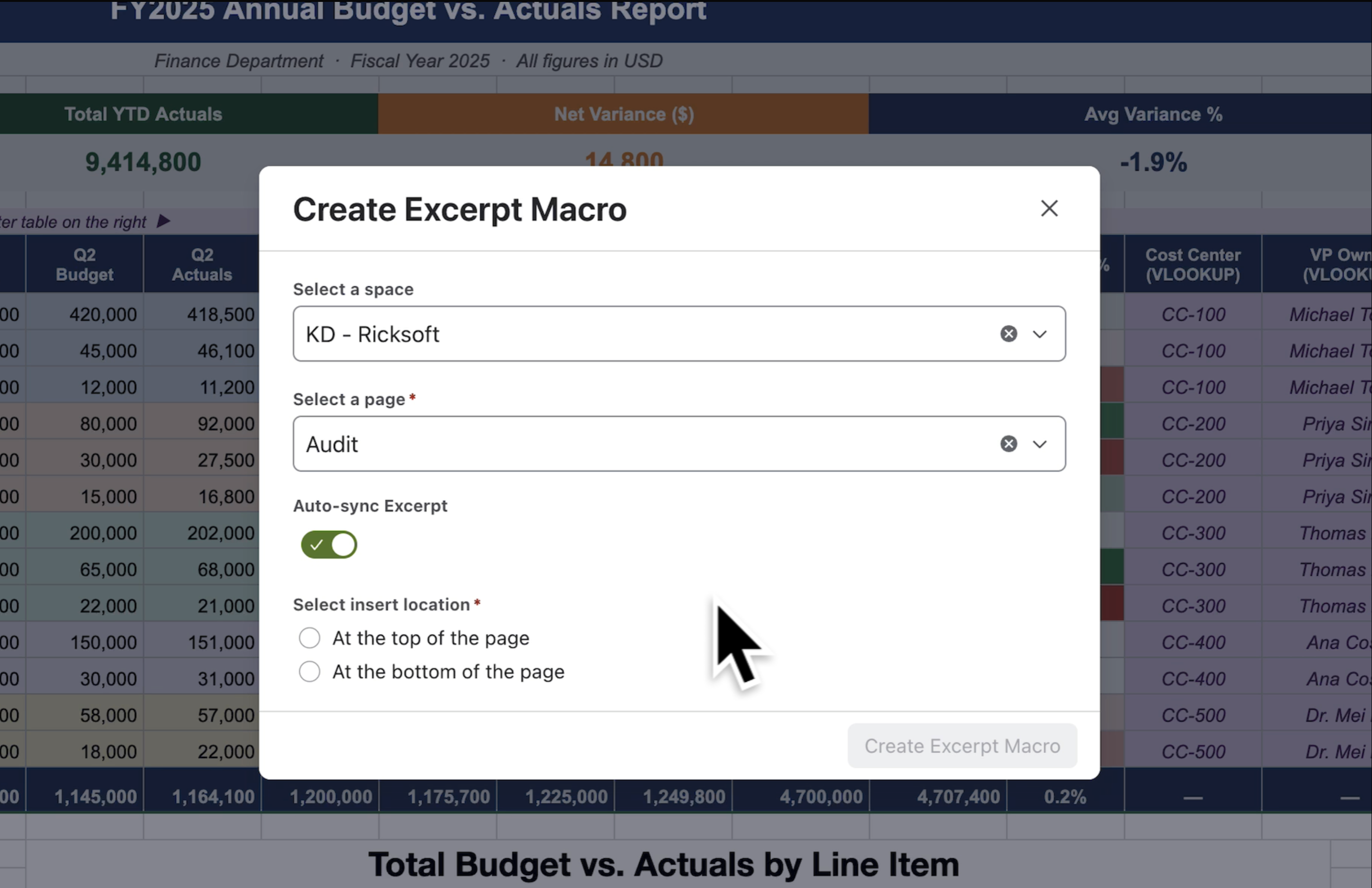
Configure where the Excerpt macro should add the excerpt.
-
Choose the target space and page.
-
Enable Auto Sync to update the excerpt automatically when the source table changes. If Auto Sync is disabled, refresh the excerpt manually.
-
Choose where to insert the macro: top of page or bottom of page.
-
The selected range is added to the Confluence page as an excerpt, so you do not need to configure the Excerpt macro separately.
Create an excerpt from a Confluence page
1. Insert the Macro
-
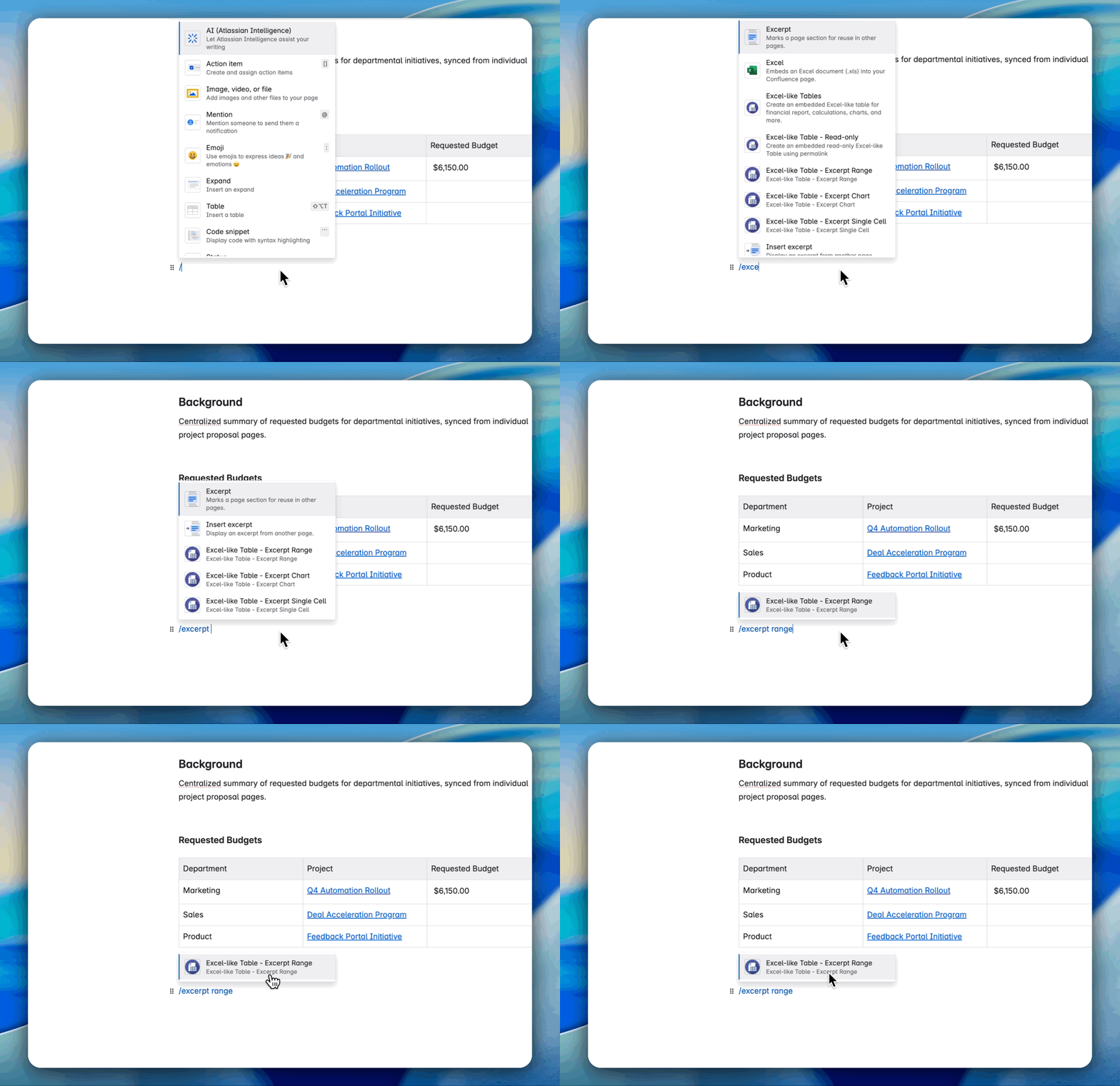
In Confluence page edit mode, type
/excerpt range. -
Select the Excerpt Range macro from the list.
2. Configure the Macro
-
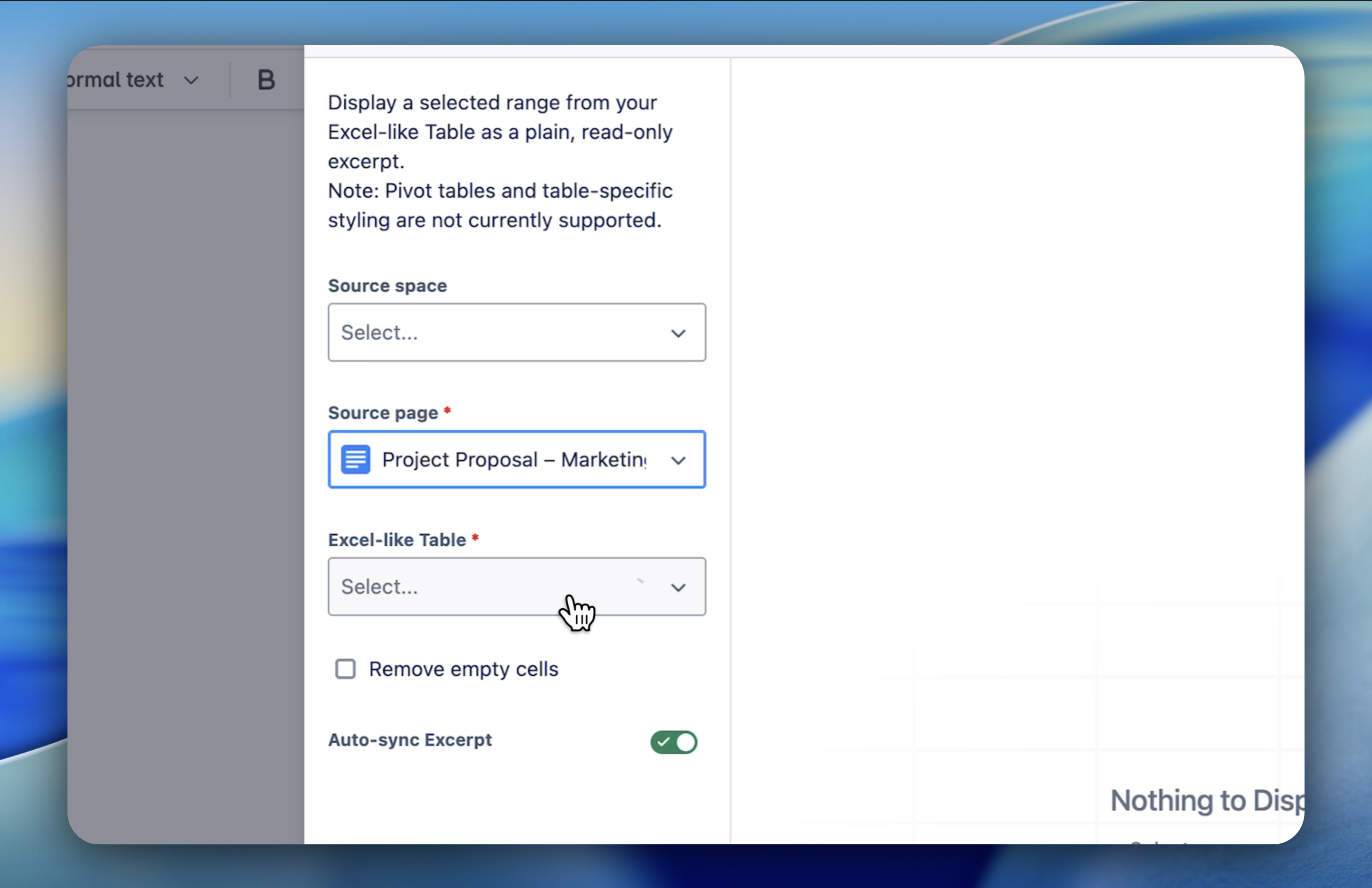
The configuration dialog appears.
-
Select the source page and the Excel-like table you want to reference.
-
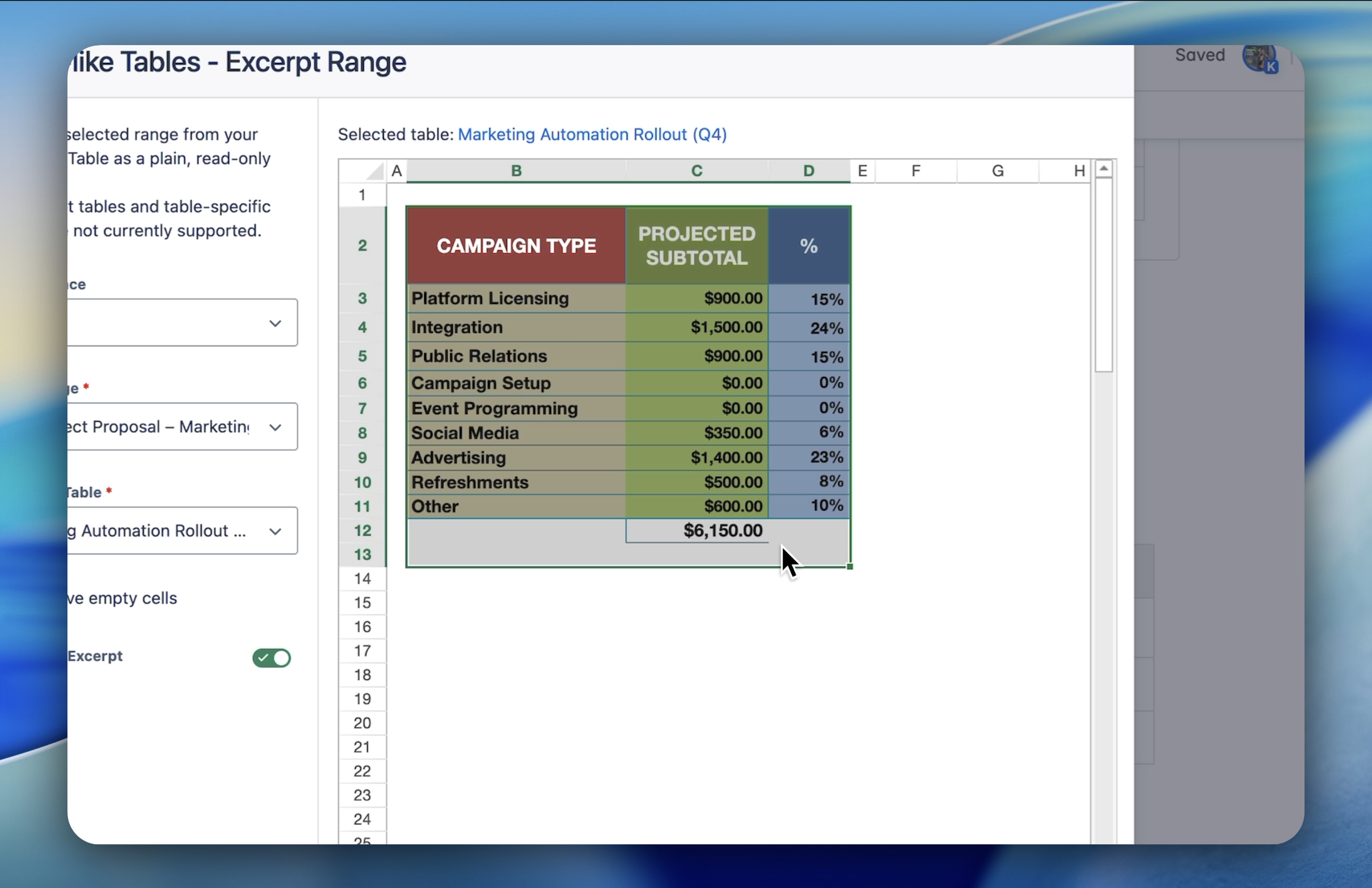
In the preview panel, click and drag to select the cell range you want to excerpt.
-
Click Excerpt to confirm your selection.
Tip: Use these options to control how the excerpt is displayed and updated.
-
Select Remove Empty Cells to hide empty cells from the output.
-
Enable Auto Sync to automatically update the excerpt when the source table changes.
3. Finalize and Display
-
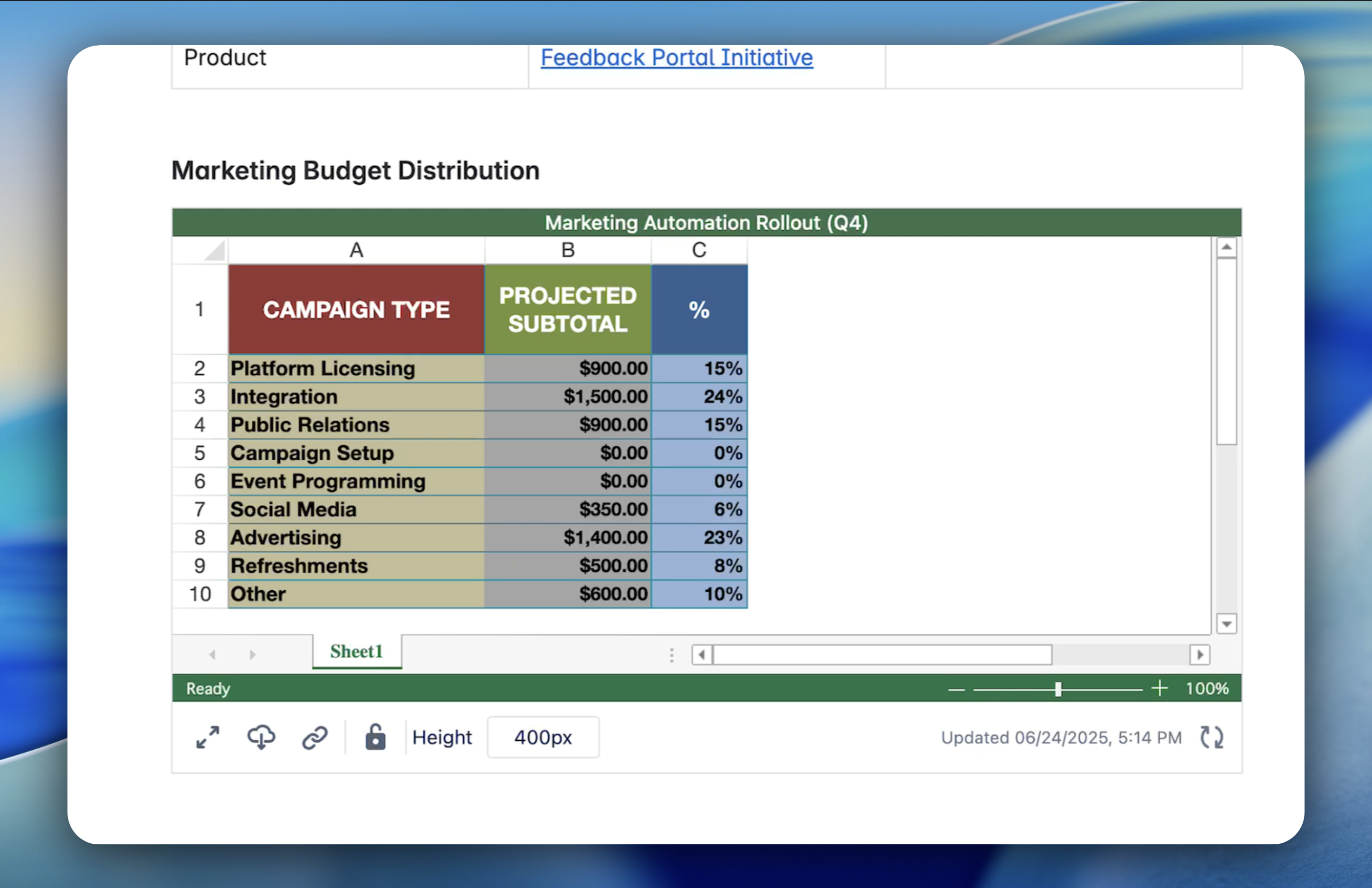
The selected cell range will now be displayed on your Confluence page.
Use Case Examples
|
Stakeholder Group |
Use Case |
Description |
|---|---|---|
|
Executives |
Financial Overview |
Display key financial metrics like "Total Revenue" and "Net Profit" without exposing detailed line items. |
|
Project Managers |
Project Milestones |
Show upcoming milestones and deadlines relevant to their projects. |
|
Team Members |
Task Assignments |
Present individual task lists and responsibilities extracted from a master project plan. |
Known limitation: Pivot tables
The Excerpt Range macro does not support pivot table styling within the selected range.
If the selected cell or range contains a pivot-style layout, the excerpt may appear:
-
Partially rendered
-
With misaligned rows or columns
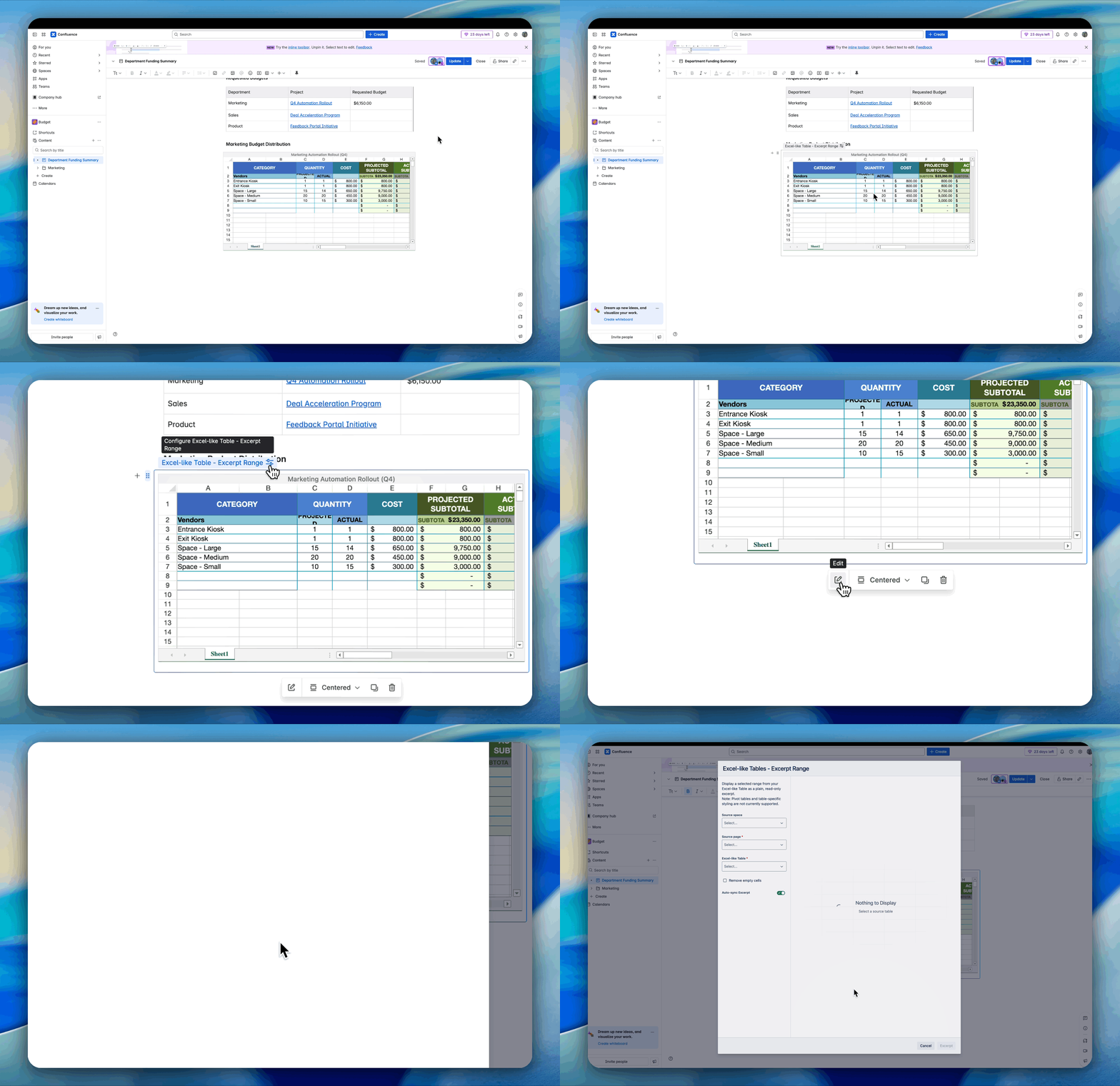
To modify a macro:
-
Hover over the macro you wish to edit.
-
Click on the Edit button that appears.
This will open the macro's settings, allowing you to make the necessary changes.