
A Gantt chart lets you plan faster by reusing existing task structures across projects or pages without duplicating the entire chart.
Use Copy rows and Paste rows to duplicate complete Gantt rows, such as a group of related tasks, a repeated project phase, or a reusable task sequence.
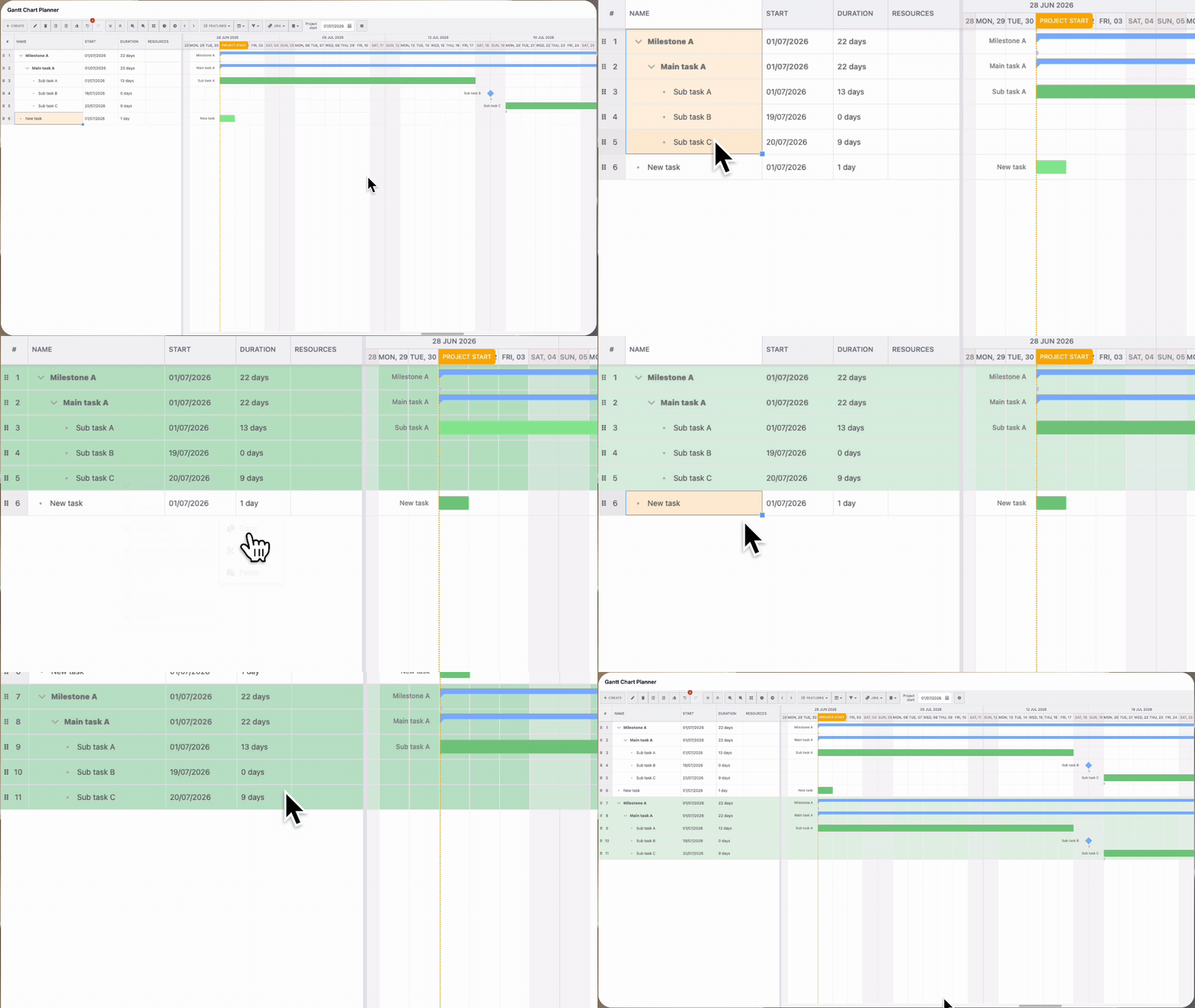
Copy rows
-
Select the Gantt rows that you want to duplicate.
-
Right-click the selected rows.
-
Choose Copy rows.
Paste rows
-
Select the destination row where you want to insert the copied rows.
-
Right-click the destination row.
-
Choose Paste rows.
The copied rows are inserted at the selected location in the Gantt chart.
You can also use keyboard shortcuts to copy and paste rows:
-
Windows:
Ctrl + Shift + Cto copy rows, thenCtrl + Shift + Vto paste rows. -
Mac:
Cmd + Shift + Cto copy rows, thenCmd + Shift + Vto paste rows.
Copying cells vs. copying rows
Normal cell copy and paste still works the same as before. Use normal copy and paste when you only need to copy values from one or more cells, such as a task name, date, assignee, progress value, or other field data.
Row copy and paste differs because it duplicates entire Gantt rows instead of copying only cell values. Use Copy rows and Paste rows when you want to recreate complete task rows or selected task structures at another location in the chart.
|
Action |
What it copies |
Use it when |
|---|---|---|
|
Normal copy and paste cells |
Only the selected cell values |
You want to update existing rows or reuse field values without creating new rows. |
|
Copy and paste rows |
Entire selected Gantt rows |
You want to duplicate tasks, task groups, or reusable task structures without recreating them manually. |
Properties included when copying rows
When you use Copy rows, the copied row keeps the main task details from the selected Gantt rows so you can reuse the task structure without rebuilding it manually.
Copied row properties include:
-
Task name
-
Start date and finish date
-
Duration
-
Progress
-
Assignee
-
Predecessor information and task dependencies, where applicable
-
Hierarchy or indentation within the selected rows, where applicable
-
Other supported Gantt field values shown in the copied rows
Row copy and paste does not change how normal cell copy and paste works. If you only copy cells, only the selected cell values are copied.
Key differences
-
Cell copy and paste changes values in existing cells only.
-
Row copy and paste inserts duplicated rows into the chart.
-
Use cell copy and paste for quick field updates.
-
Use row copy and paste for reusable task structures or repeated planning modules.