
Question
When using WBS Gantt-Chart for Jira, values such as start and end dates are not displayed.
Even after entering and saving the schedule, the schedule disappears upon reloading.
Answer
You need to make sure the fields mapped in the global work item settings of WBS Gantt-Chart for Jira are available in the relevant Jira space configuration. The required setup depends on whether the space is team-managed or company-managed.
For team-managed spaces
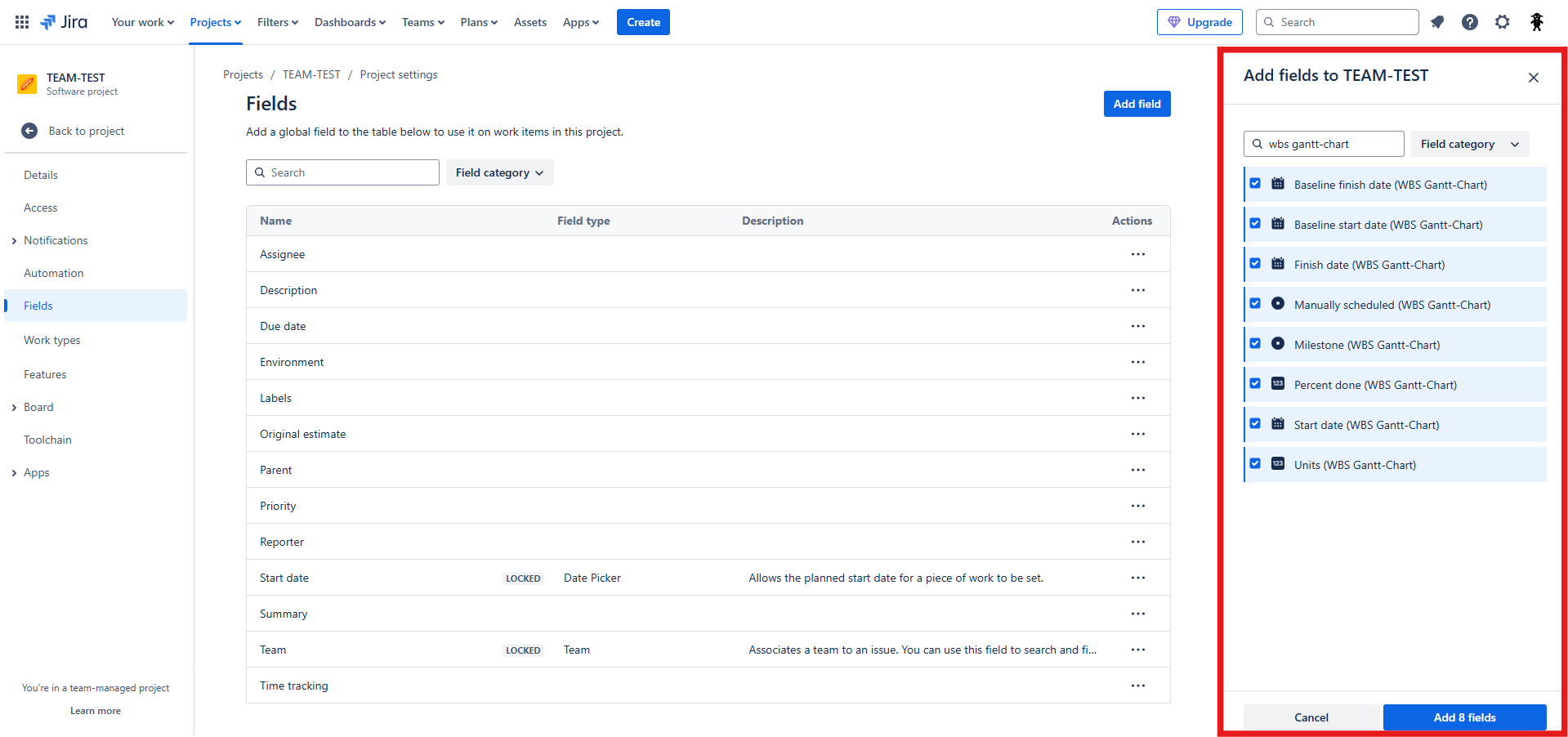
What needs to be changed: Add the WBS Gantt-Chart for Jira fields to the team-managed space so Jira can return their values to the app.
Why this is required: Due to API specification changes in Atlassian Cloud, which began rolling out in late February 2025, team-managed spaces can now only retrieve data from fields that have been explicitly added to the space.
Steps:
-
Open the target team-managed space in Jira.
-
Go to Space settings.
-
Under Space settings, select Work item types.
-
Select each work item type used in WBS Gantt-Chart for Jira.
-
In the work item type layout, add each field mapped in the WBS Gantt-Chart for Jira global work item settings, such as the start date and end date fields.
-
Save the changes, then reload the work item or WBS Gantt-Chart view and confirm that the schedule values are displayed correctly.
For company-managed spaces
What needs to be changed: Make sure the WBS Gantt-Chart for Jira fields are available and visible in the Jira Field Configuration used by the company-managed space.
Why this is required: Company-managed spaces control field visibility through field configurations. If a mapped field is hidden in the field configuration, WBS Gantt-Chart for Jira cannot display its value.
Steps:
-
In Jira, go to Settings > Work items.
-
Under Fields, select Field configurations.
-
Open the field configuration associated with the company-managed space where WBS Gantt-Chart for Jira is used.
-
Find each field mapped in the WBS Gantt-Chart for Jira global work item settings, such as the start date and end date fields.
-
Confirm that the fields are not hidden. If a field is hidden, select Show to make it available.
-
Save the changes, then reload the work item or WBS Gantt-Chart view and confirm that the schedule values are displayed correctly.
Note: If the space uses multiple work item types, check the field configuration scheme to confirm which field configuration applies to each work item type. Repeat the steps for every relevant field configuration.