
Space Sync for Confluence allows you to temporarily stop syncing a page to a specific destination space and resume syncing when needed.
Stop syncing a page
-
Go to the page you want to stop syncing.
-
Open the Page sync status dialog.
-
Find the destination space you want to stop syncing and select Stop syncing.
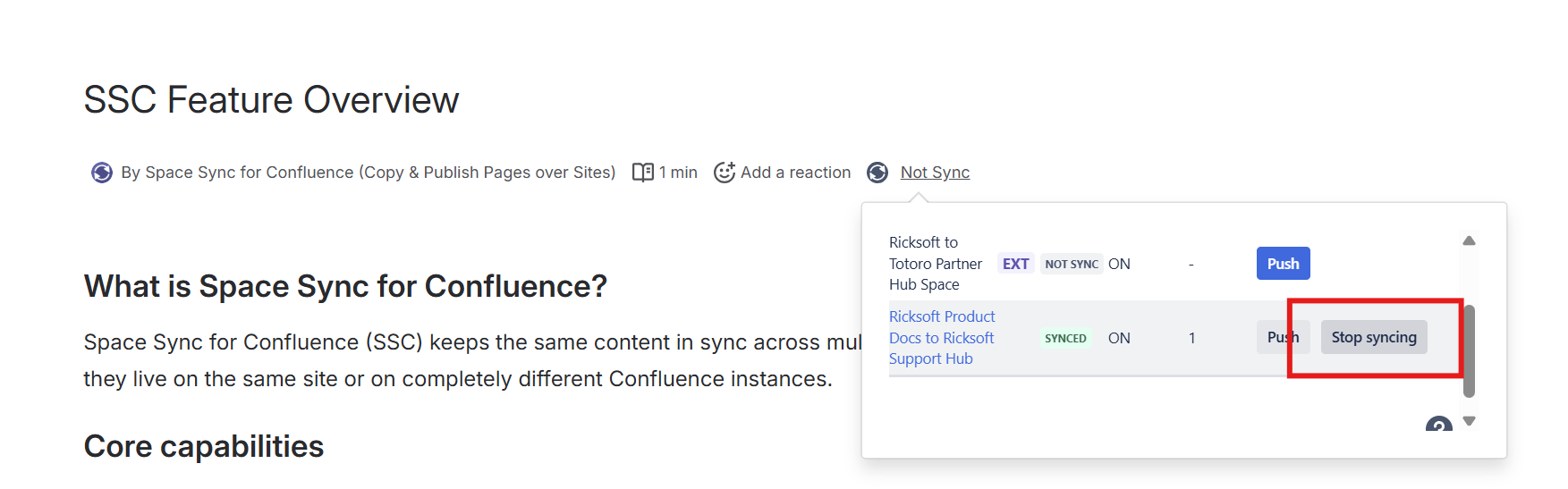
The status changes to Stopped. The Push action is disabled for that destination until syncing is resumed.
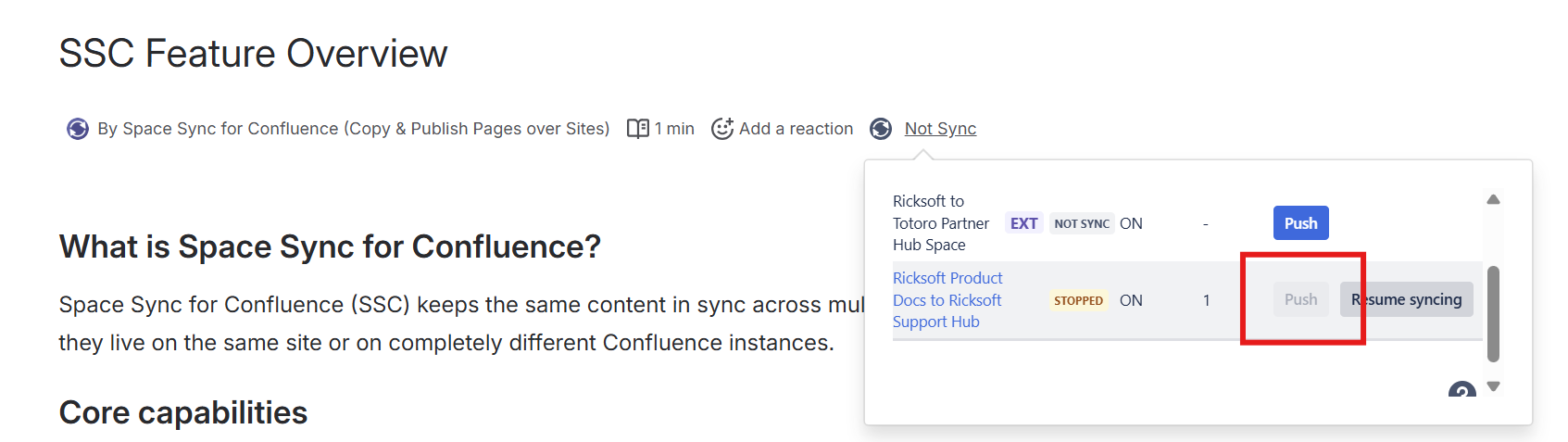
If the page is synced with multiple destination spaces, Stop syncing affects only the selected destination.
What happens when syncing is stopped
-
The existing page in the destination space is retained.
-
Changes from the source page are not pushed to the stopped destination.
-
Auto-sync does not update the stopped destination.
-
Bulk sync skips the stopped destination.
Resume syncing a page
-
Open the Page sync status dialog.
-
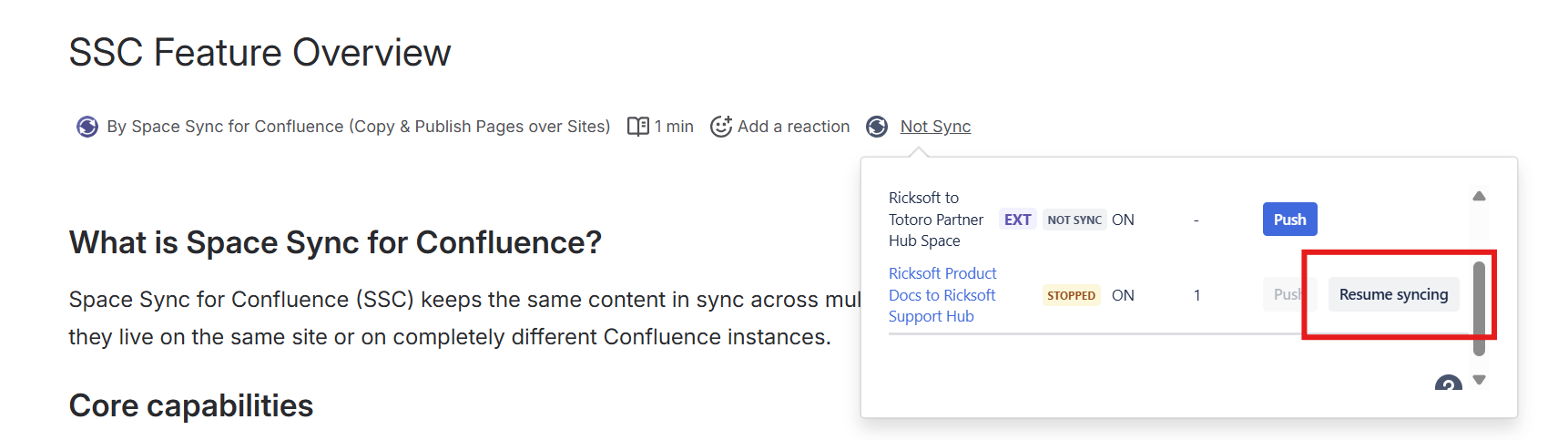
Find the destination with status Stopped and select Resume syncing.
-
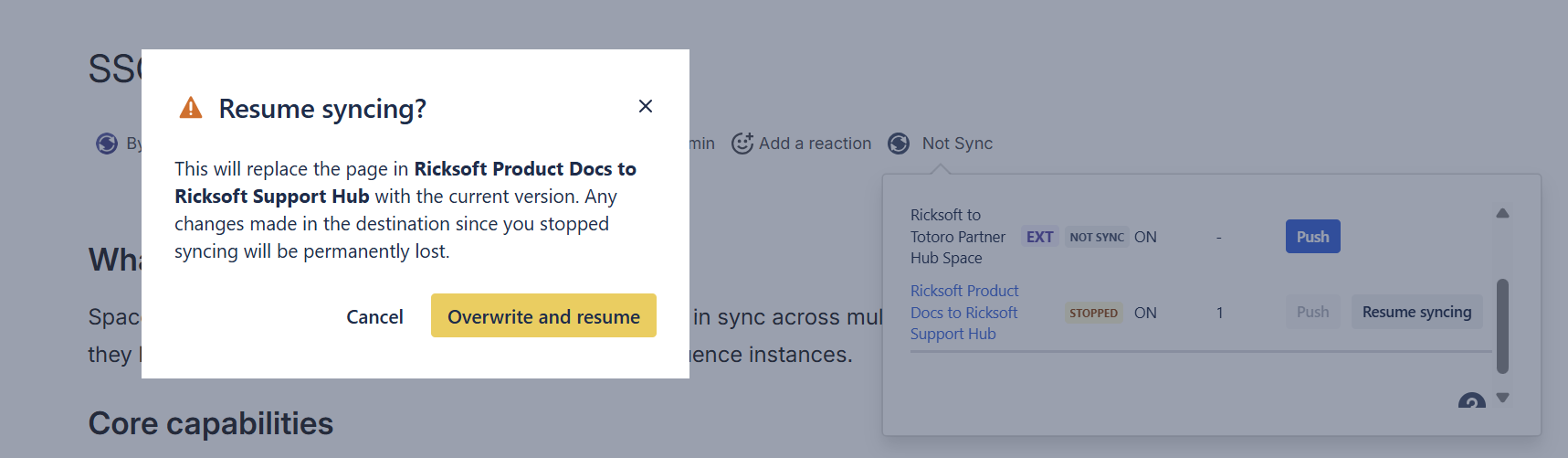
Review the confirmation message.
-
Select Overwrite and resume to continue.
Resuming syncing replaces the destination page with the current source version. Changes made directly in the destination while syncing was stopped will be permanently lost.
When the sync finishes successfully, the destination status changes back to Synced.
Notifications
After a successful Stop syncing or Resume syncing action from the Page sync status dialog, the destination space administrator receives an email notification.
Related guide
See How to Check Page Sync Status to learn more about page sync statuses.