
Overview
Gantt Chart Planner for Confluence Cloud includes a PDF export feature that lets you export high-fidelity, paginated PDF documents (or PNG images) of your Gantt charts directly from within Confluence.
This feature preserves chart styling, dependency lines, milestones, progress, and task hierarchies, with support for customizable page sizes and orientations, plus automatic multi-page splitting.
Step-by-Step Guide
Step 1: Open the Gantt Chart
-
Navigate to the Confluence page containing the Gantt Chart Planner macro.
-
You can perform the export from either:
-
View mode: Directly on the embedded Gantt macro toolbar.
-
Edit / Full-screen mode: Inside the Gantt chart editor.
-
Step 2: Open the PDF Export Dialog
-
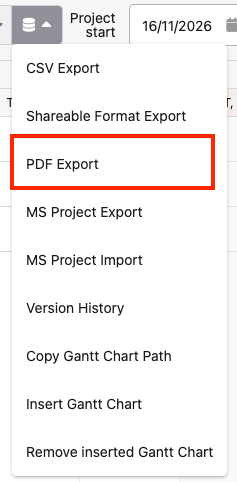
On the Gantt chart toolbar, click the Export menu dropdown.
-
Select PDF Export.
-
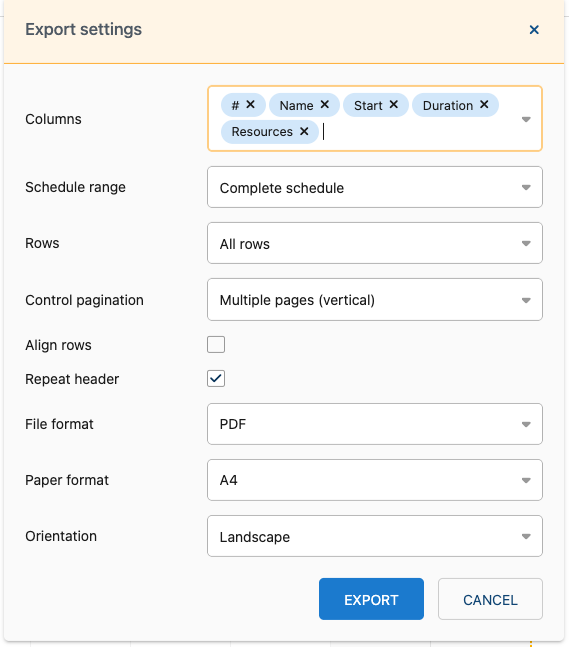
The Export Settings dialog will appear.
Step 3: Configure Export Settings
Customize the layout and scope of the export according to your needs:
|
Setting |
Options |
Default |
Description |
|---|---|---|---|
|
Columns |
Multi-select column list |
Current table columns |
Select which grid columns (e.g., WBS, Task Name, Start Date, Finish Date, % Done) to include in the exported table. |
|
Schedule range |
|
Complete schedule |
|
|
Rows |
|
All rows |
Export all tasks or only rows currently expanded/visible. |
|
Control pagination |
|
Multiple pages (vertical) |
Controls how rows and the timeline break across pages. • Multiple pages (vertical) fits the chart width to the page and continues rows downward across subsequent pages. • Single page shrinks both width and height to fit on one sheet. |
|
Repeat header |
Checked / Unchecked |
Checked |
Repeats column headers and timeline axis headers at the top of every exported page. |
|
File format |
|
|
|
|
Paper format |
|
A4 |
Standard paper sheet sizes. |
|
Orientation |
|
Landscape |
Document orientation. Landscape is recommended for wide timelines. |
Step 4: Check for Timeline Warnings
If your project timeline spans many months or years, fitting it onto smaller paper (like A4 or Letter) may cause the timeline text or bars to compress:
-
The dialog automatically detects if the timeline will be scaled below 35% or span more than 4 horizontal pages.
-
A warning banner will display advising:
“The timeline (
<start>–<end>) is long for this paper size and will be shrunk to<X>%. Choose a shorter date range or zoom out before exporting.” -
Recommendation: If you see this warning, switch to a larger paper format (e.g., A3), select Visible timeline / Date range, or zoom out the timeline view before opening the export dialog.
Step 5: Export and Download
-
Click Export.
-
A progress overlay will appear showing the status of page generation and server rendering.
(You can click Cancel / Abort at any time to stop the process). -
When rendering completes, your browser will automatically download the file:
-
Filename format:
gantt-chart-export_YYYYMMDDHHmm.pdf
-
-
The exported document will include:
-
Header: Export timestamp in the top-right corner.
-
Footer: Page numbering (
Page X / Y) in the bottom center.
-
Best Practices & Tips
-
Best settings for long task lists: Use Multiple pages (vertical) with Repeat header enabled. This ensures that column names and dates appear at the top of every page while tasks flow naturally downward.
-
Handling Jira Avatars & Icons: Issue type icons and user avatar initials are automatically embedded.
-
Resource Histogram: If you have the Resource Allocation / Histogram panel open, close it before exporting, as the export focuses on the Gantt timeline.
Troubleshooting & Error Messages
|
Error Message |
Cause |
Resolution |
|---|---|---|
|
"The Gantt Chart is too large to export." |
The export payload exceeds memory or page-size limits (>300 pages or a large data payload). |
Reduce the number of visible rows (collapse subtasks), narrow the date range, or exclude non-essential columns. |
|
"Too many exports are running. Please try again in a moment." |
Concurrent export slots are temporarily full, or another export started by your account is still in progress. |
The app will automatically retry for up to 3 minutes; otherwise, wait a moment and click Export again. |
|
"Failed to export. Please try again later." |
Rendering service timed out or encountered an unexpected backend issue. |
Try exporting a smaller date range or a single-page view. |