
This guide explains how a space admin can enable Excel Like Tables so that it appears on all work items within a Jira space. This configuration is required because of a new Atlassian limitation introduced after the app migrated to Forge.
Who can perform this action: Only a space admin can enable this setting for a space.
Why this is needed: Following the migration to Forge (read more), app visibility must be enabled for each space before the app can appear in its work items. This is an Atlassian platform requirement and is managed separately from standard space administrator permissions.
Instructions
-
Open your Jira work item.
-
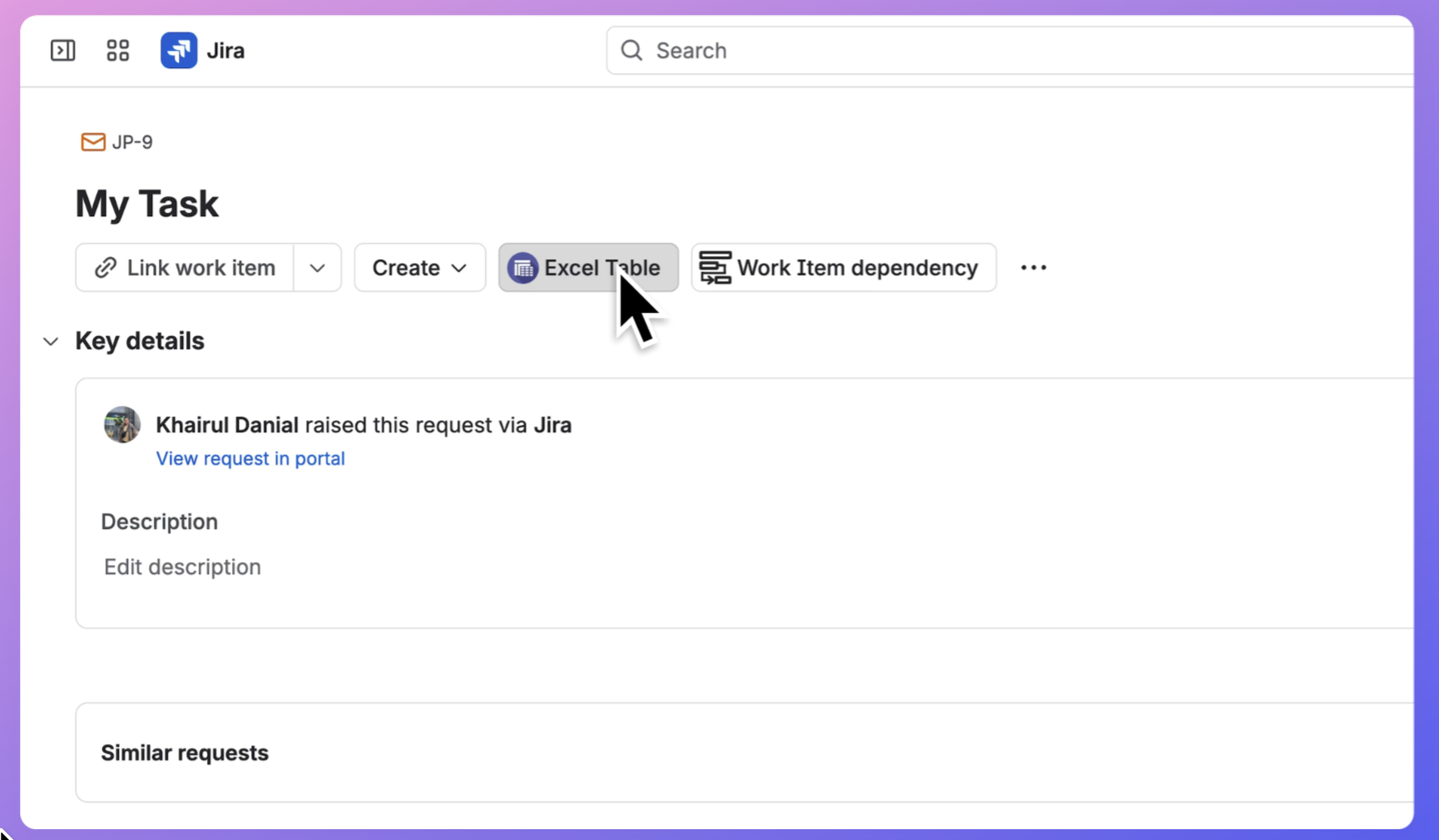
If the table is not yet displayed on your work item, click the Excel Table button below the summary.
-
-
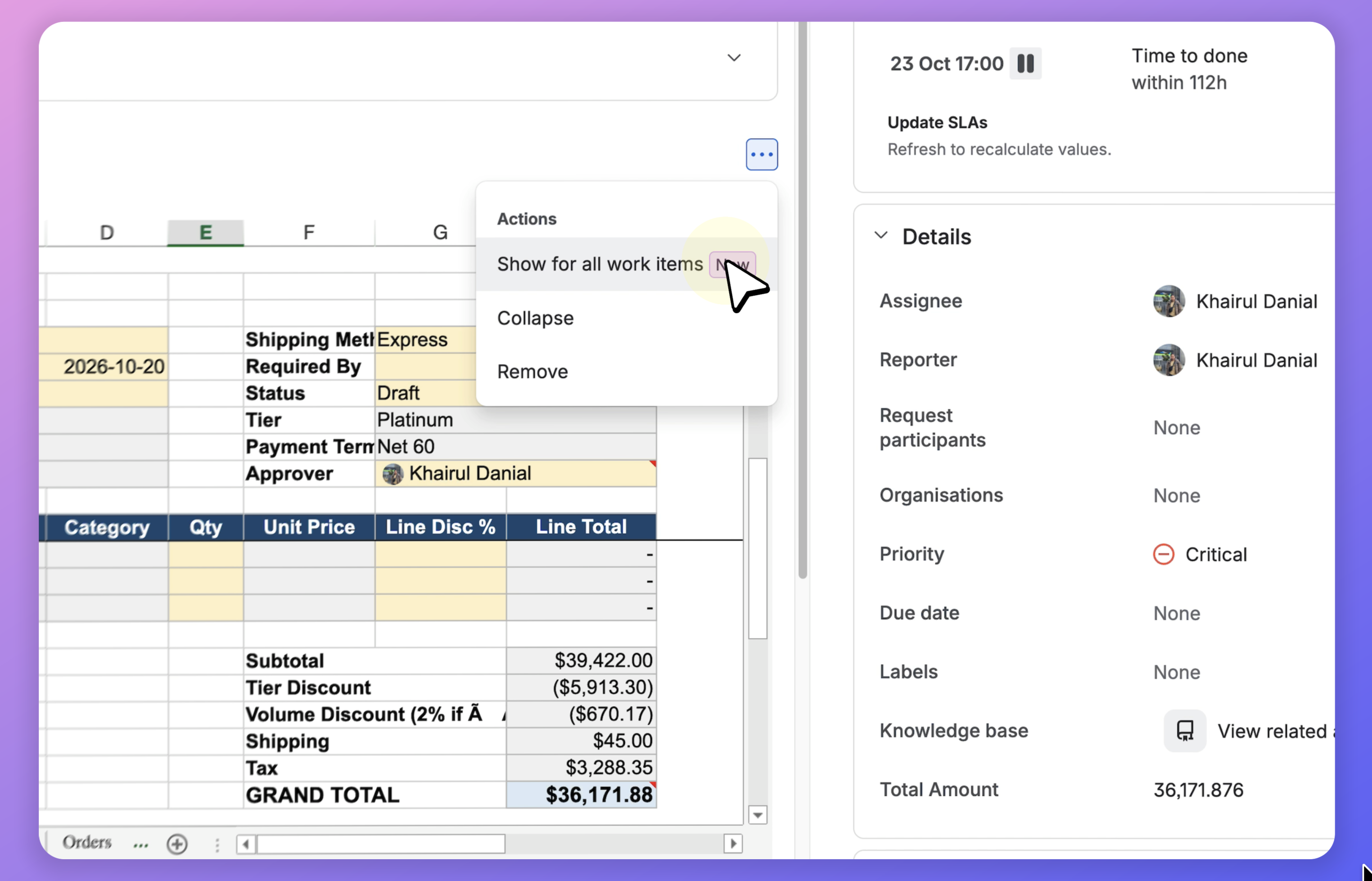
From the top navigation, go to Apps and select Excel Like Tables.
-
-
Confirm the change if prompted. Once enabled, the app will be available on all work items in that space.
Result: Excel Like Tables is now displayed on all work items within the selected Jira space.
Important notes
-
This setting applies at the space level.
-
If you do not see the Show all work items option, verify that you are a space admin.
-
If the app is still not visible on work items after enabling the setting, refresh the page and reopen a work item in the same space.