
Welcome aboard! 🎉
We’re excited to help you supercharge your Jira issues with the power of spreadsheets. Whether you're managing project timelines, tracking resources, or just love organizing your data in neat tables, Excel-like Tables for Jira gives you a familiar, flexible way to get more done, right inside Jira.
This guide will walk you through everything you need to know. From creating your first table to using formulas, importing Excel files, and much more!
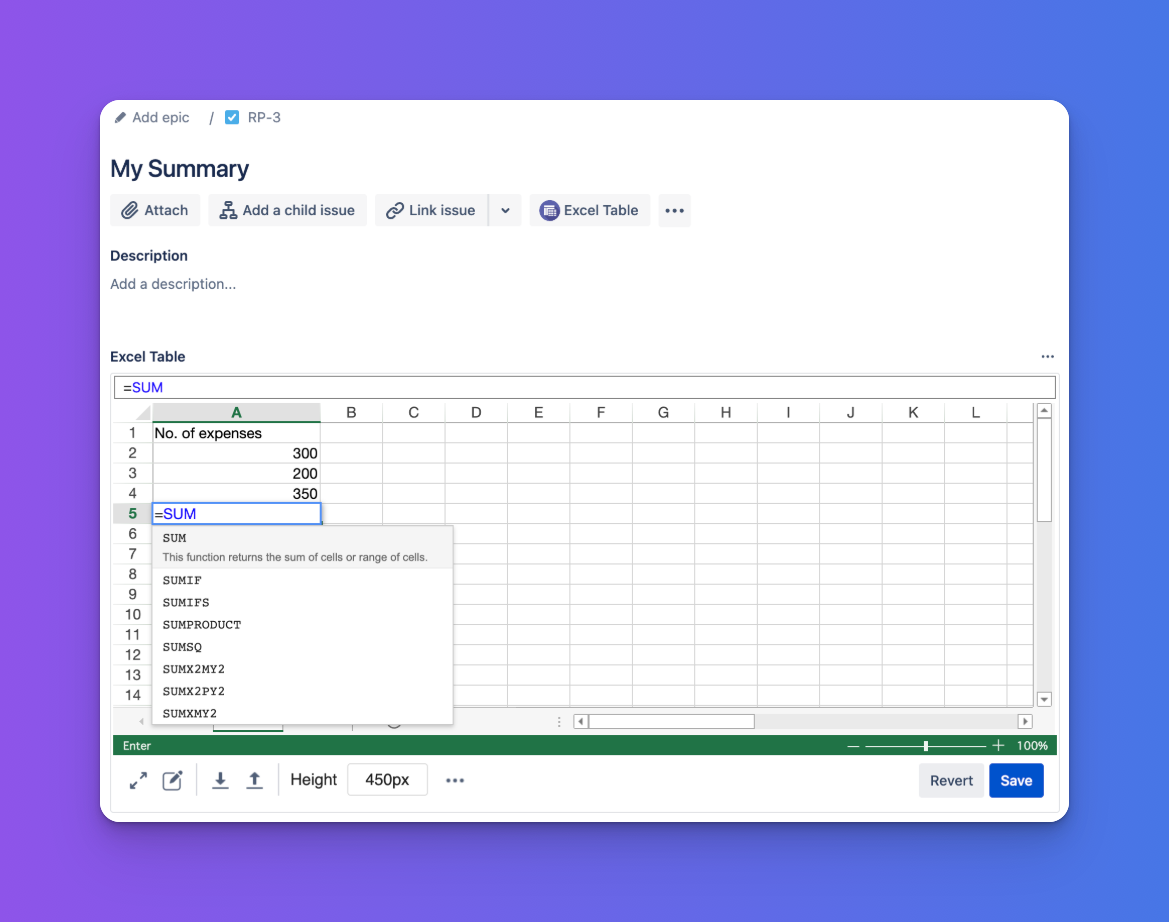
✅ What you can expect:
-
Simple, intuitive table editing with Excel-like controls.
-
Seamless integration with Jira issues and fields—sync table data with Jira, and vice versa.
-
Time-saving templates and built-in formatting options.
-
Easy import/export from Excel for quick setup or sharing.
-
Step-by-step guides for core features.
-
Tips and examples to help you become a power user in no time.
Let’s get started and make your Jira experience more organized, visual, and efficient. 💡
👉 Ready to build your first table?
Head over to Create your first table for a step-by-step walkthrough.
What’s in this guide?
Jump straight to the section you need:
-
Create your first table -
Jira Issues Sheet -
Excel-like Tables for Jira Homepage -
Operation Bar -
Jira Field Mapping -
Restricting Edit Permissions Based on Issue Status -
Dashboard gadget -
Search with JQL -
Count issues with JQL -
How to use Pivot Tables -
Auto-populate Jira Issue with a Table -
How to enable or disable an app -
REST API -
FAQ -
Supported Languages
💬 Need help or want a personalized demo?
Have questions, feedback, or want a live walkthrough? We’re here to help!
👉 Contact our support team or Request a demo