
Overview
-
When creating a new Jira issue, the pre-configured table will be attached to the Jira issue.
-
You can configure a pre-configured table for a project and an issue type
How to configure a pre-configured table
You need the project administrator’s permission to configure it.
A project administrator is a user with the Administer projects project permission for a particular project. By default, the 'Administer projects' permission is assigned to the 'administrators' group (via the Administrators role) for projects.
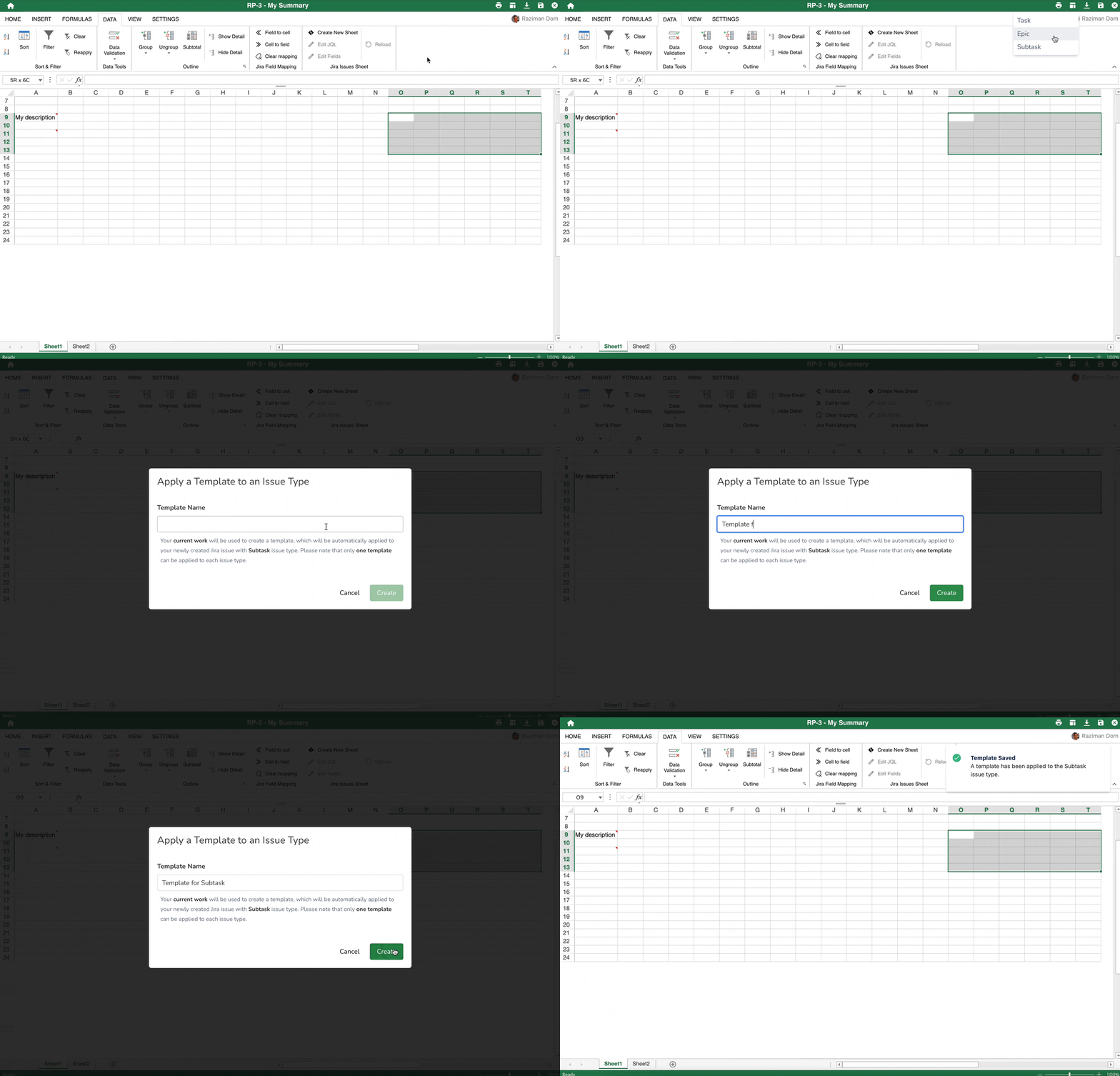
Managing pre-configured Table
From the Templates Configuration, you can:
-
Add a new template
-
Remove the current template
-
Edit the current template
-
Go to the configuration screen, then push the ‘Add’ button
-
for the company-managed project:
Project > Project settings > Excel-like Tables - Templates -
for the team-managed project:
Project > Project settings > Apps > Excel-like Tables - Templates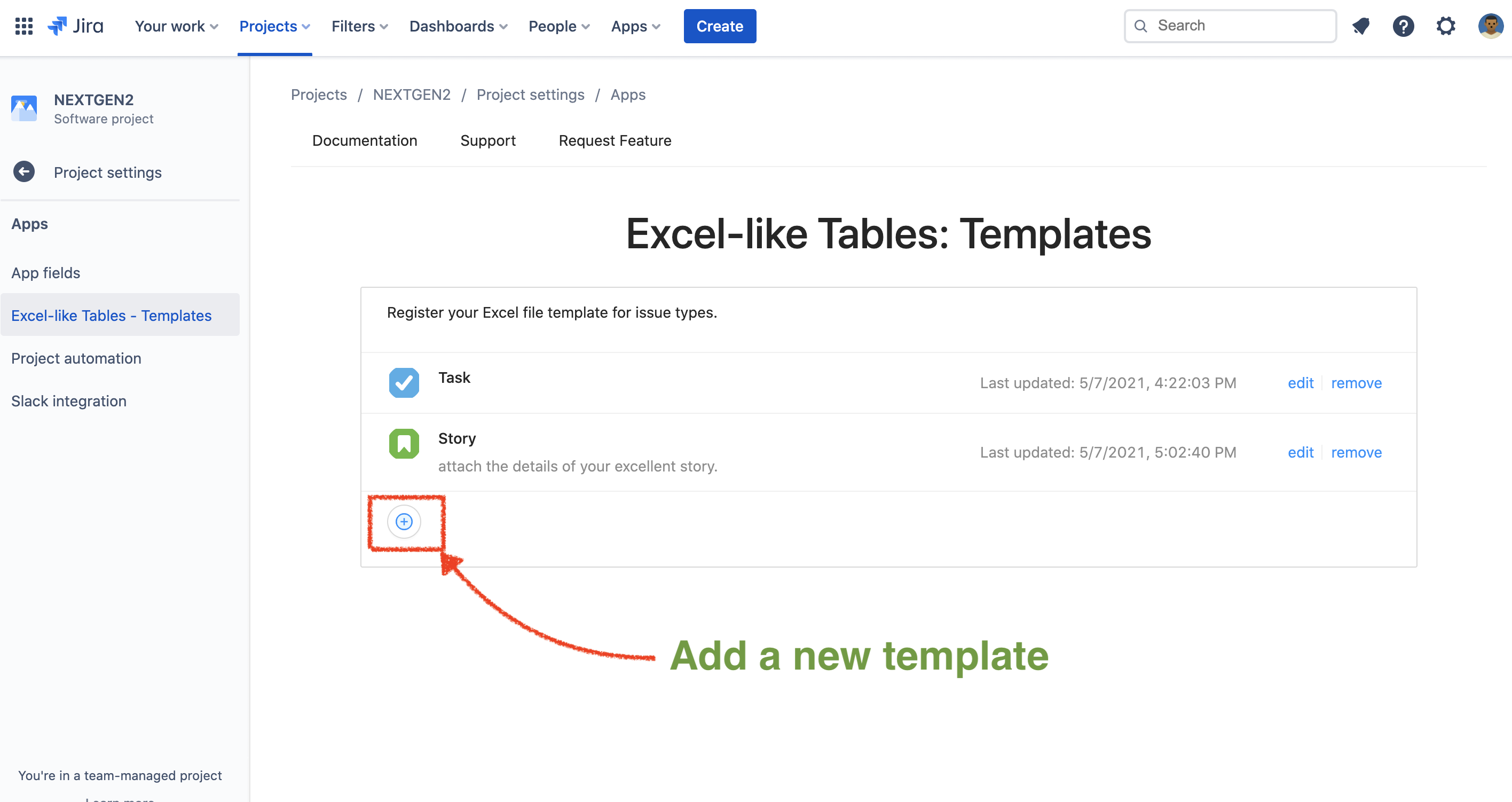
-
-
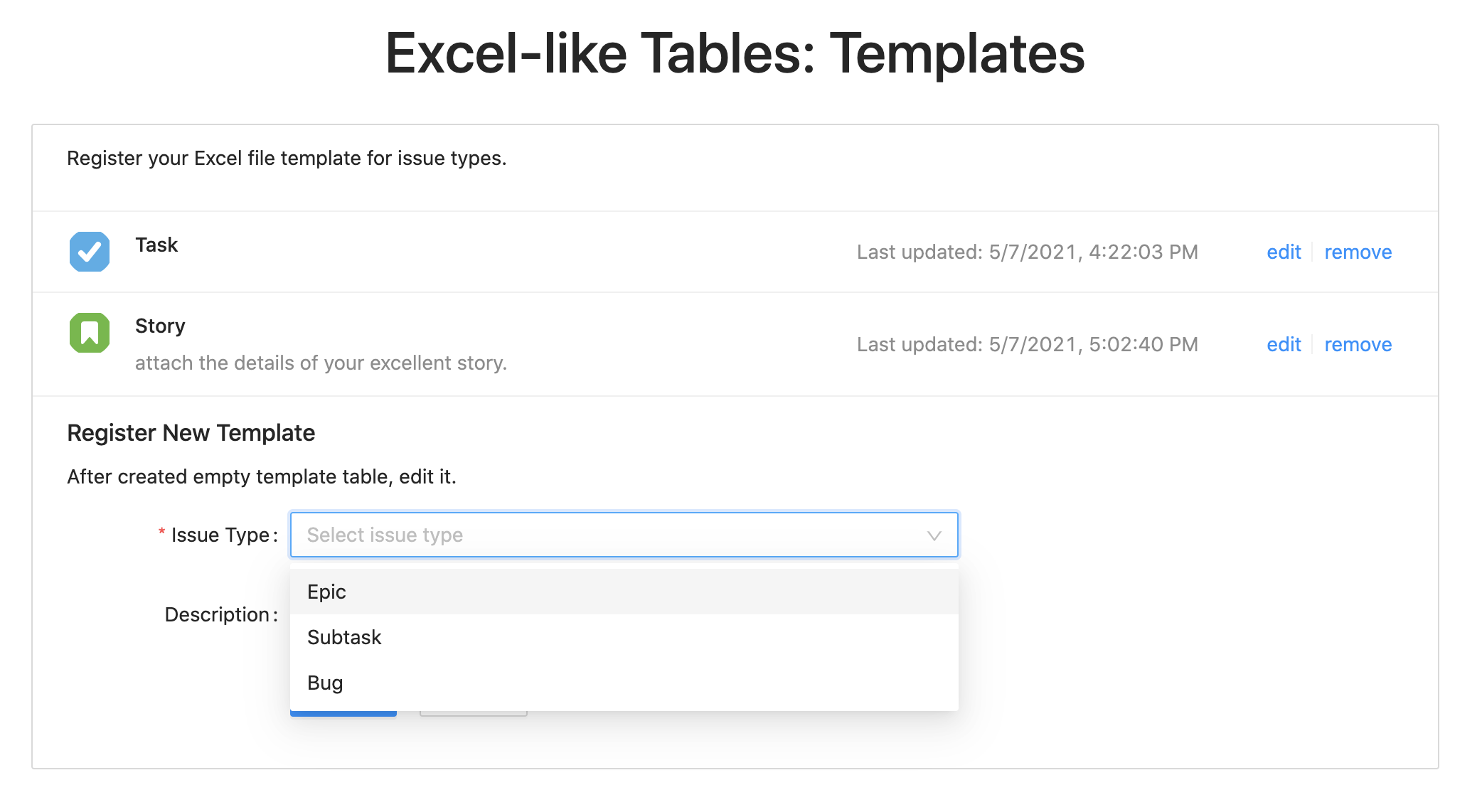
Select an issue type and input a description if you like, then push the ‘Create’ button
-
You will see a new template entry on the list. To edit the table or import your Excel file, click the “edit” link.
Tips: Jira field mapping feature allows a table to include Jira field values at issue creating.
How to use a pre-configured table
When you create the Jira issue whose issue type was configured to attach a template table, it will attach the table to your new issue.
It will take some time to complete an attachment process. If you can not see a table on a new issue, please push the ‘Table’ action button.

Limitations and notices
There is no way to apply the template on the existing issues. Only newly created Jira issues will have auto-populate tables.