
Step-by-Step: How to Access Table Data Attachments in Confluence
1. Go to the Confluence Page
-
Navigate to the specific Confluence page where your table data is stored.
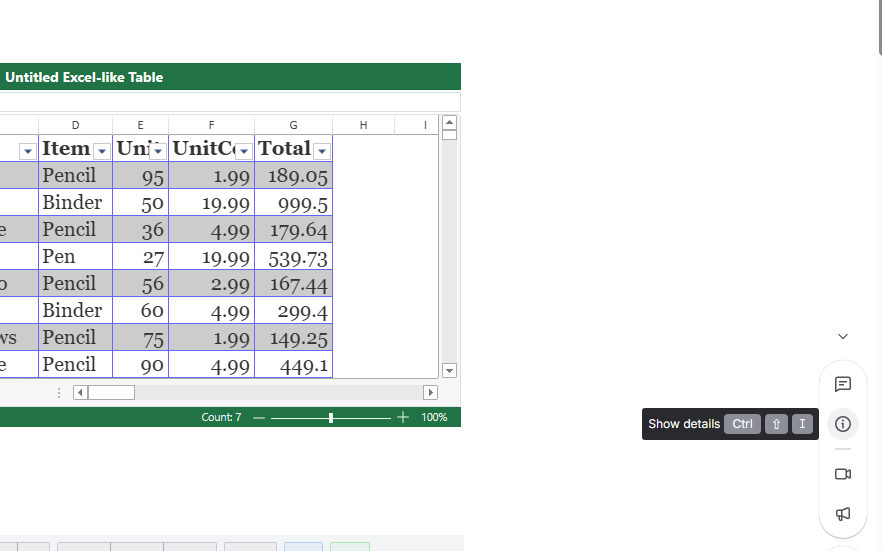
2. Locate the Show details Icon
-
On the page, look for the small “i” (information) icon, typically found on the lower right side of the page or in the page options bar. (You should also be able to access it by pressing the shortcut “Ctrl+Shift+I”)
3. Access Attachments
-
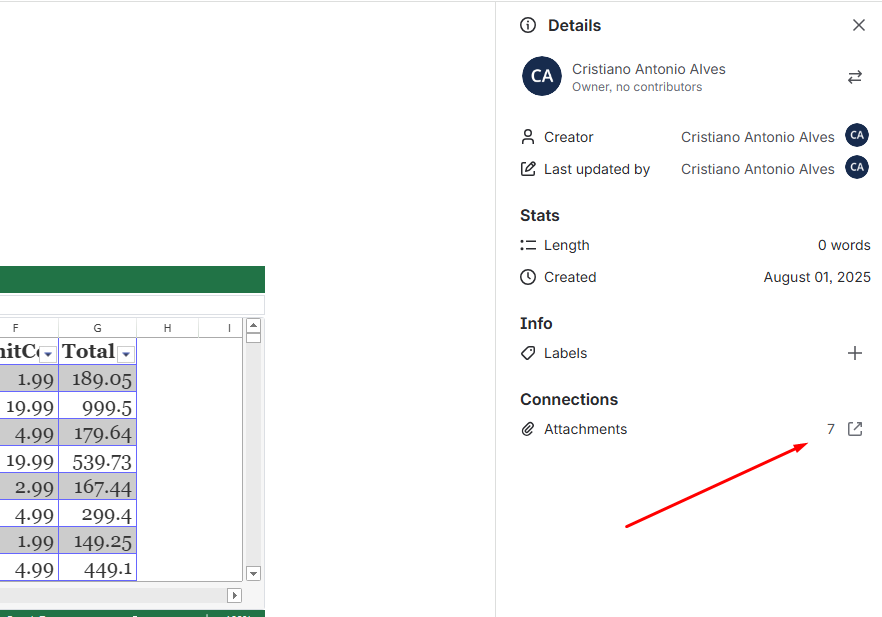
In the menu that appears, select the option to view Attachments. It will redirect you to a new page:
4. Find Table Data Files
-
In the attachments list, look for the most recent
.jsonfile.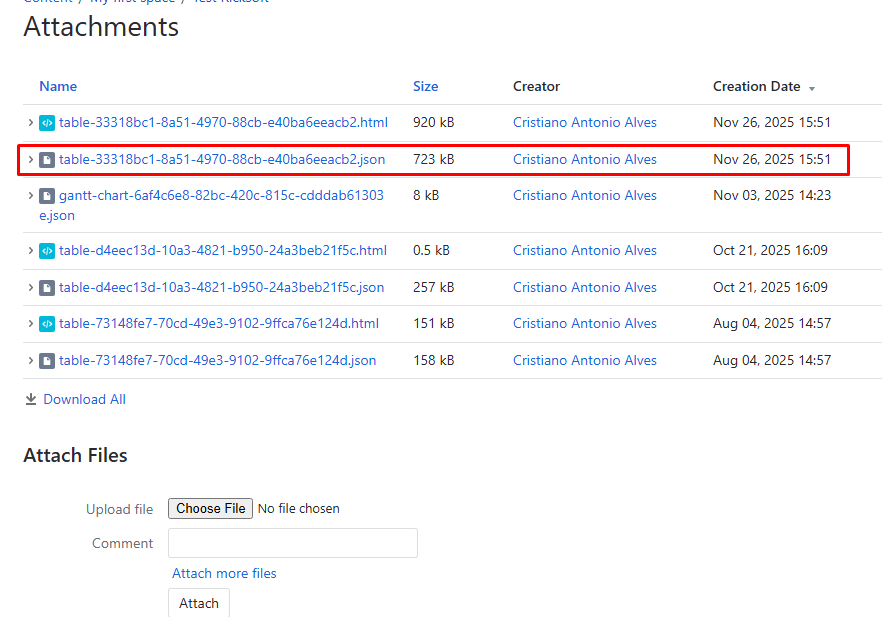
5. Download the Data
-
Click on the
.jsonfile(s) to download them to your computer.
If you want to import the file into a new or existing table, please refer to the documentation:
https://docs.ricksoft-inc.com/excel-like-tables-for-confluence/restore-deleted-or-missing-tables
Need More Help?
If you have further questions or need additional assistance, feel free to reach out to the Ricksoft Support Team. We're here to help!