
Use Sync content to migrate content from several connected Confluence Data Center spaces to Cloud in one operation.
You can start this immediately after creating the space connections, or return to Sync content later.
Before you start
Check the destinations before starting.
When you select a Data Center space in Sync content, its content is synchronized to all Cloud destinations currently connected to that space.
You cannot choose an individual Cloud destination in this workflow.
Pages with matching names: If a destination Cloud space already contains a page with the same name as a page being synced, the Cloud page content will be overwritten by the Data Center page content.
Make sure the Data Center spaces are already connected to the correct Cloud destinations before you start.
Step 1: Select the spaces to sync
-
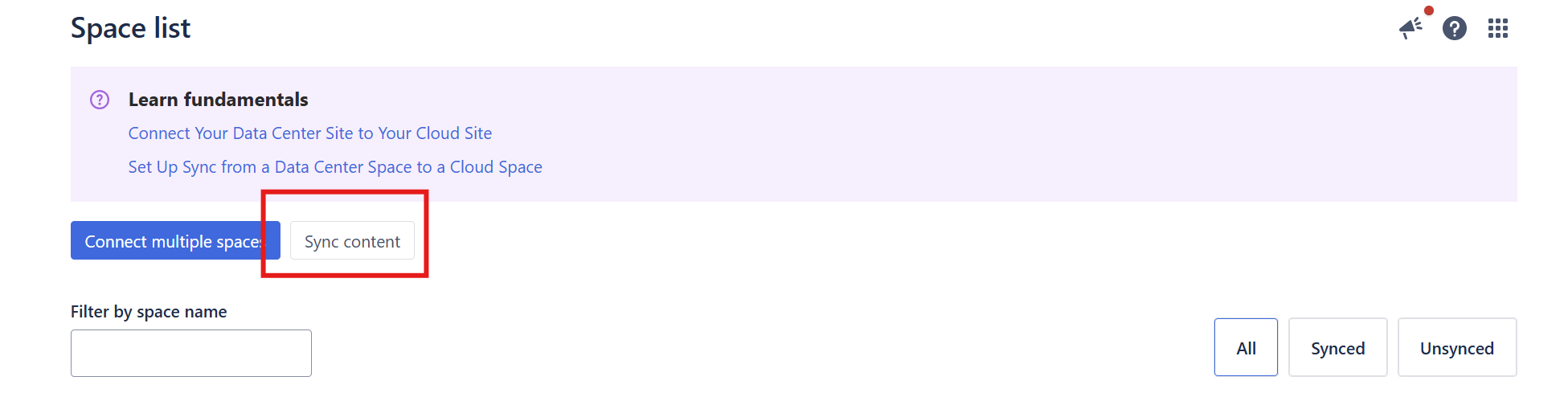
Open Space Sync for Confluence in your Confluence Data Center site.
-
Select Sync content.
-
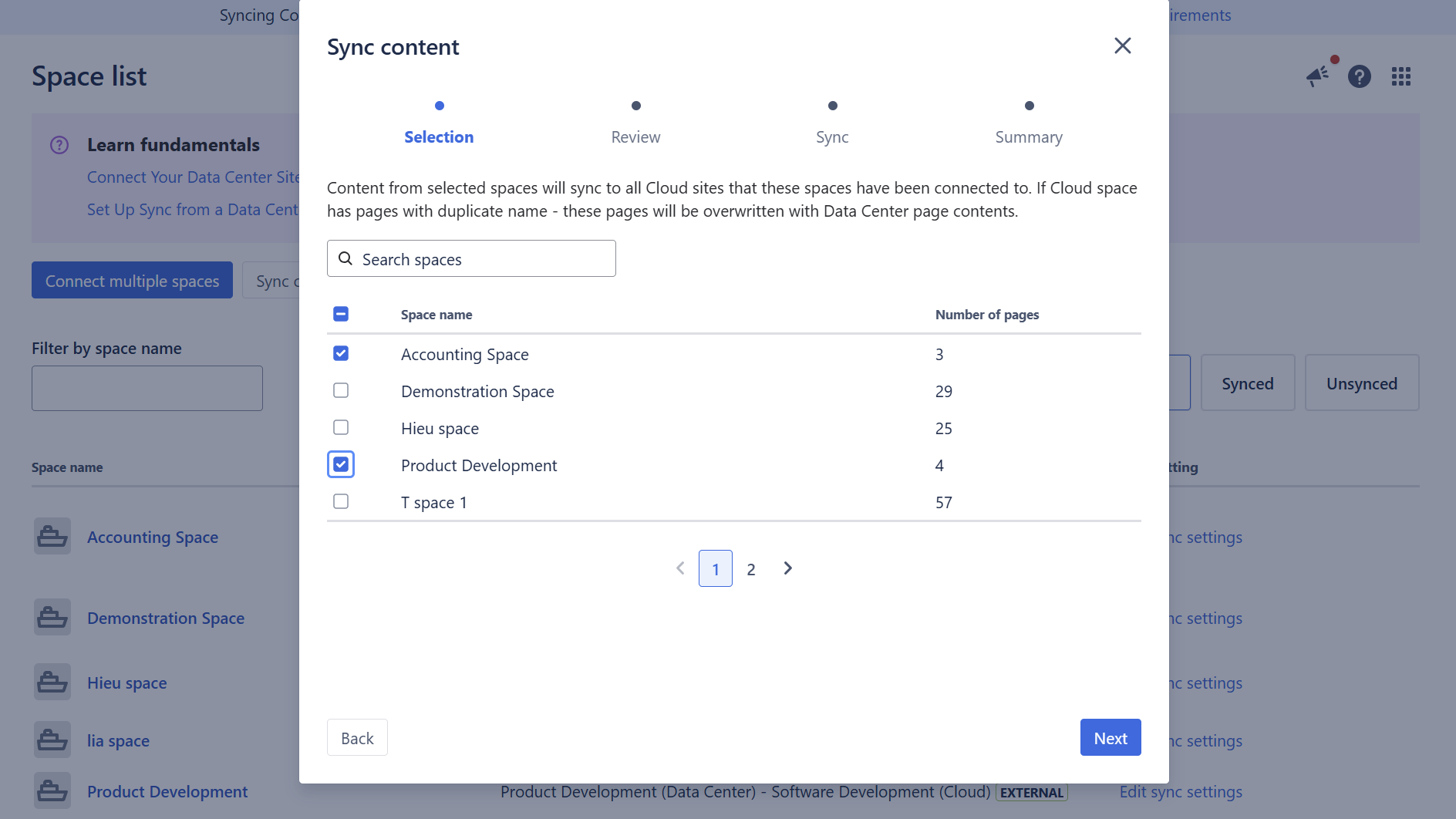
Select the Data Center spaces whose content you want to migrate.
-
Select Next.
The table shows each space and its page count. You can use the search field and pagination when working with many spaces.
Step 2: Review the migration
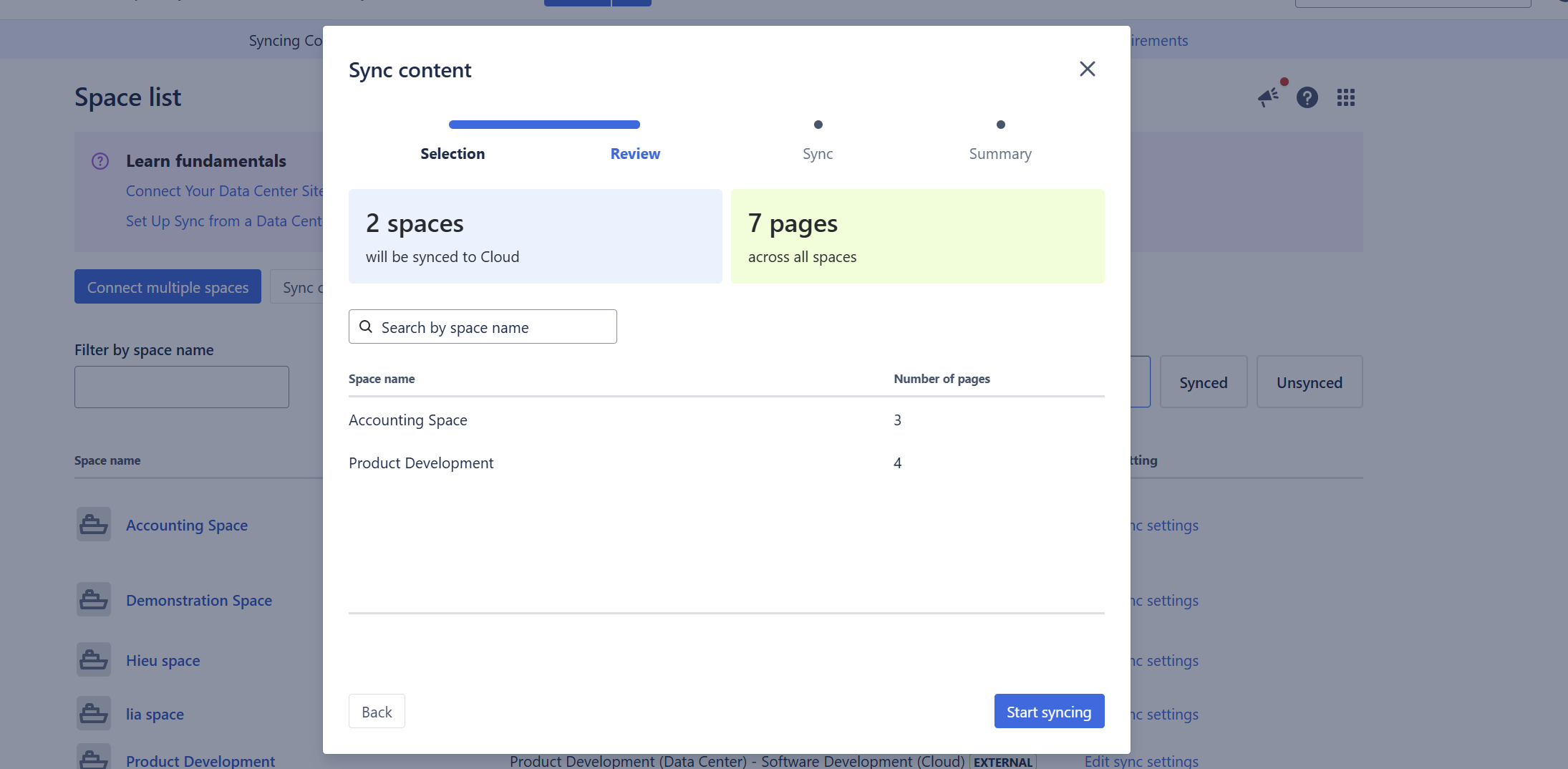
Before starting the sync, review:
-
the number of Data Center spaces selected;
-
the total number of pages across those spaces; and
-
the selected spaces and their page counts.
To change the selection, select Back.
When everything is correct, select Start syncing.
Step 3: Monitor the sync
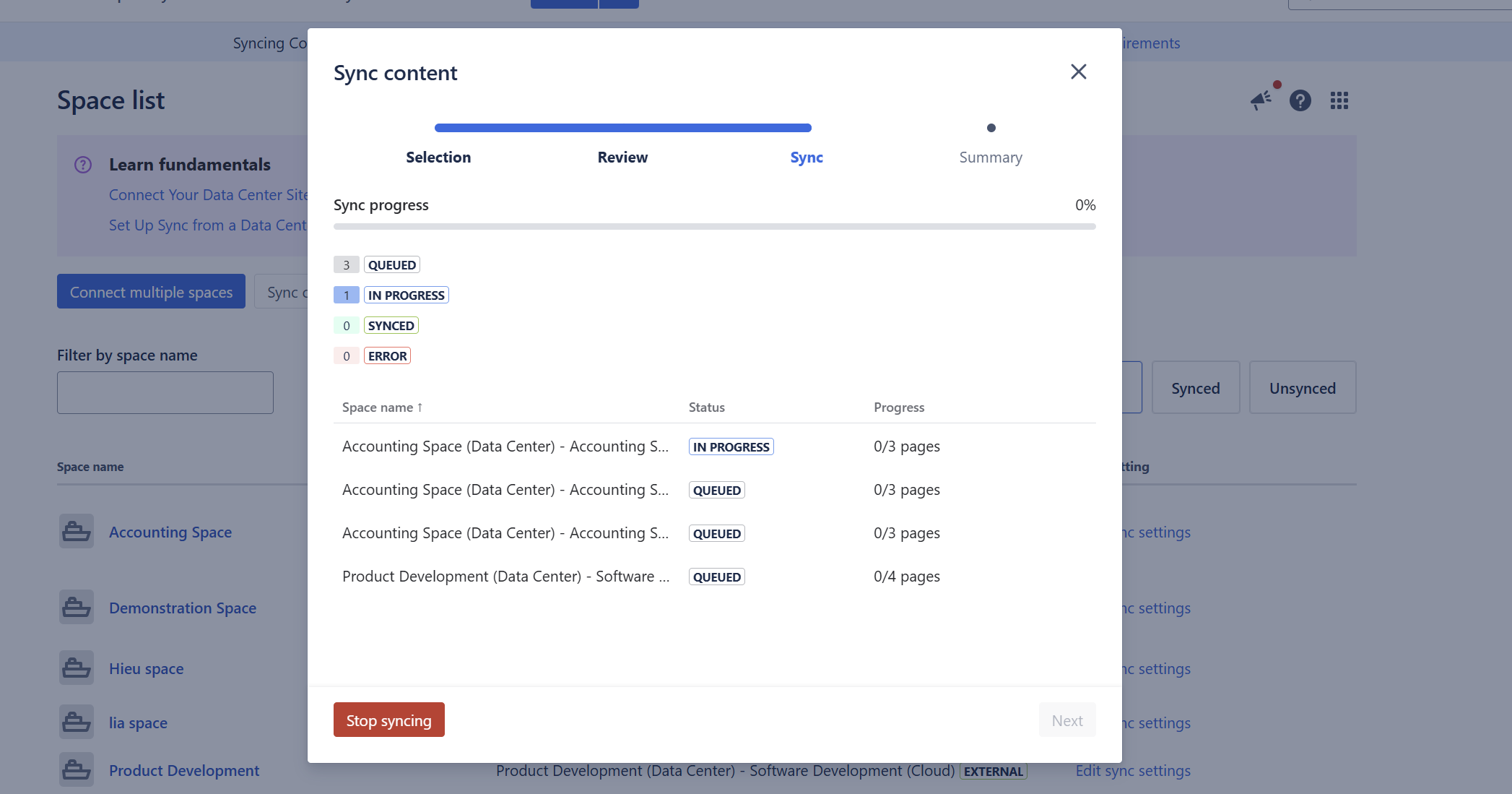
Space Sync shows the progress while the selected spaces are being synchronized.
|
Status |
Meaning |
|---|---|
|
Queued |
Waiting to be synchronized. |
|
In progress |
The space is currently being synchronized. |
|
Synced |
The space completed successfully. |
|
Error |
The space could not complete synchronization. |
For spaces that are currently being processed, Space Sync also shows page-sync progress.
If one or more spaces fail, use Retry all to retry the failed spaces, or Download error log for troubleshooting.
Spaces that were already synchronized successfully are not repeated when failed spaces are retried.
Step 4: Review the result
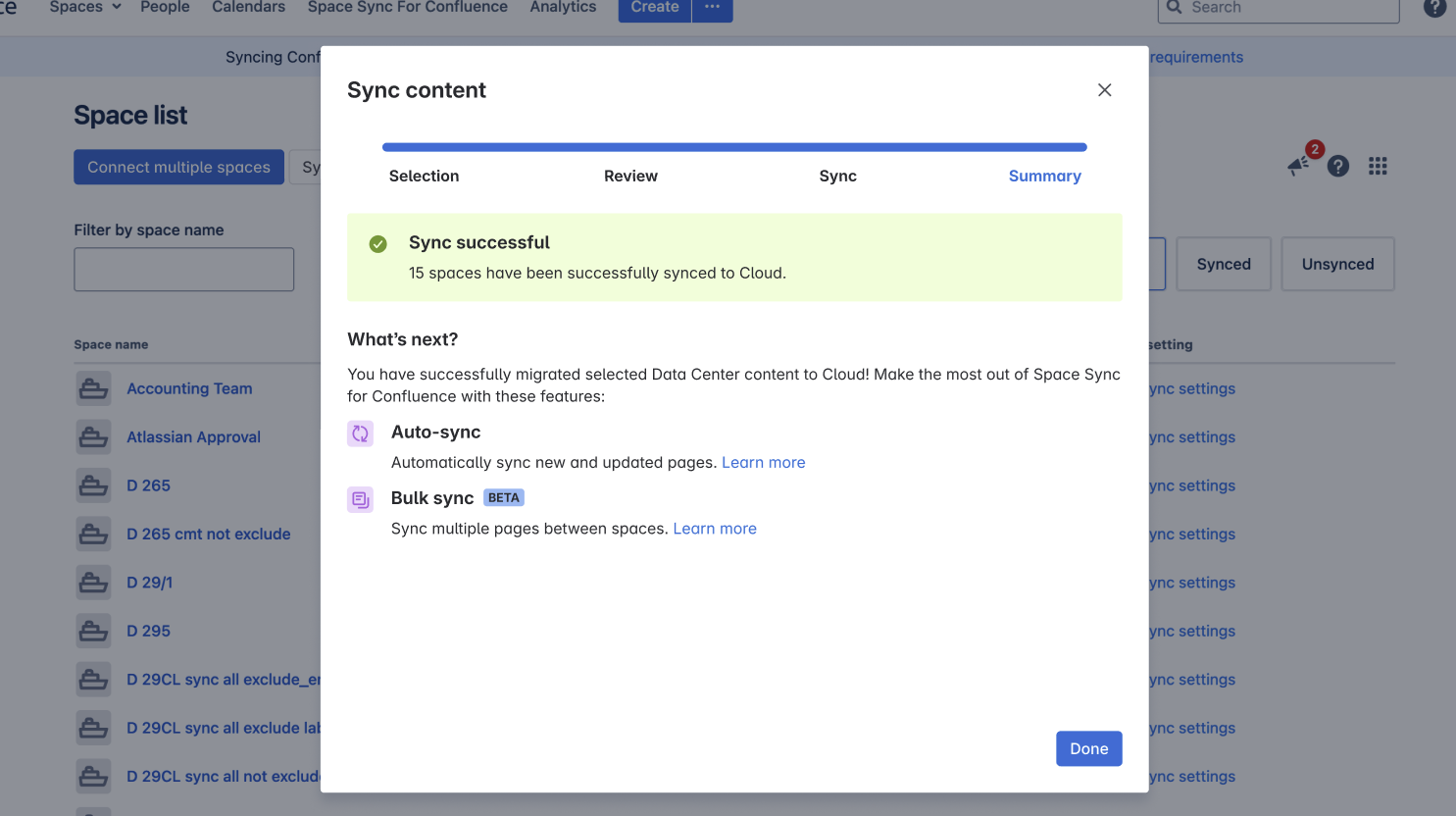
When processing is complete, Space Sync displays the final result.
|
Result |
What it means |
|---|---|
|
Sync successful |
All selected spaces were synchronized successfully. |
|
Sync completed with errors |
Some spaces completed and others failed. Retry the failed spaces or download the error log. |
|
Sync stopped |
The operation was stopped before every selected space completed. |
|
Sync failed |
No selected spaces completed successfully. Retry the sync or download the error log and contact Ricksoft Support. |
What happens if I stop syncing?
You can select Stop syncing while the migration is running.
Space Sync asks you to confirm before stopping.
The space currently being processed finishes before the operation stops. Spaces that are still queued are cancelled. Content that was already synchronized successfully remains in Cloud.
After the migration
If Auto-sync was enabled when the space connections were created, future page changes can continue to synchronize automatically after the initial migration.
If you still need to create the space connections, first see How to connect multiple Data Center spaces to Cloud.