
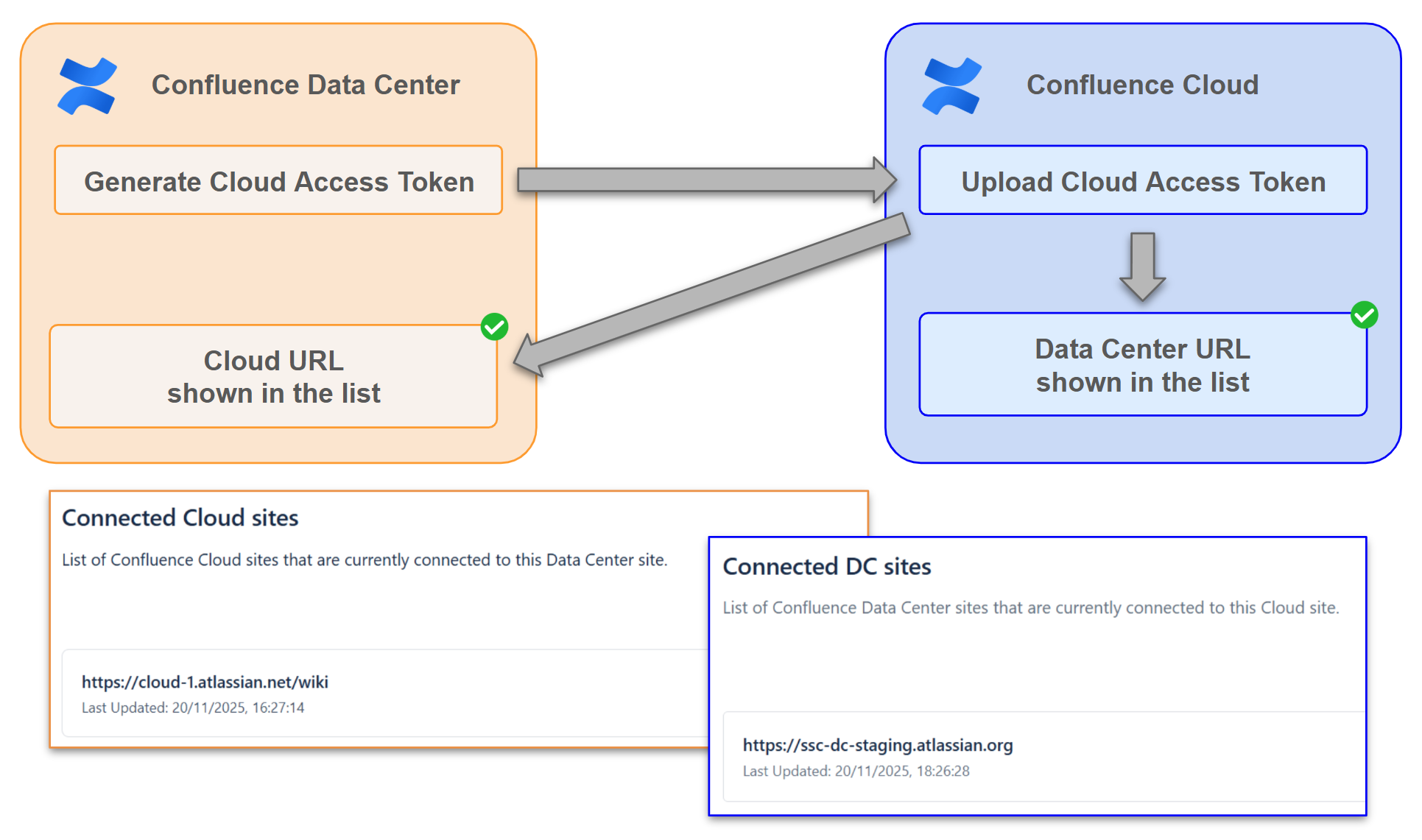
Connecting your Data Center to Cloud sites is the first step you need to do before you can start creating the synced spaces.
Prerequisite
-
Confluence Cloud Space admin permission.
-
Confluence Data Center Space admin permission.
-
Confluence Cloud with Space Sync for Confluence Cloud installed.
-
Confluence Data Center with Space Sync for Confluence Data Center installed.
Generate Cloud Access Token
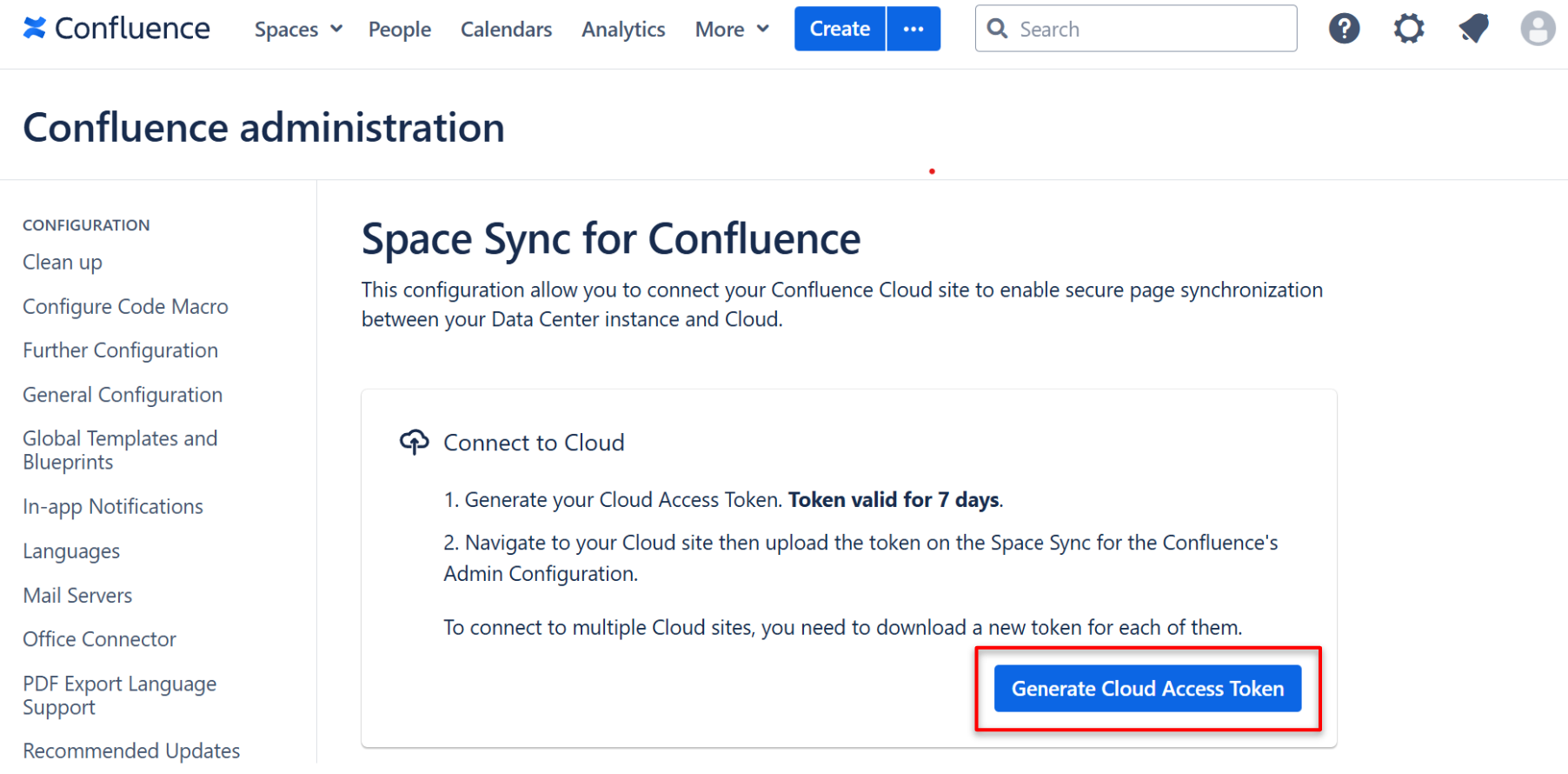
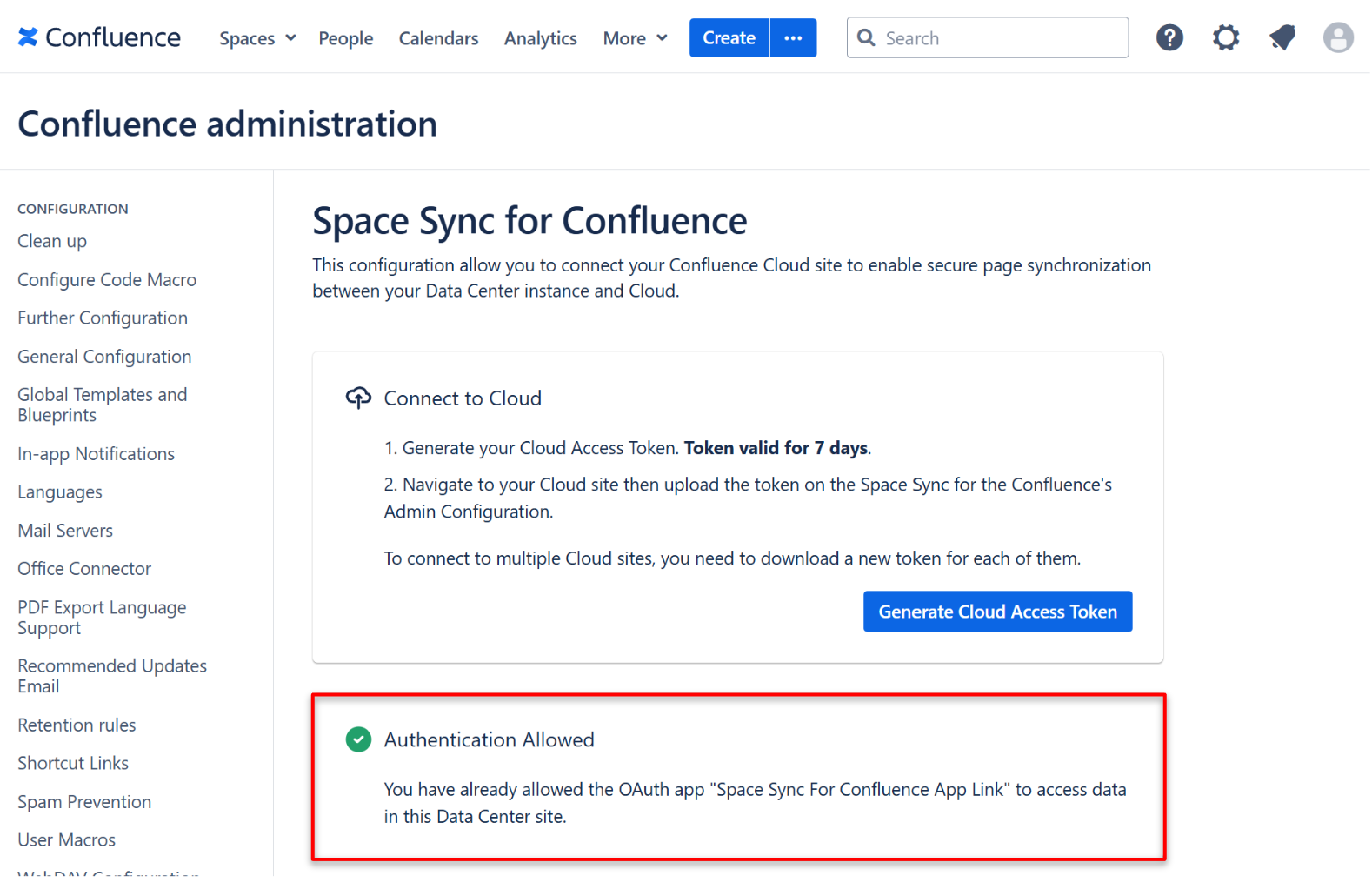
Navigate to your Confluence Administrator, then look for Space Sync for Confluence → Cloud Settings at the left side bar. After clicking that, you will see the below screen.
Click “Generate Cloud Access Token” to generate a new token.
Upload Cloud Access Token to Cloud Site
Once you downloaded the token, navigate to your Cloud site, then click the cog icon at the top-right to go to Confluence administration. Click Data Center settings under Space Sync Settings.
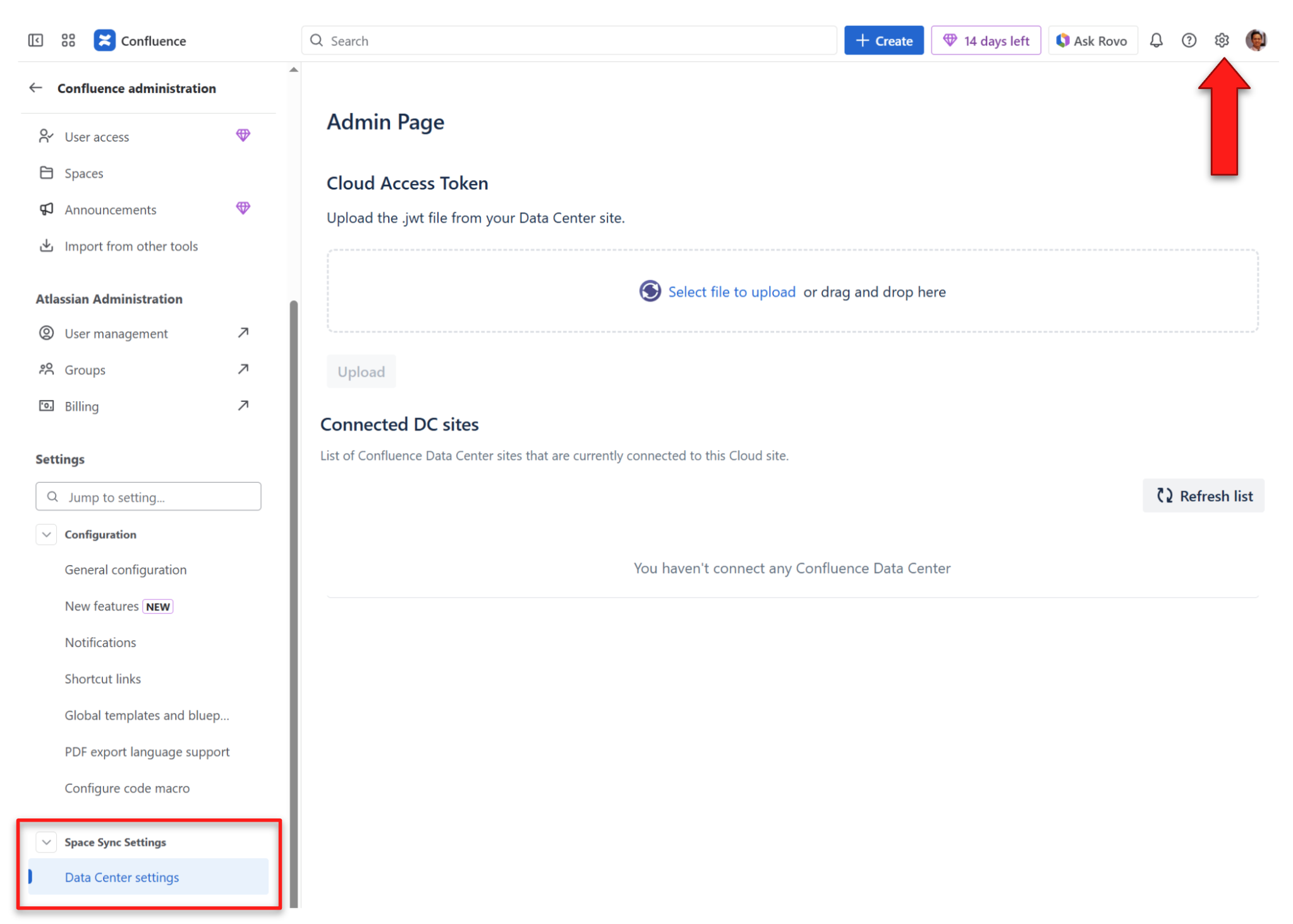
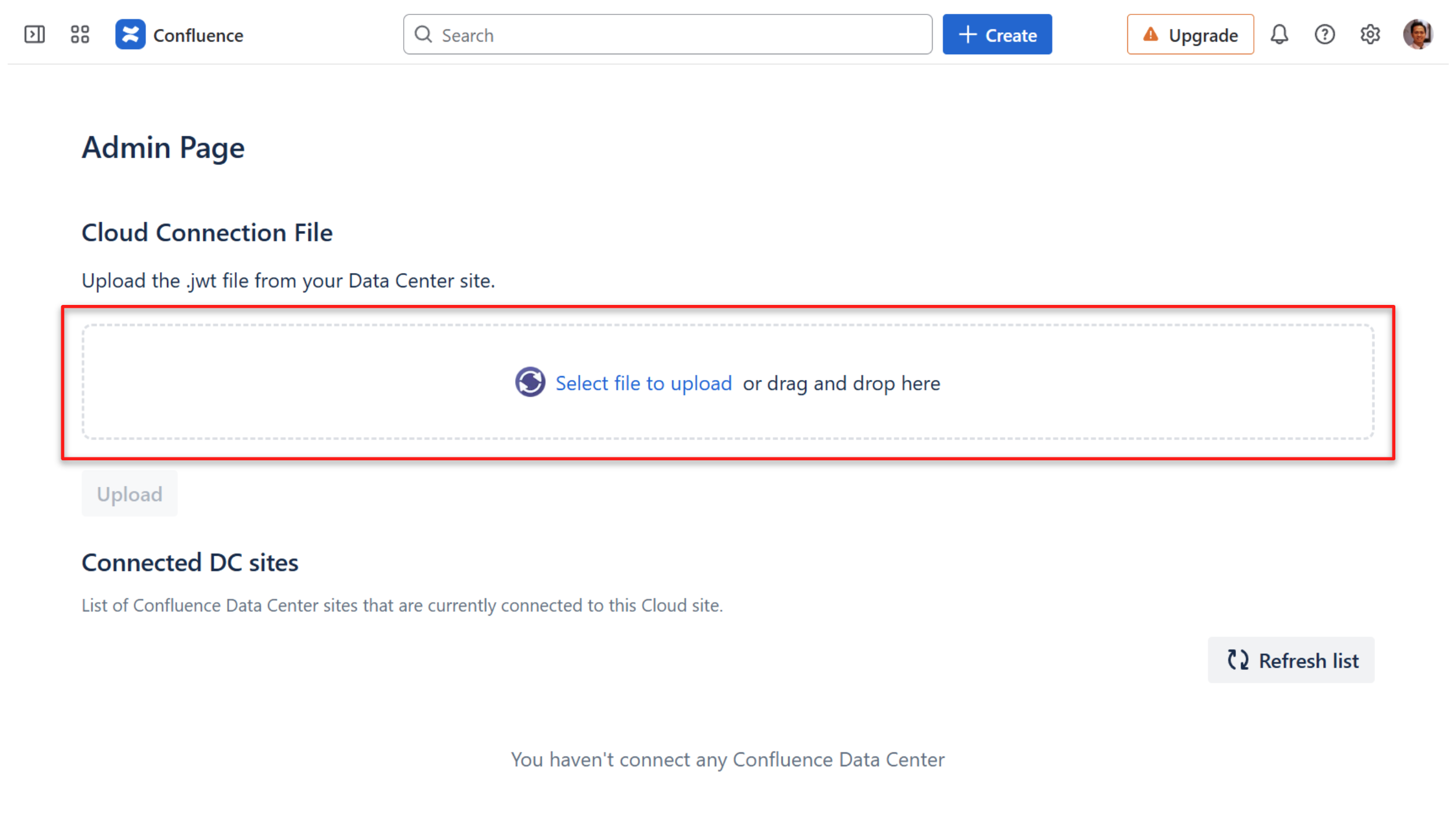
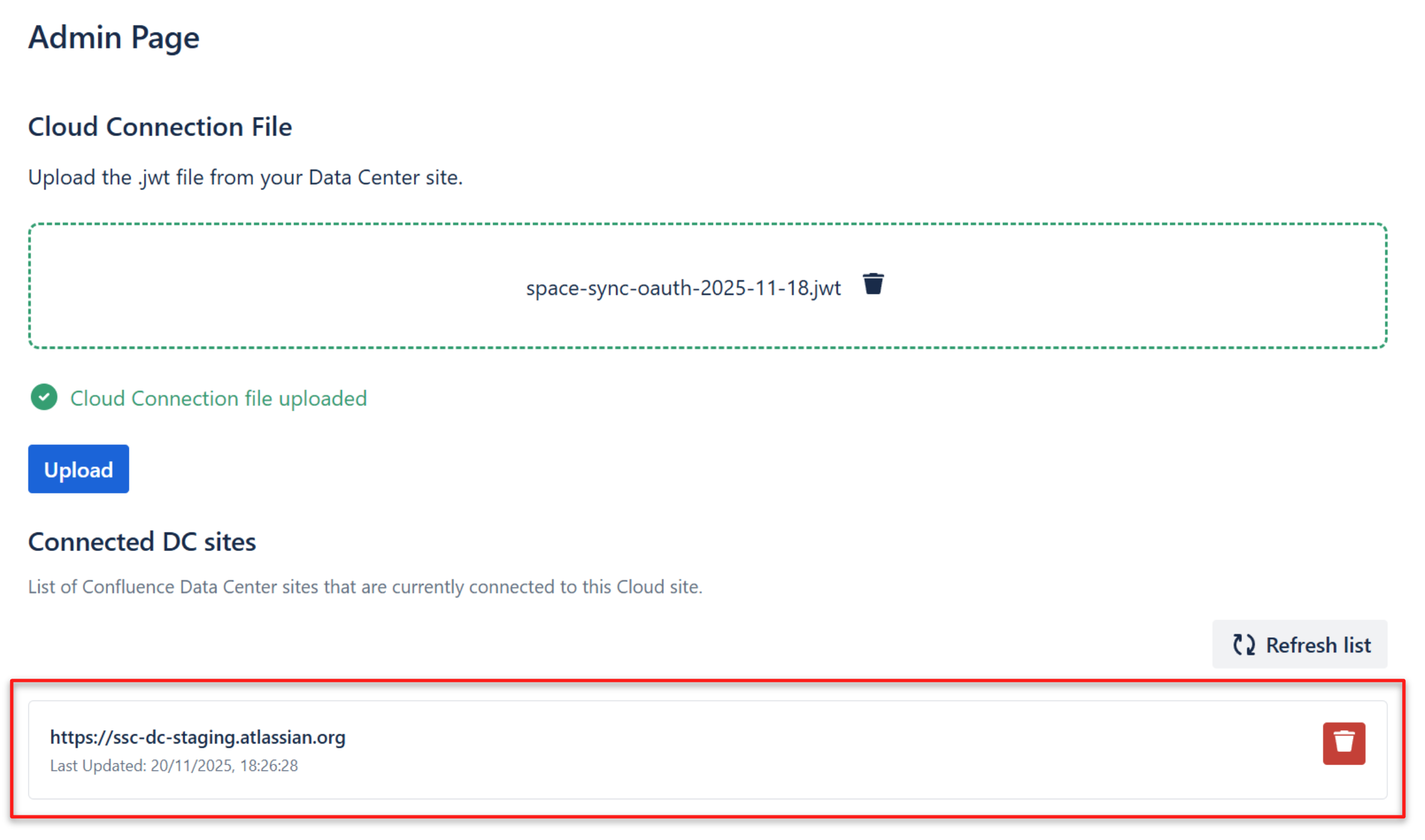
On this page, you need to upload the token you generated from the Data Center site.
Verify the Connection
If you successfully established the connection, you will see your Data Center URL visible in the list.
If you navigate back to your Confluence Data Center → Space Sync for Confluence → Cloud Settings, you will see “Authentication Allowed” on Space Sync for Confluence Data Center setting.
You can also view your connected Cloud site on this page settings.
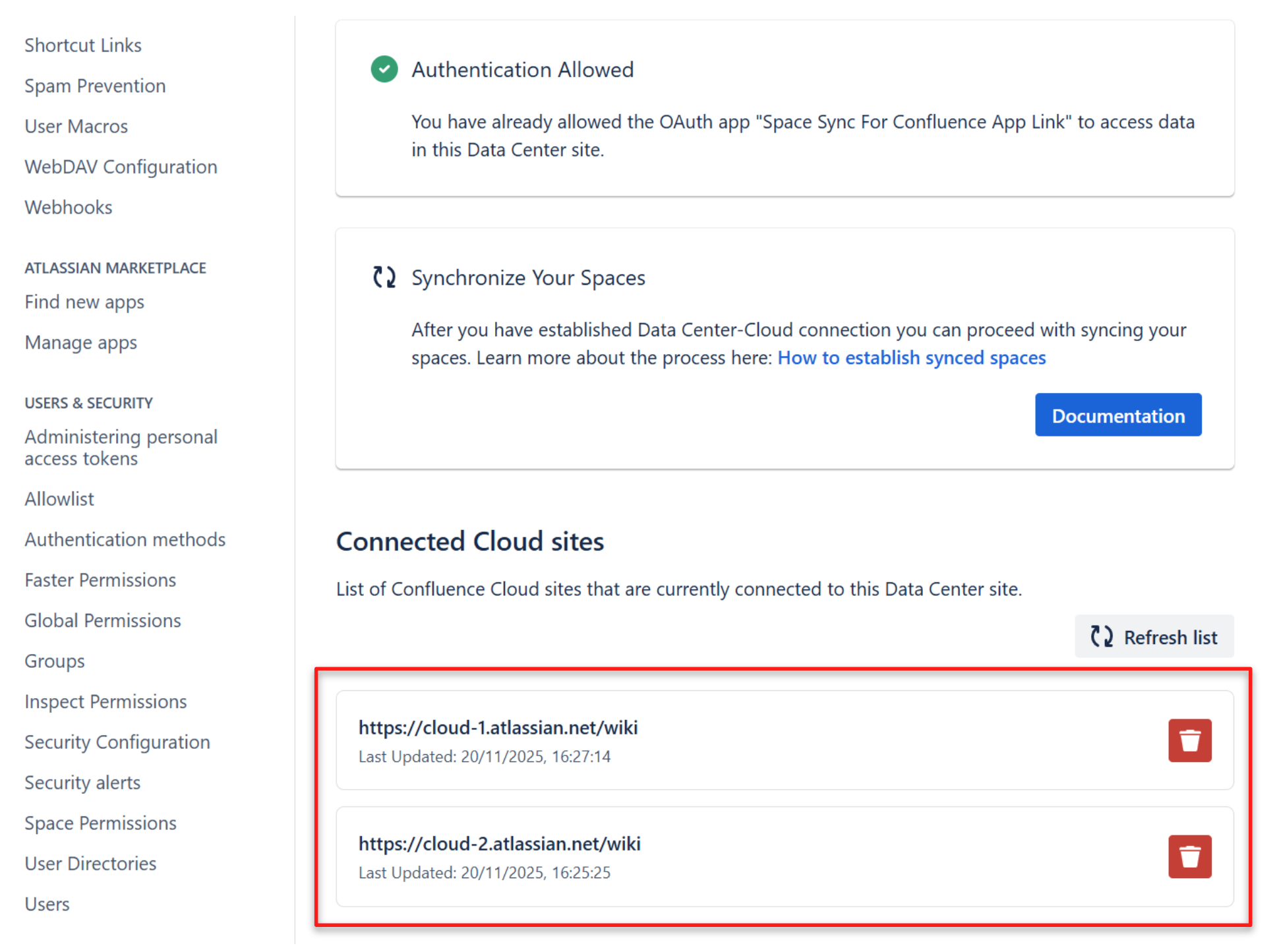
Once you have verified your Cloud and Data Center URL are listed, you have completed the first step. The next step is to choose which Space you want to sync.
Proceed to How to establish synced spaces.