
Use Connect multiple spaces to create connections between several Confluence Data Center spaces and a Confluence Cloud site in one workflow.
Connecting spaces does not migrate the existing content. After the connections are created, use Sync content to migrate your Data Center content to Cloud.
Before you start
-
Space Sync for Confluence must be installed and active on both your Data Center and Cloud sites.
-
Your Data Center instance must already be connected to the target Confluence Cloud site.
-
You need permission to access the Space Sync administration page in Confluence Data Center.
If the Cloud site has not been connected yet, see How to connect external Cloud sites first.
Step 1: Start Connect multiple spaces
-
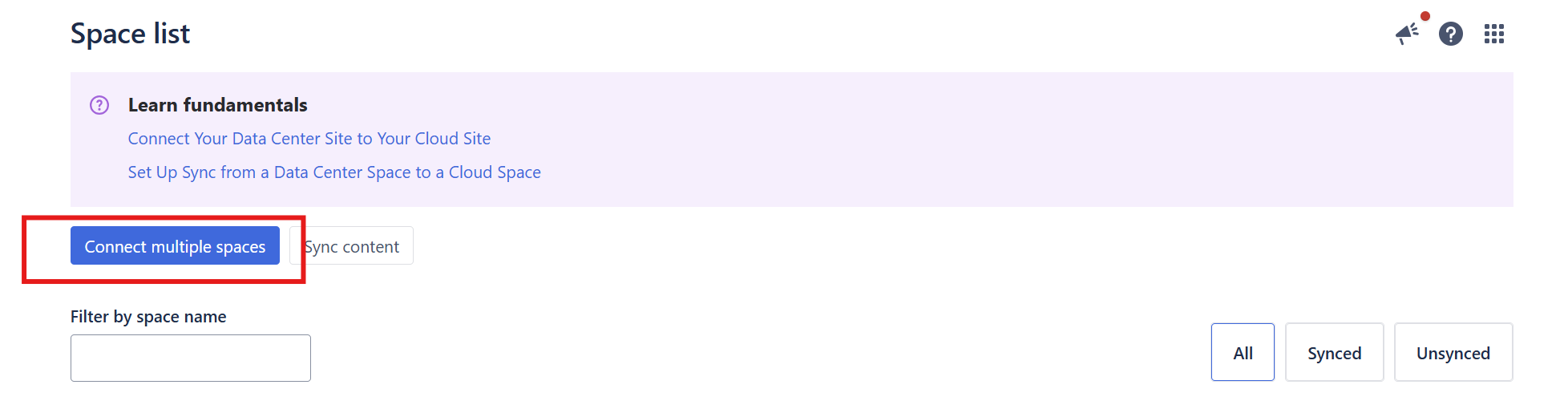
Open Space Sync for Confluence in your Confluence Data Center site.
-
Select Connect multiple spaces.
-
Select Next. To skip the introduction the next time you open the wizard, select Don't show this again before continuing.
Step 2: Choose the Cloud site and Data Center spaces
-
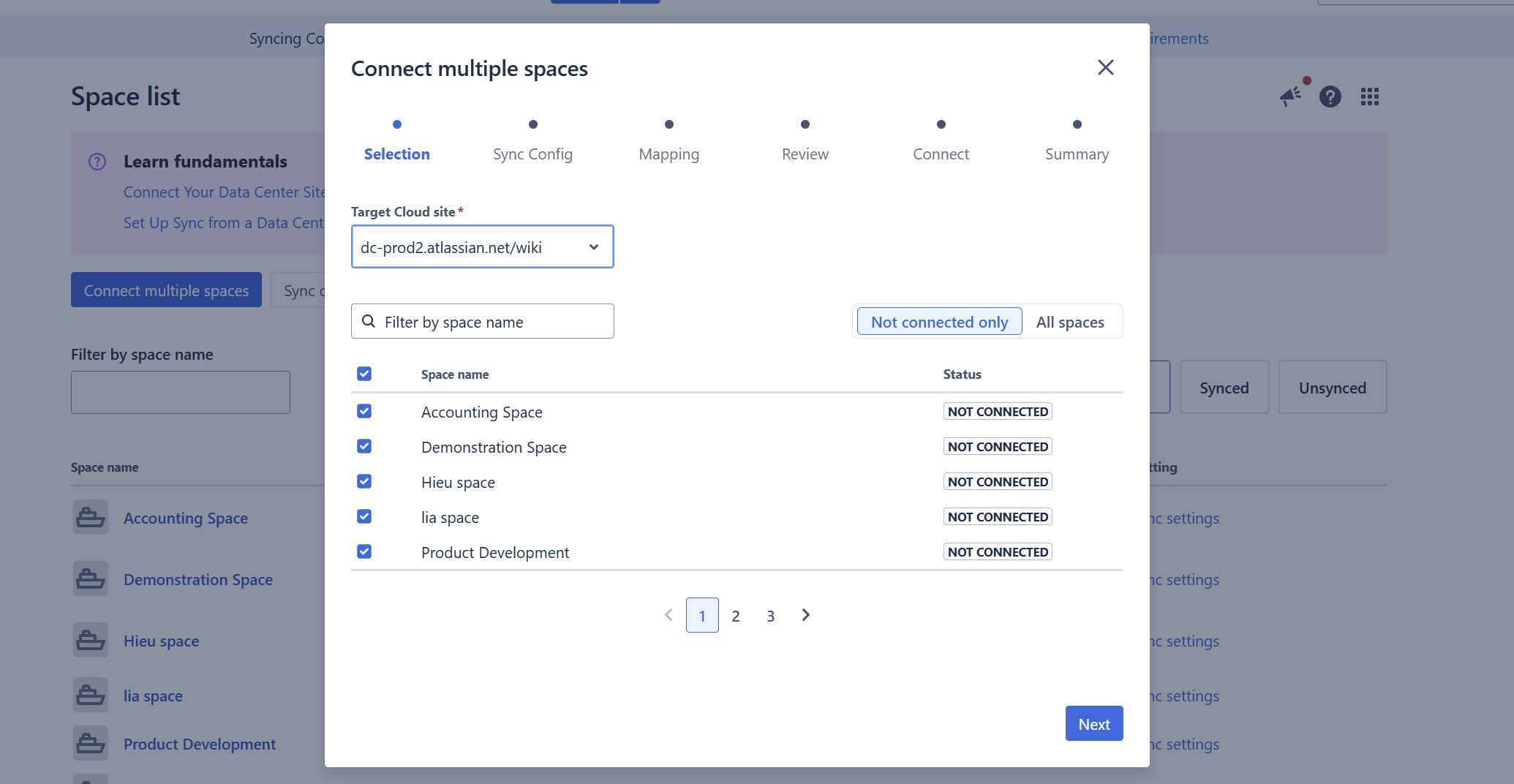
Select the Target Cloud site.
-
Select the Data Center spaces you want to connect.
-
Select Next.
By default, the list shows Not connected only. Switch to All spaces if you also want to view spaces that are already connected to the selected Cloud site.
Already-connected spaces cannot be selected again. You can also search for a space by name and sort the list by space name.
Step 3: Configure the sync settings
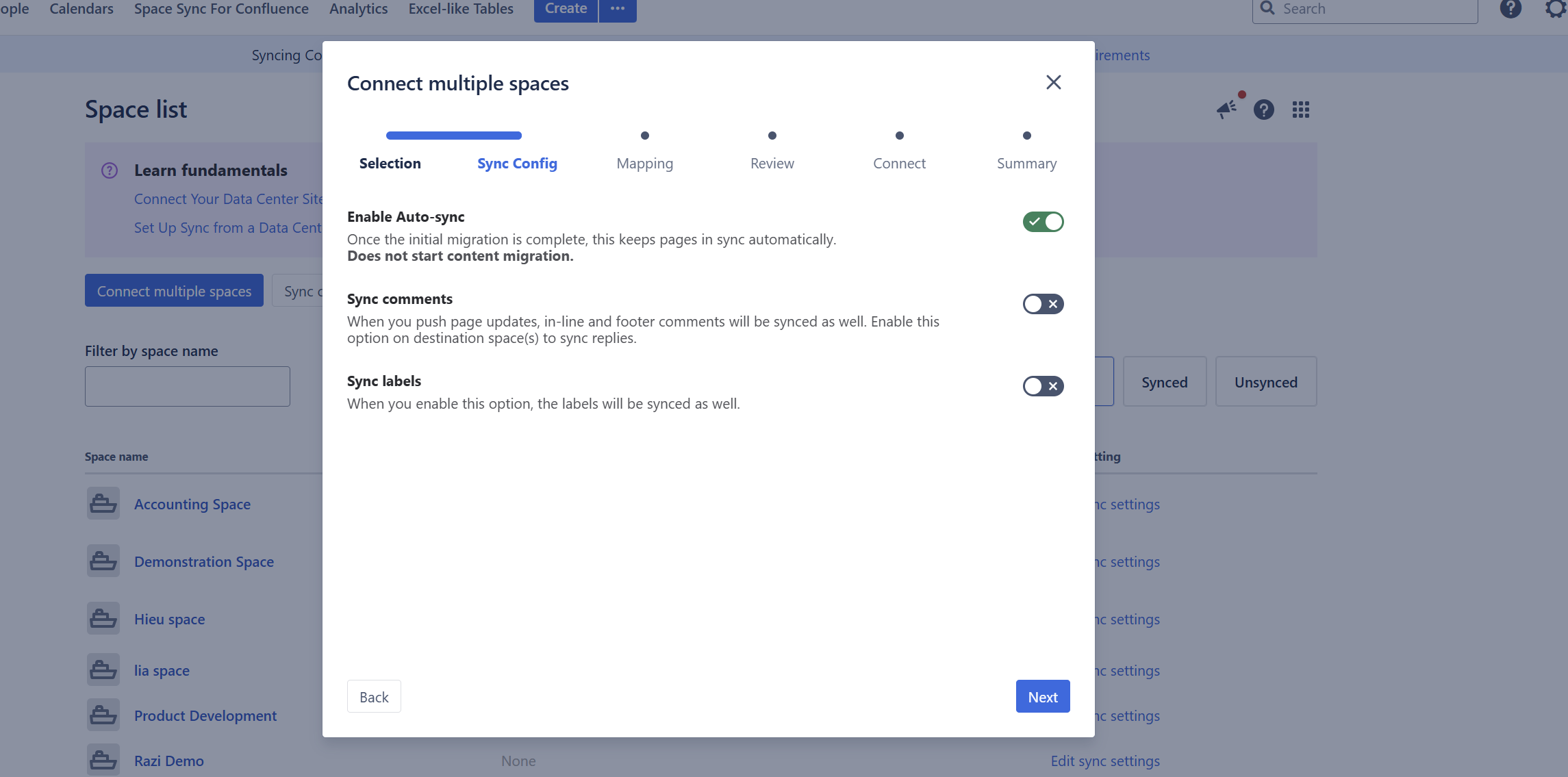
Choose the settings that should apply to the connections created in this run.
|
Setting |
Default |
What it does |
|---|---|---|
|
Enable Auto-sync |
On |
Keeps future page changes synchronized after the initial content migration. |
|
Sync comments |
Off |
Includes comments when page updates are synchronized. |
|
Sync labels |
Off |
Includes page labels when content is synchronized. |
Auto-sync does not migrate your existing content. It controls ongoing synchronization after the initial content migration.
These settings apply to all spaces selected in this connection run. There is no per-space override on this screen.
Select Next.
Step 4: Map each Data Center space to Cloud
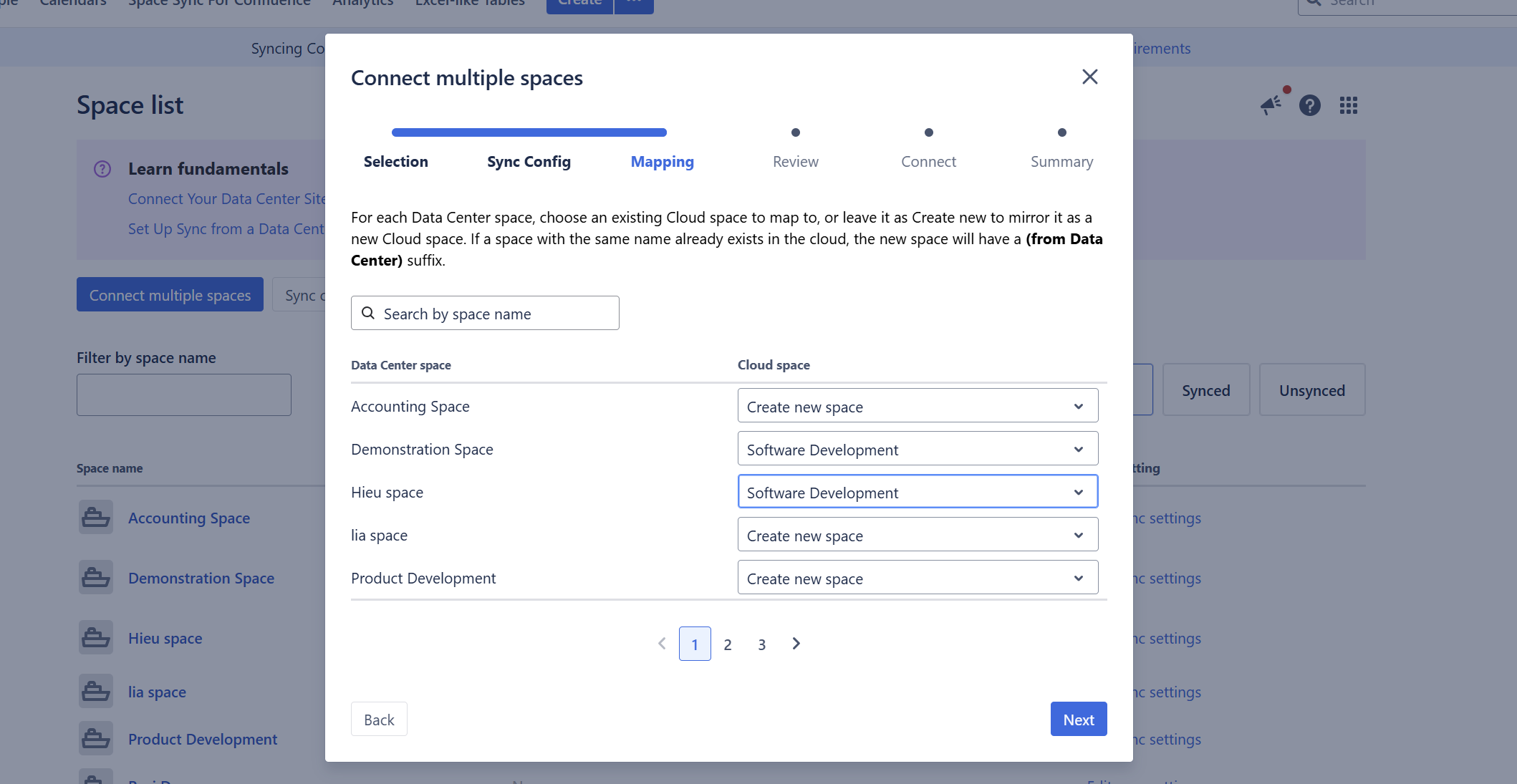
For each selected Data Center space, choose its Cloud destination:
-
Create new space — creates a new Cloud space. This is the default.
-
Select an existing Cloud space — connects the Data Center space to an existing space on the selected Cloud site.
If you create a new Cloud space and a space with the same name already exists, Space Sync adds (from Data Center) to distinguish the new space.
Review existing-space mappings carefully. The same existing Cloud space can be selected for more than one Data Center space.
Select Next when the mappings are ready.
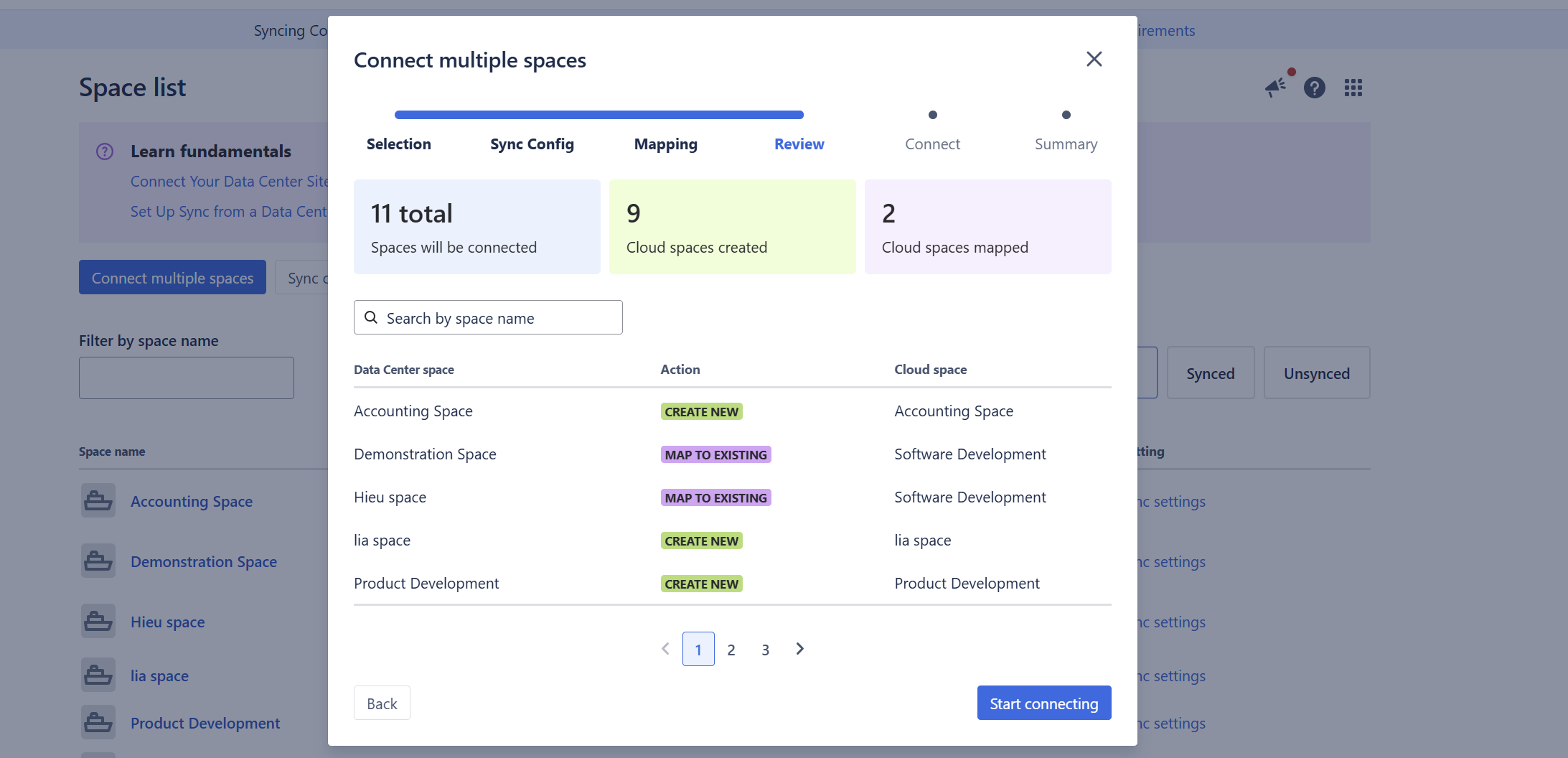
Step 5: Review the connections
Before creating the connections, review:
-
the total number of Data Center spaces that will be connected;
-
how many new Cloud spaces will be created; and
-
how many Data Center spaces will be mapped to existing Cloud spaces.
The Review screen is read-only. To change a mapping, select Back and update it from the Mapping step.
When everything is correct, select Next to start connecting the spaces.
Step 6: Check the connection progress and result
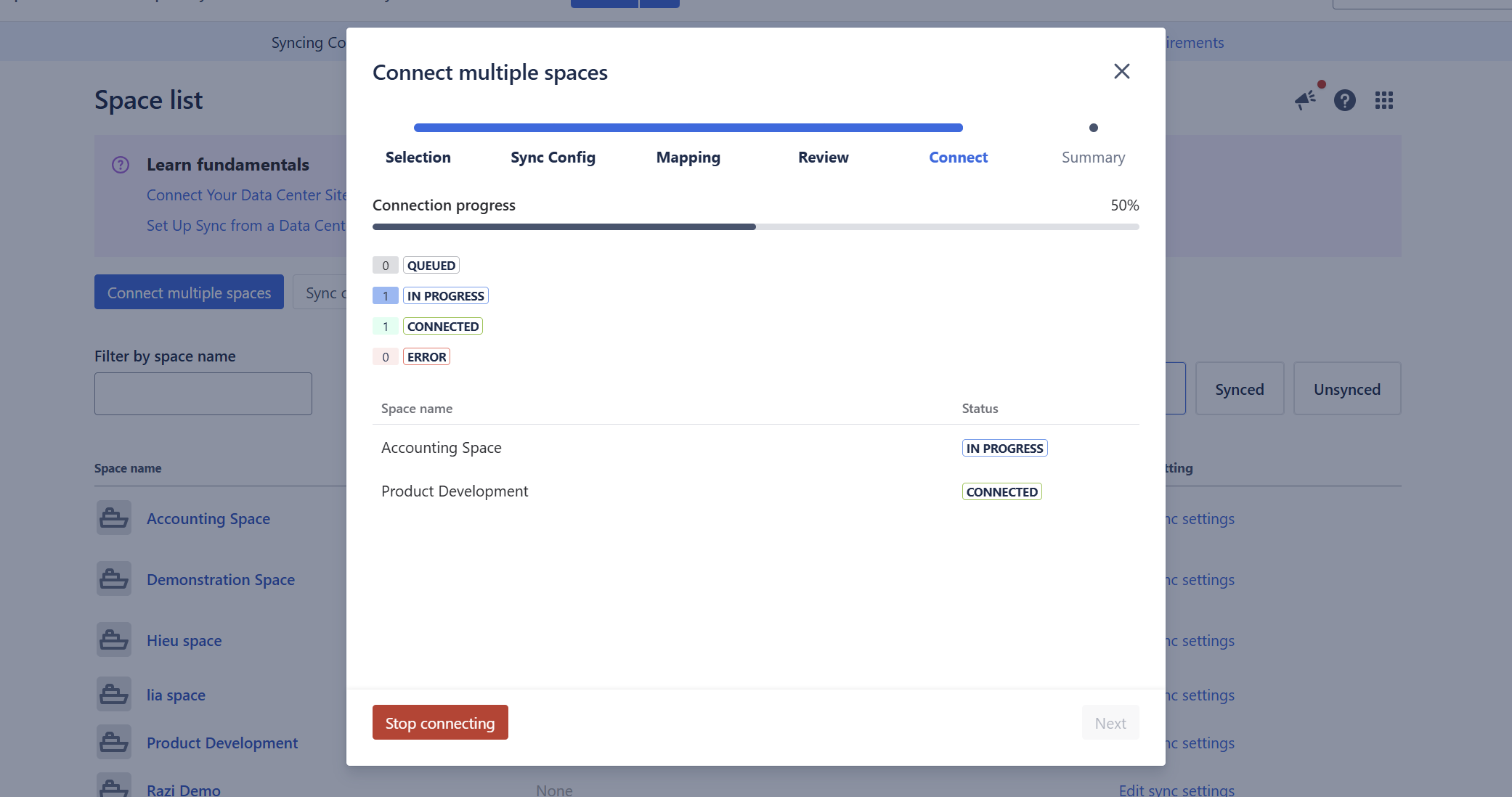
Space Sync creates the selected connections and shows the progress for each space.
|
Status |
Meaning |
|---|---|
|
Queued |
Waiting to be processed. |
|
In progress |
The connection is being created. |
|
Connected |
The space connection was created successfully. |
|
Error |
The connection could not be created. |
If one or more connections fail, retry the failed connections or download the error log for troubleshooting.
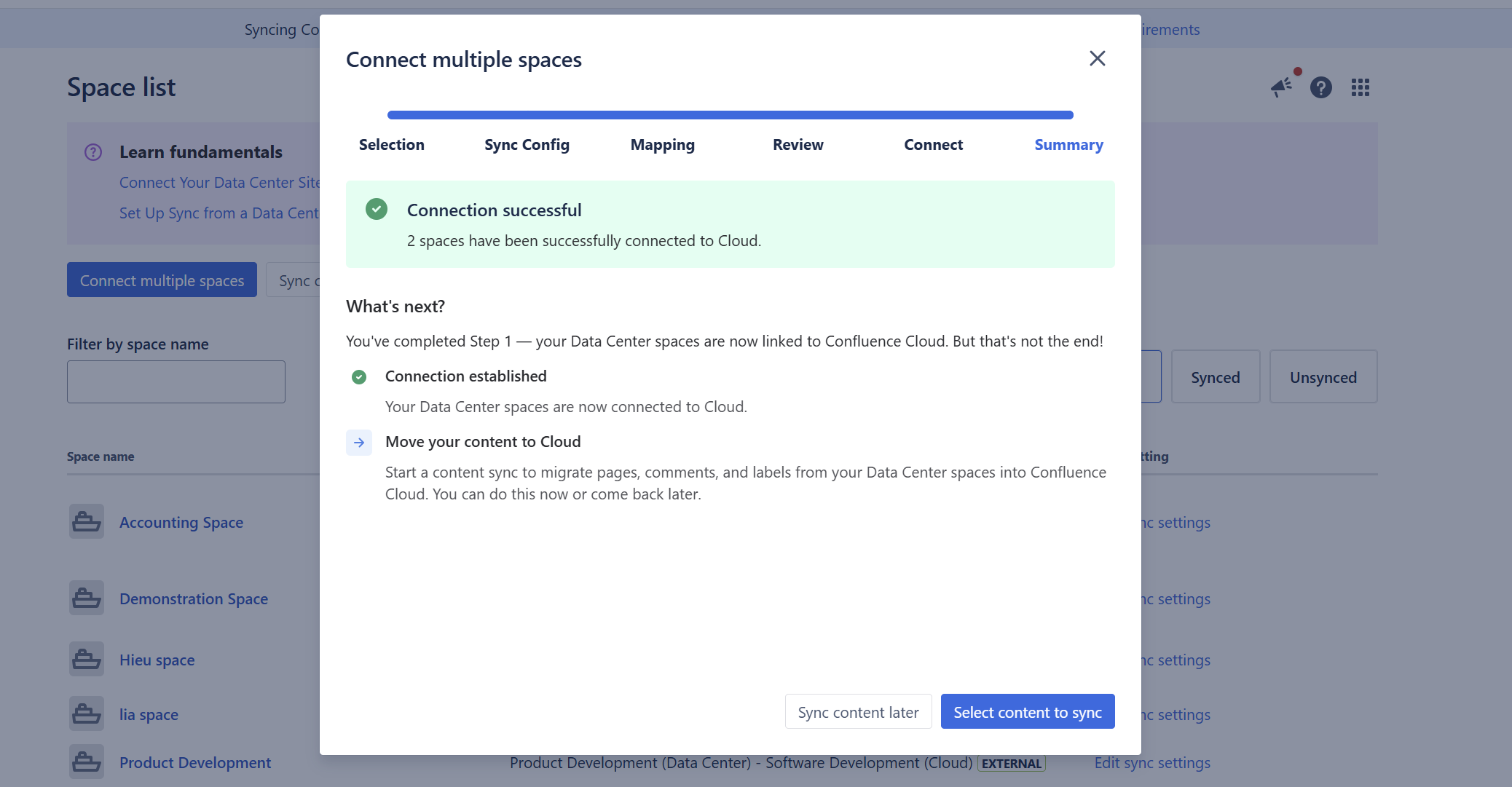
When processing is complete, continue to the summary to confirm how many spaces were connected successfully.
What happens if I stop connecting?
You can select Stop connecting while the operation is running.
The space currently being processed finishes before the operation stops. Spaces that are still queued are not connected. The summary shows how many connections were created before the process stopped.
Next: migrate the existing content
Your space connections are now ready, but the existing Data Center content has not been migrated yet.
Next step: use Sync content to migrate content from the connected Data Center spaces to Cloud.