
You have to make secure custom fields to have field-level permission. Then, configure who can view or edit the field.
This app provides custom field types to hold sensitive data in an issue.
Secure custom field types
|
Custom Field Type |
Edit view |
|---|---|
|
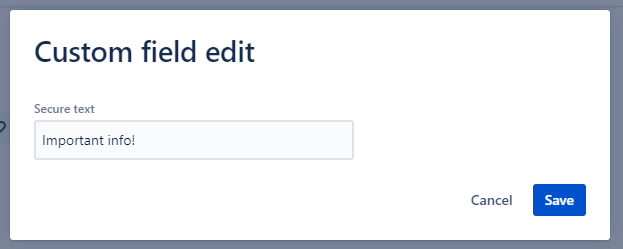
Secure Text Field (Single-Line) |
|
|
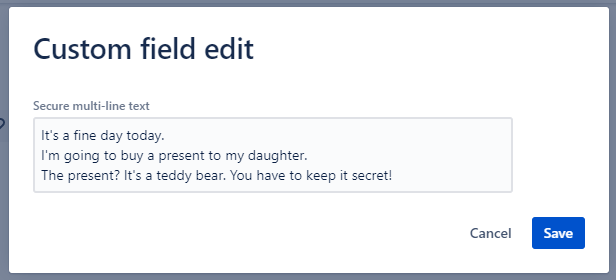
Secure Text Filed (Multi-Line) |
|
|
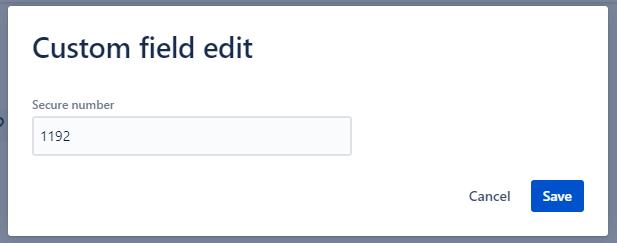
Secure Number |
|
|
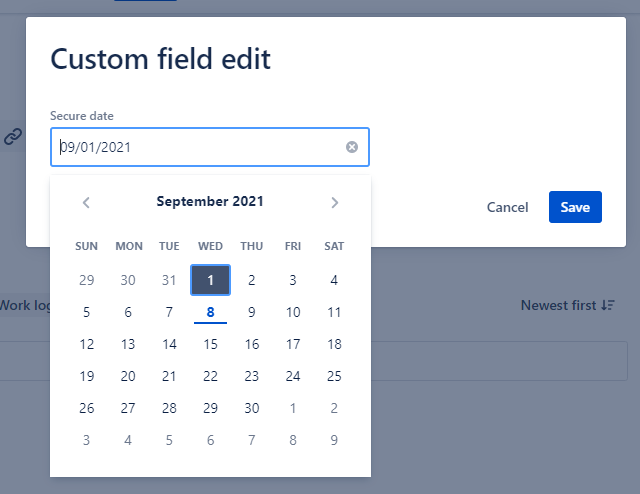
Secure Date |
|
|
Secure Select List (single choice) |
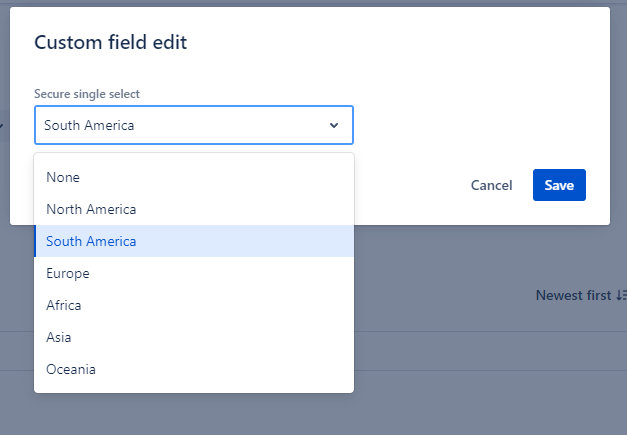
|
|
Secure Select List (multiple choices) |
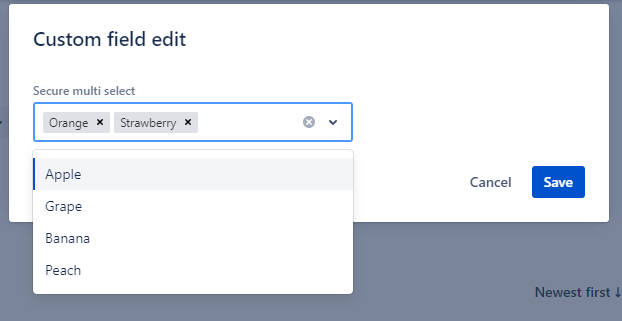
|
|
Secure Radio Buttons |
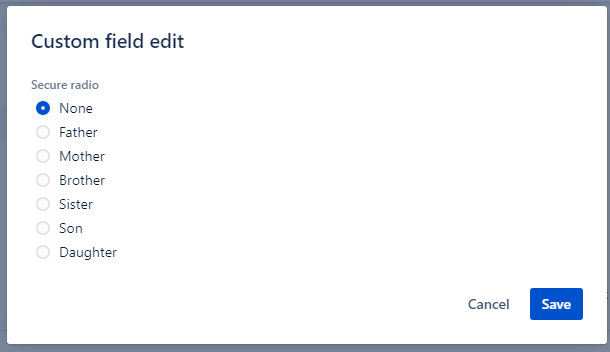
|
|
Secure Checkboxes |
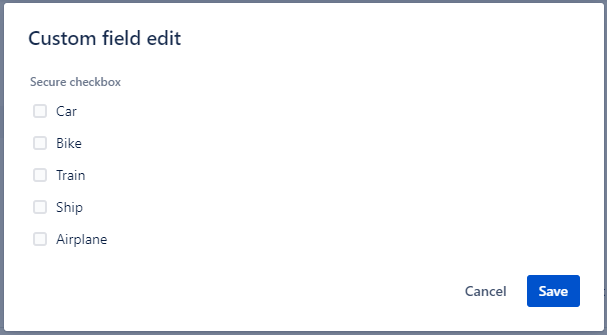
|
|
Secure User Picker (single) |
.png?cb=cae87c756c446dbcfd6ec0b46014ef9d)
|
|
Secure User Picker (multiple) |
.png?cb=e5a2d3de89c30f1417293564006d43d0)
|
We plan to increase types. If you have requests, let me know via our service desk.
For each field type, you can control the view and edit permissions at the field level. Even if a user can view and edit issues, if they do not have permission to view and edit at the field level, they will not view or edit that field.
Steps to create a secure custom field
-
Go to Secure Custom Field for Jira Application
-
Click Create New Field (on the top left section of the application)
-
Select the Field Type
-
Add Secure Custom Field Name
-
Add Secure Custom Field Description (Optional)
-
Associate Field to screen. You can choose between these two options:
-
All Screen
-
Selected Screen
-
-
Click Confirm and Wait for the success prompt which will appear on the lower left section of the application
That’s it! Congratulations on creating your first Secured Custom Field 🥳
Configure secure field permissions
https://app.arcade.software/share/ncyeWcYaOlWI2LE2RgDP
-
Go to the apps setting (Settings → Apps)
-
Go to the “Secure Custom Fields“ app then click the “Configure“ link.
-
Click the “Configure“ link for the field context to assign permissions.
-
Add users, groups project roles, and so on to view and edit permission. You can check “Grant to Any User” if you grant permission to anyone. Please note users also need view permission to edit fields.
-
If you configure select type fields like select list or checkbox, create options to select.
Other security configurations
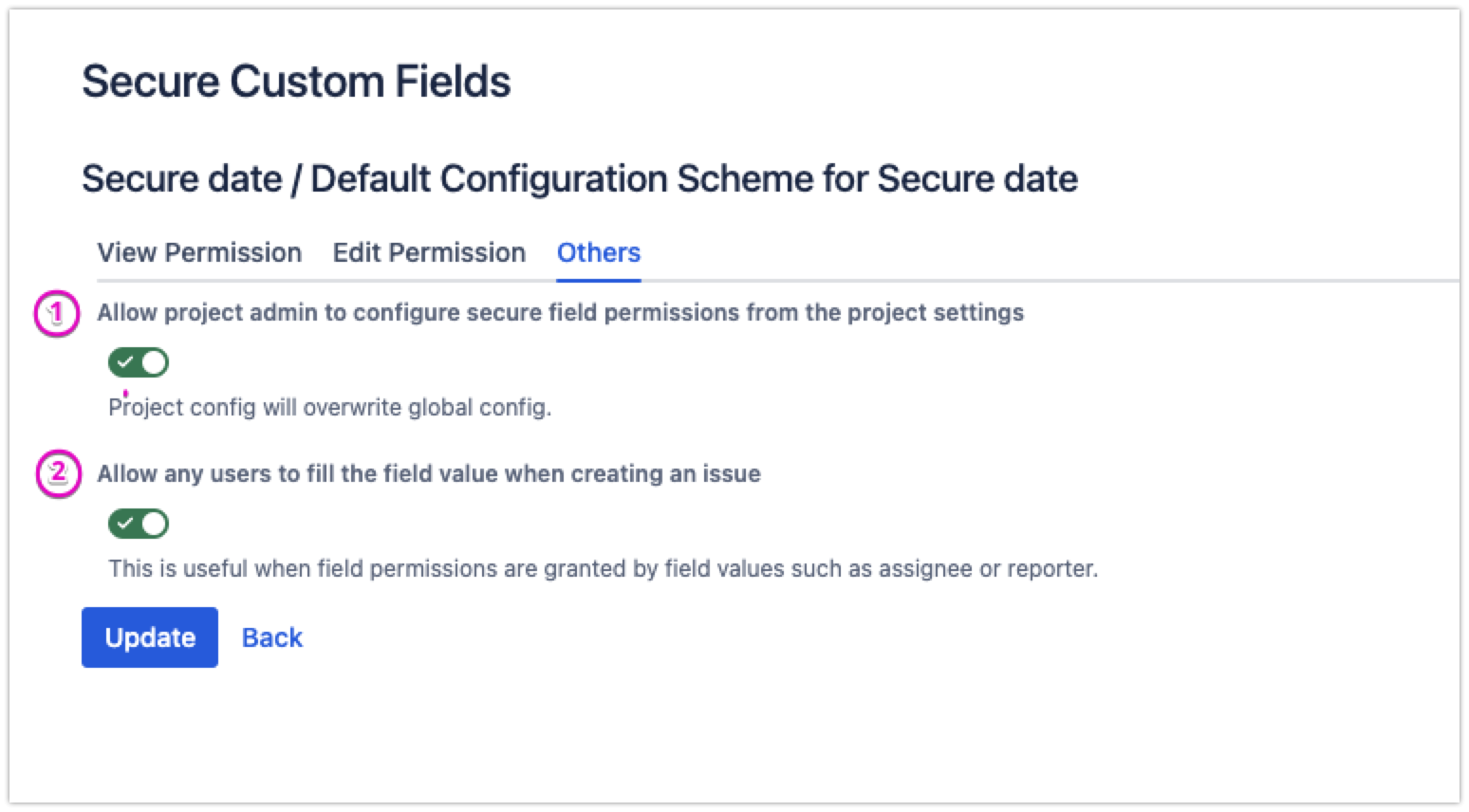
-
Enable project-level security configuration so that project admins can update field security without Jira admin’s interference
-
Enable Edit Permission on the issue create screen for any users, bypassing the current secure field permissions. This setting ensures users can update the secure field value when creating a new issue.