
Overview: This guide explains how to identify and remove a single corrupted attachment version, without deleting the whole attachment, to restore your Excel-like table's underlying data on Confluence Data Center.
This requires manual intervention for versions below 1.2.9.1. We recommend upgrading your app to 1.2.9.2 so you can use the Attachment Health Manager feature, which lets you review all attachments at once.
Refer to the documentation here: Clean Up Corrupted Attachment Versions
Background
In this product, each Excel-like table is backed by attachment files stored on the page. Every saved change creates a new attachment version. If one version becomes corrupted, the Excel-like table may fail to load or display errors. You can safely remove only the corrupted version to roll back to the last healthy one.
Attachment naming convention: Excel-like table data is stored in files that follow the pattern table-xxxx.json, where xxxx is a numeric identifier.
Before you begin
-
Ensure you have permission to view and manage attachments for the page.
-
Back up the current attachment (download it) before making any changes.
-
Proceed only if you can clearly identify the corrupted version. If unsure, contact support with a screenshot for guidance.
Best practice: Always download the latest attachment file before deleting any version. This provides a fail-safe if you remove the wrong version.
Identify the corrupted attachment version
-
Open the Confluence page that hosts the corrupted Excel-like tables spreadsheet.
-
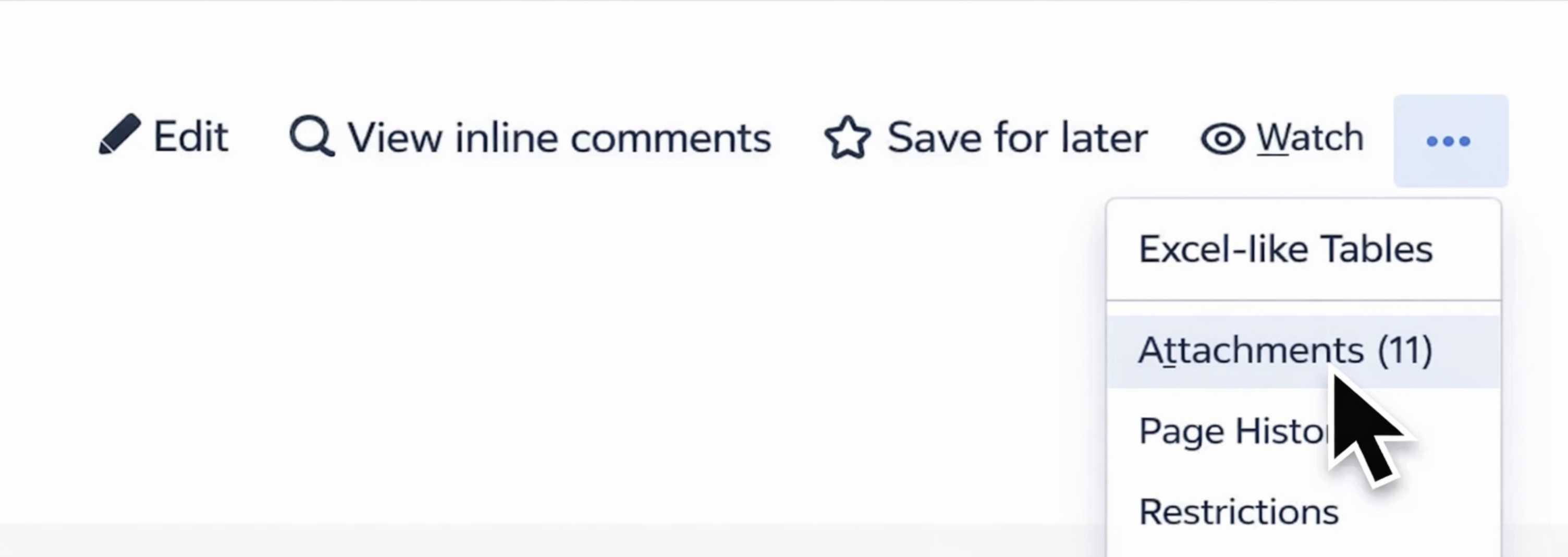
Go to the page’s attachments:
-
Choose More actions (•••) > Attachments
-
-
In the attachment page Locate the Excel-like table data attachment named like
table-xxxx.json. -
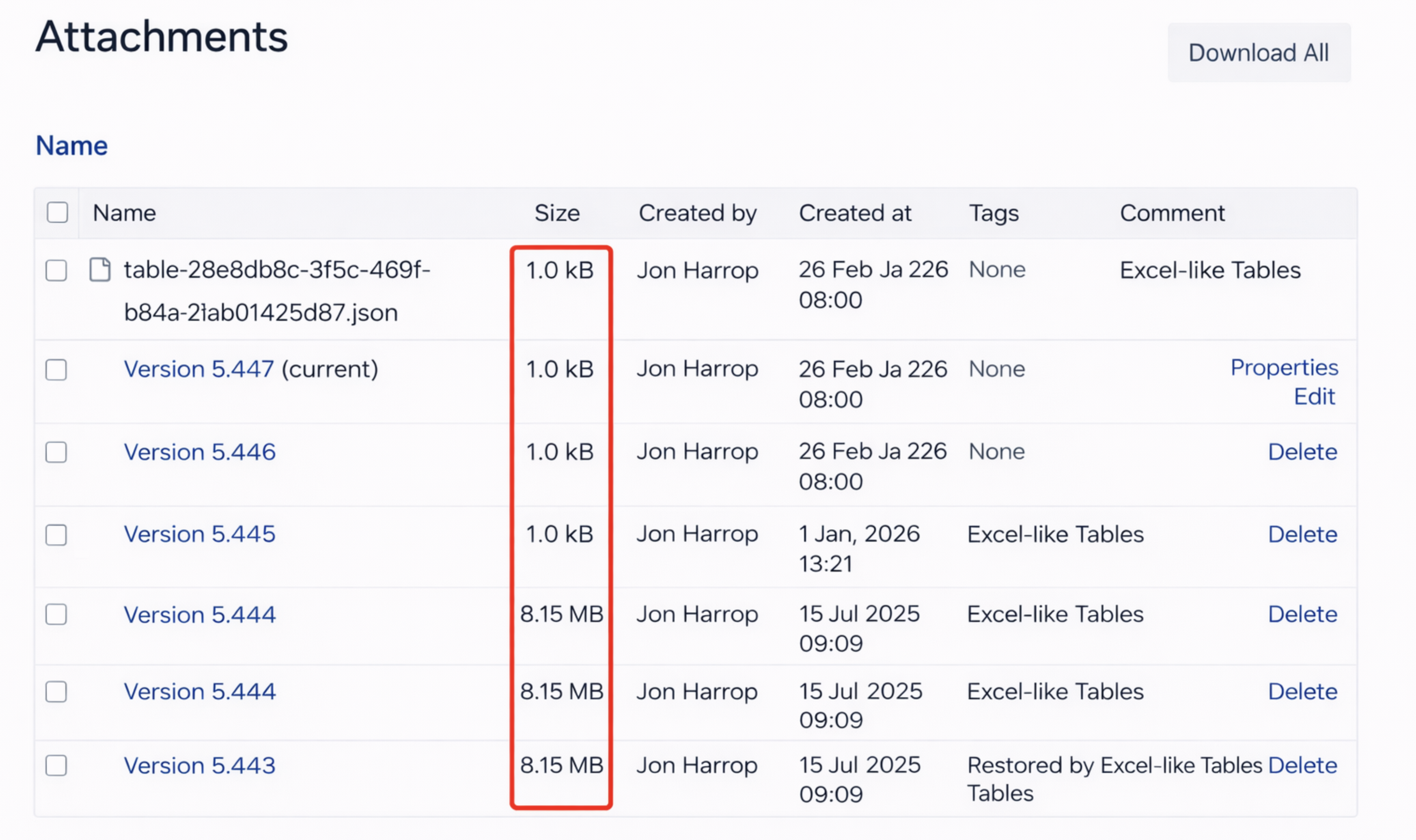
Open Versions (or History) for that attachment to view all versions, sizes, and timestamps.
-
Identify anomalies that commonly indicate corruption:
-
Unusually small file size (for example, around 1 KB when prior versions are much larger).
-
Sudden drastic size change compared to adjacent versions.
-
Version after which the Excel-like table fails to load or errors appear.
-
Back up before deletion
-
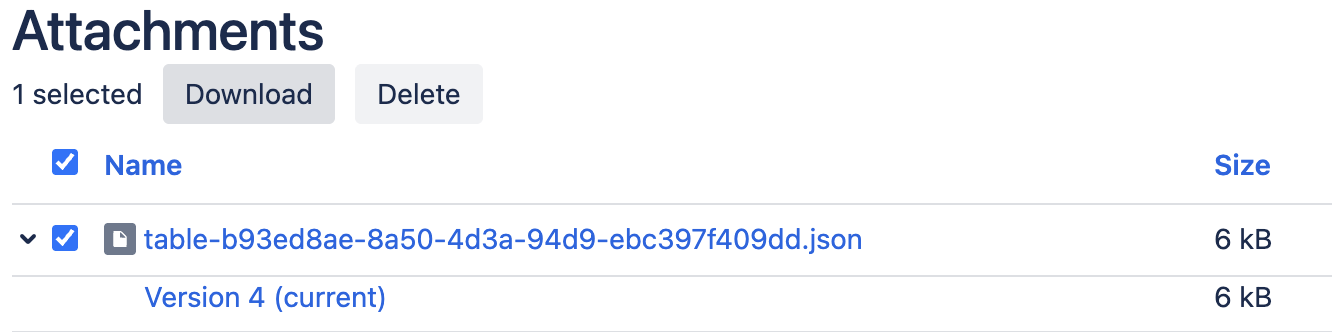
From the Attachment screen, download all versions of the attachment before deleting anything.
-
This ensures you can restore any specific revision if needed (you may also keep the suspicious version as evidence for support).
Keep the backups until you fully confirm the Excel-like table loads correctly after cleanup.
Remove the corrupted attachment version
-
In the attachment’s Versions/History view, find the specific corrupted version you identified earlier.
-
Use Delete (or Remove) for that exact version only. Do not delete the entire attachment unless instructed by support.
-
Confirm the deletion when prompted.
Validate the Excel-like table
-
Return to the page and reload the Excel-like table macro/view.
-
Confirm data renders correctly and that recent edits (up to the last healthy version) are intact.
-
If issues persist, consider removing the next suspicious version, or restore from the backup you downloaded and contact support.
Troubleshooting and tips
-
If multiple
table-xxxx.jsonfiles exist, match by the macro/page context and recent edit time to avoid touching unrelated data. -
Do not bulk-delete. Remove only the single confirmed corrupted version, then re-check the sheet.
-
If you cannot access Attachments from page actions, check space/page permissions or ask an administrator.
Request support
If you are unsure which version to delete or the issue persists after cleanup, contact our Support team. Include:
-
A screenshot of the attachment Versions/History list showing sizes and version numbers.
-
The page link and a brief description of what occurred immediately before the issue.
Open a ticket via: https://ricksoft-support.atlassian.net/servicedesk/customer/portal/33/group/73/create/279 (attach your screenshots).