
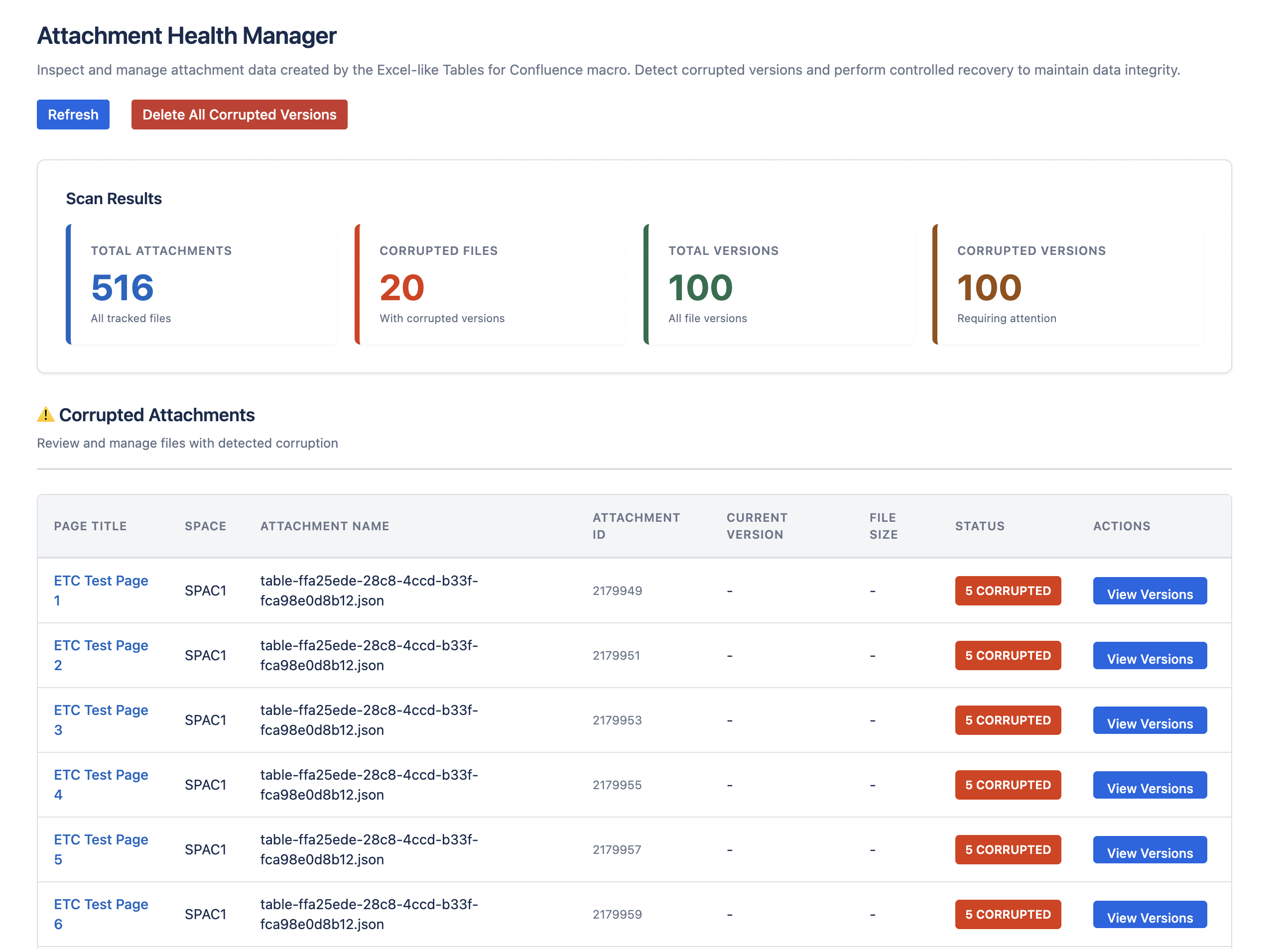
Use the Attachment Health Manager (available in v1.2.9.1 and above or 2.0.2.1 and above) to identify and remove corrupted attachment versions while preserving healthy data. You can also use this Health Screen to check the overall app health in your instance.
If your instance has corrupted attachment versions, the Health Screen shows what is affected and how many versions are impacted.
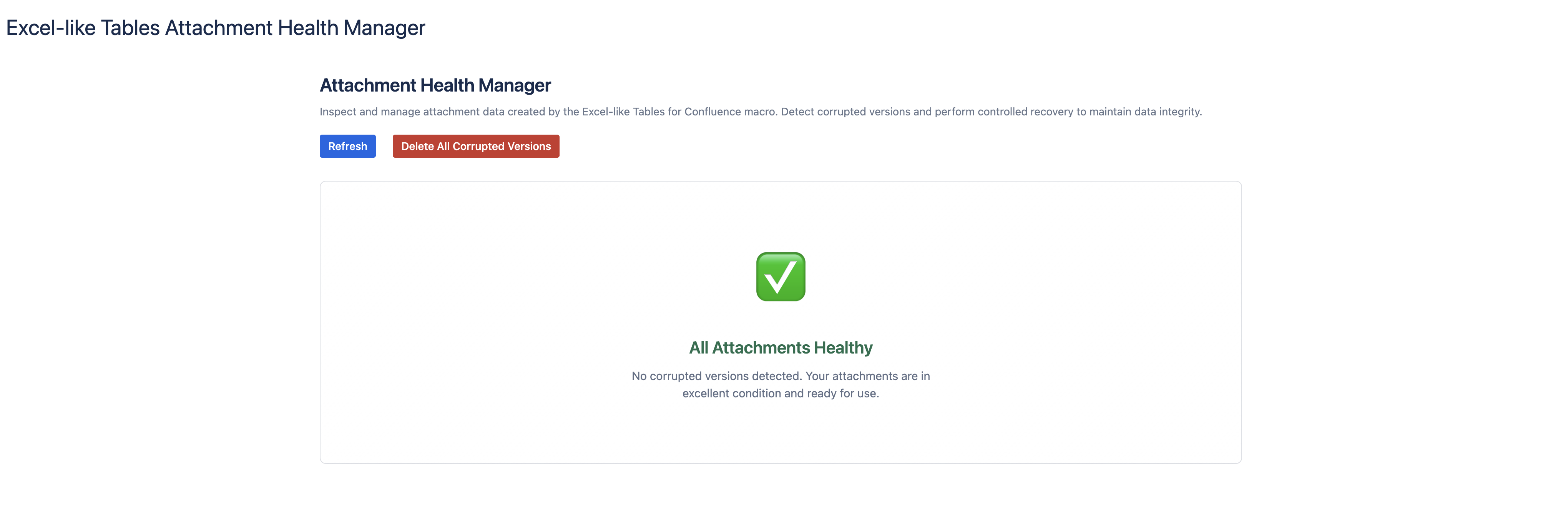
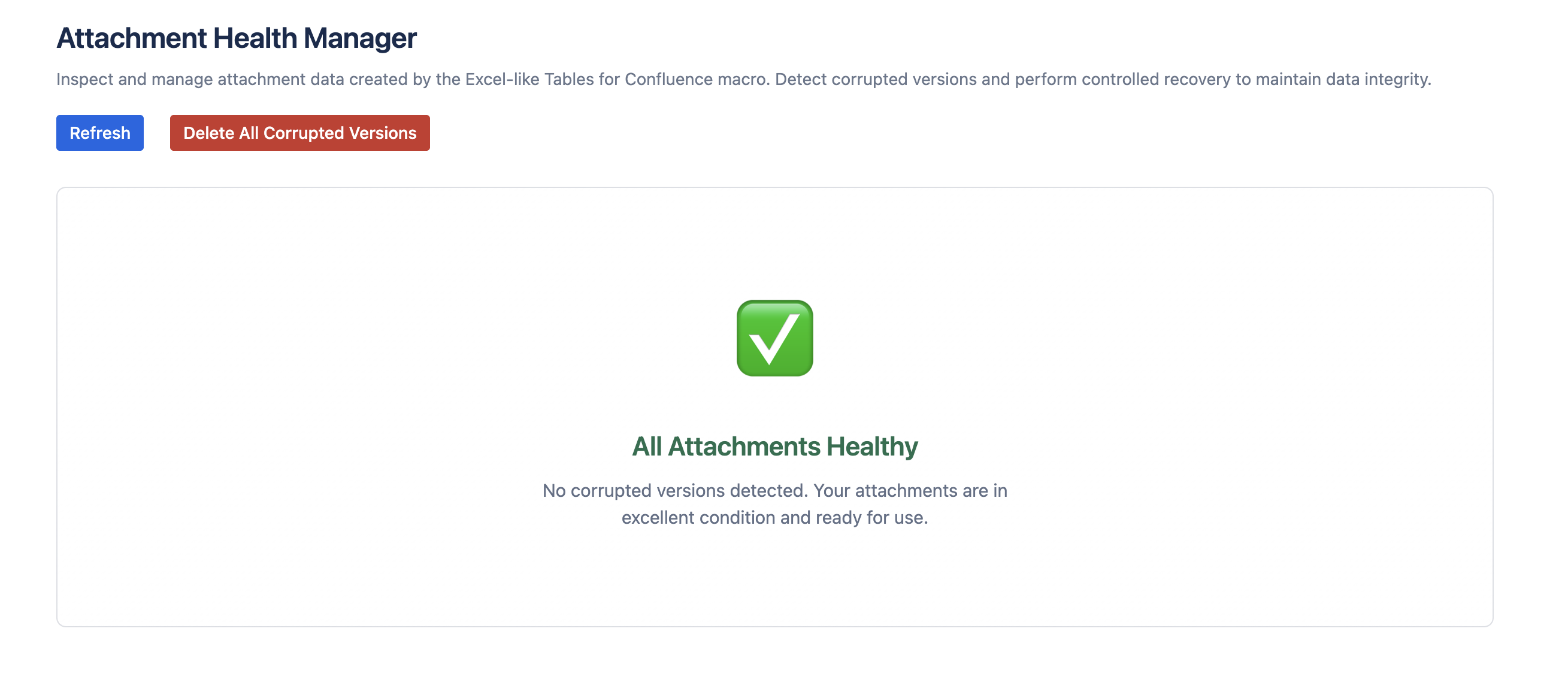
Cleaned screen
Access & Safety Prerequisites
Navigation – open the Attachment Health Manager
-
Go to Confluence administration.
-
In the side menu, open Excel-like Tables settings.
-
Click Attachment Health Manager.
-
Admin access only: Confluence or System Administrators can use the Attachment Health Manager and perform deletions.
-
Back up first: Download the latest healthy version of each affected attachment before deleting any corrupted versions.
-
Plan a change window: Perform cleanup during low-usage periods with the required approvals to minimize impact.
Best practice: Back up the current attachment before removing any version. If you delete a wrong version, restore it immediately from backup.
Targeted cleanup is recommended if you want to validate each case, preserve specific intermediate versions, or when certain attachments require special handling.
How to Access the Attachment Health Manager
How to use
Bulk Delete
Use bulk deletion when you trust the scan results and want a fast, site-wide cleanup. This is the quickest way to restore normal operation.
-
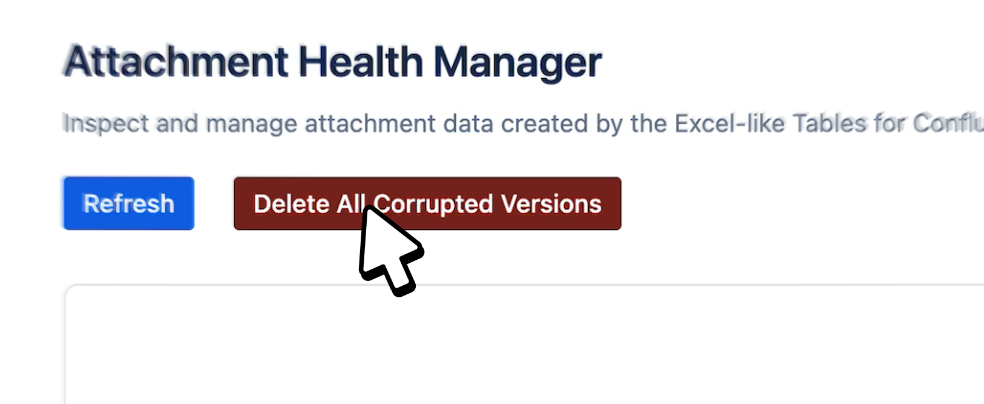
Click Delete All Corrupted Versions to start bulk cleanup.
-
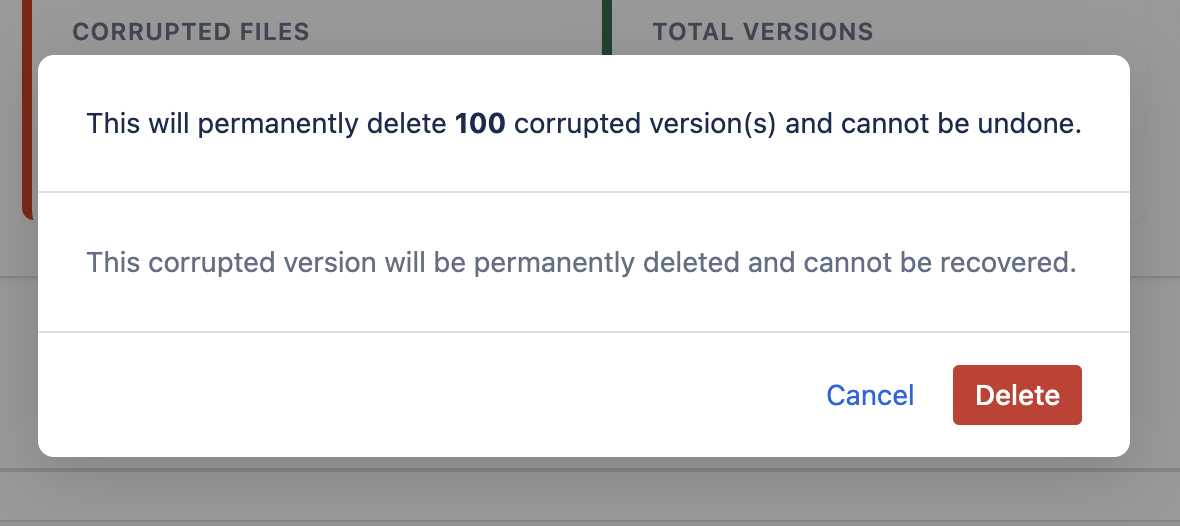
A confirmation dialog appears. Review the count of versions to be deleted.
-
Click Confirm to proceed. The system deletes only versions flagged as corrupted.
-
Wait for the success message, then refresh the scan to verify the corrupted count is zero.
Individual Attachment Cleanup
To manage deletions for specific attachment versions:
-
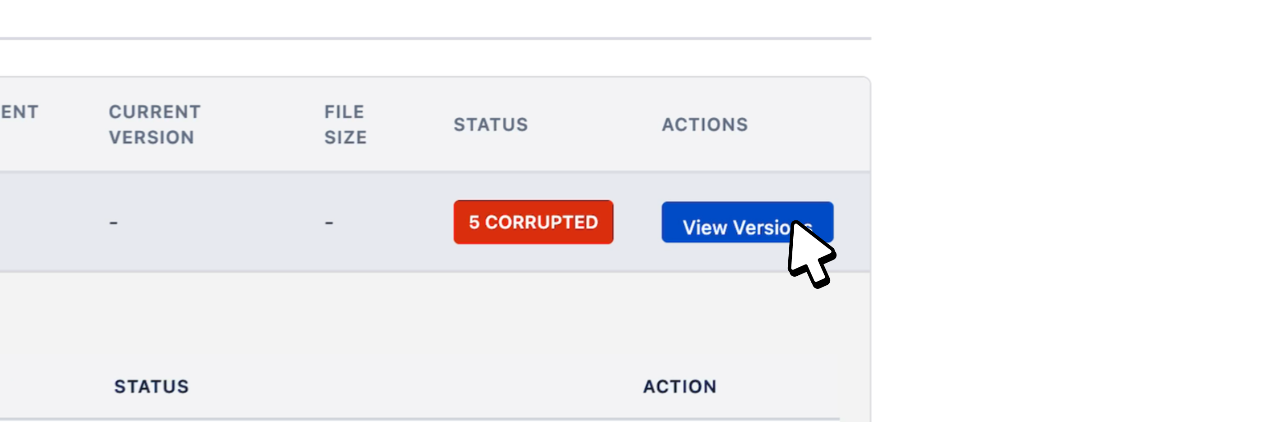
Click View Versions to see available versions of the selected attachment.
-
Review each version's status.
-
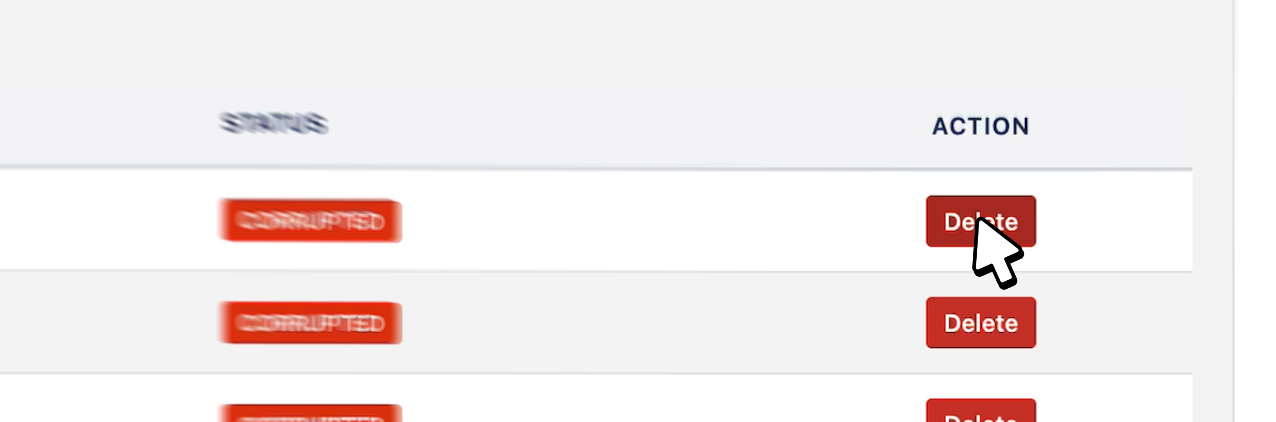
Click Delete on the corrupted version to remove it.
After removing corrupted versions, verify the page and its Excel-Like tables macro function correctly.
Note: To ensure data integrity, the Health Screen blocks deletion of healthy versions. To remove a healthy version, use the standard Confluence Attachment Manager, as this carries higher risk.
Verification After Cleanup
-
Reload affected Confluence pages containing Excel-like Tables and confirm the tables render normally without errors or endless loading.
-
Open the Excel-like Table history (if applicable) and confirm recent changes exist up to the latest healthy version.
-
Re-run or refresh the Attachment Health Manager scan to ensure the corrupted versions count has dropped to zero.
Tips and Troubleshooting
-
Start with bulk delete when widespread corruption is indicated. It’s safe: only flagged versions are removed.
-
Prefer per-attachment review for critical pages where you must keep specific intermediate revisions.
-
If tables still fail to load after cleanup, check for remaining corrupted versions on related attachments (e.g., multiple table data files per page).