
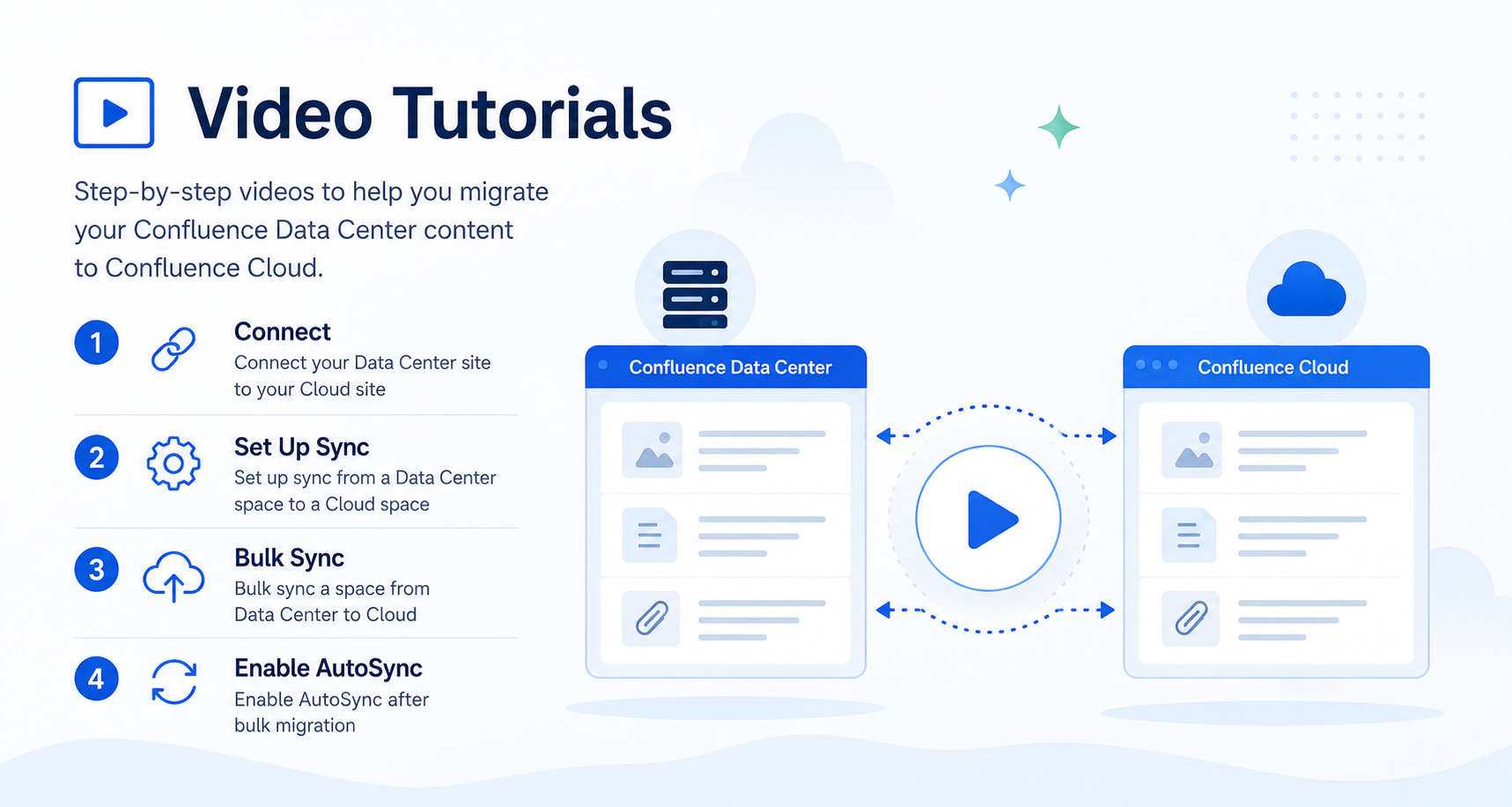
Learn how to migrate your Confluence Data Center content to Confluence Cloud with these short step-by-step video tutorials.
We recommend watching the videos in the order below if you're performing a migration for the first time.
|
Step |
Video |
Description |
|---|---|---|
|
1 |
Connect Your Data Center Site to Your Cloud Site |
Learn how to connect your Confluence Data Center instance with your Confluence Cloud site to prepare for content migration. |
|
2 |
Set Up Sync from a Data Center Space to a Cloud Space |
Configure a synchronization between a Data Center space and its destination Cloud space before starting the migration. |
|
3 |
Bulk Sync a Space from Data Center to Cloud |
Perform the initial bulk migration to copy all supported content from your Data Center space to Confluence Cloud. |
|
4 |
Enable AutoSync After Bulk Migration |
Keep both spaces synchronized by enabling AutoSync after the initial bulk migration has completed successfully. |
1. Connect Your Data Center Site to Your Cloud Site
This video shows how to:
-
Connect your Confluence Data Center site to your Confluence Cloud site
-
Complete the authentication process
-
Verify that the connection is successful
2. Set Up Sync from a Data Center Space to a Cloud Space
This video covers:
-
Creating a new sync configuration
-
Selecting the source and destination spaces
-
Configuring synchronization settings
3. Bulk Sync a Space from Data Center to Cloud
This video demonstrates how to:
-
Start a bulk migration
-
Monitor migration progress
-
Verify that your content has been migrated successfully
4. Enable AutoSync After Bulk Migration
This video explains how to:
-
Enable AutoSync after the initial migration
-
Keep your Data Center and Cloud spaces synchronized
-
Monitor ongoing synchronization
Next Steps
After completing the migration:
-
Review the migrated content in Confluence Cloud.
-
Verify that all required pages, comments, and labels have been synchronized.
-
Continue using AutoSync until you're ready to fully transition to Confluence Cloud.