Why a Manual Upgrade Is Required for Jira Cloud Apps
Major app upgrades on Atlassian Cloud Apps may require a manual update. Unlike regular updates, Atlassian does not automatically deploy major Marketplace app upgrades because they may introduce new permissions or changes that require administrator approval.
Before upgrading, site administrators should review the new permissions requested by the app and verify that they align with their organisation's security and compliance requirements. Once approved, the administrator can proceed with the update to ensure the app remains secure, compatible, and up to date.
Upgrading the Secure Custom Fields for Jira Cloud App
-
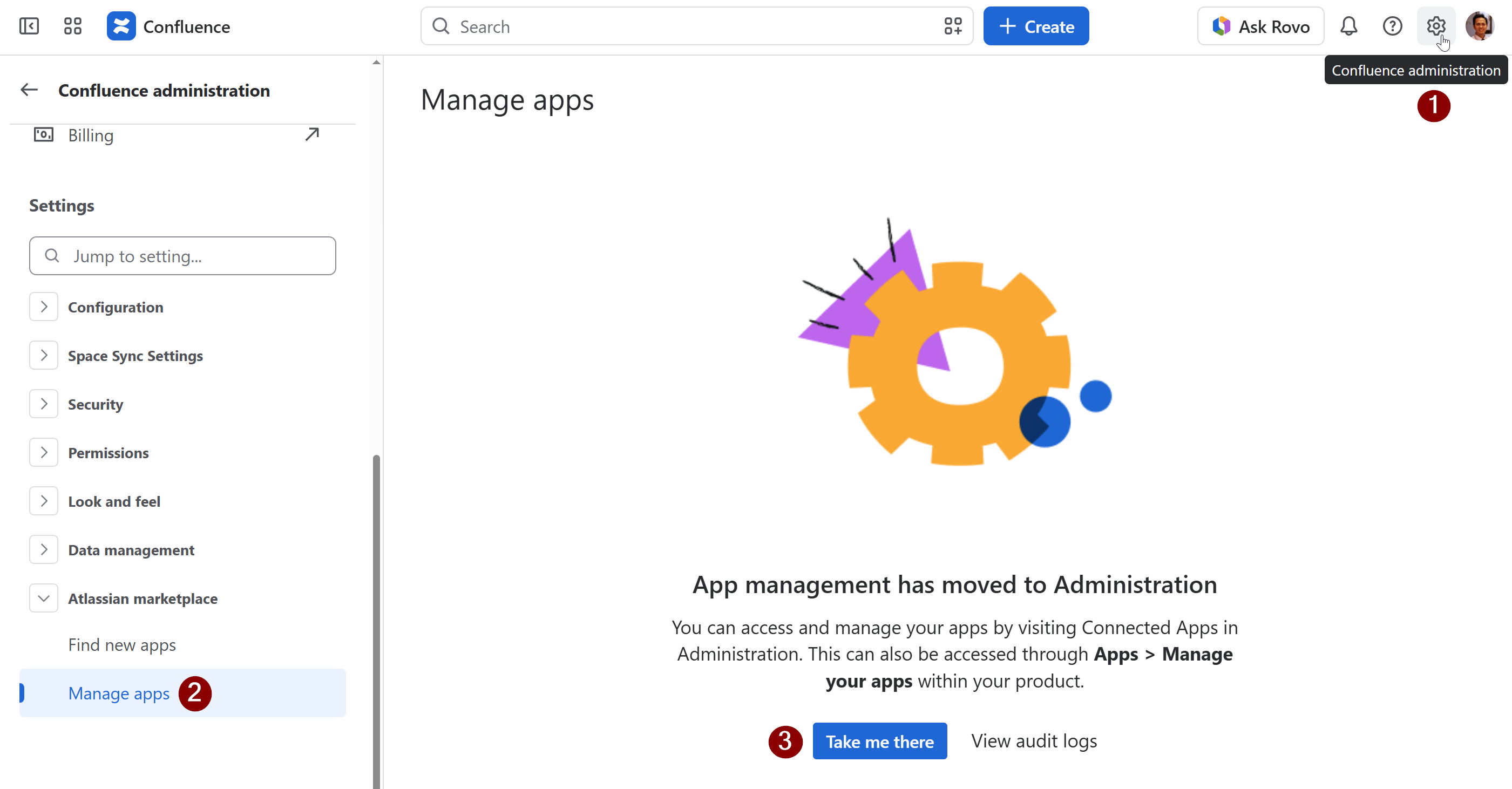
Go to Settings by clicking the cog icon. Navigate to Apps → Manage apps.
-
Find Secure Custom Fields for Jira (Security & Permission) in your connected apps list.
-
Click on View app details.
-
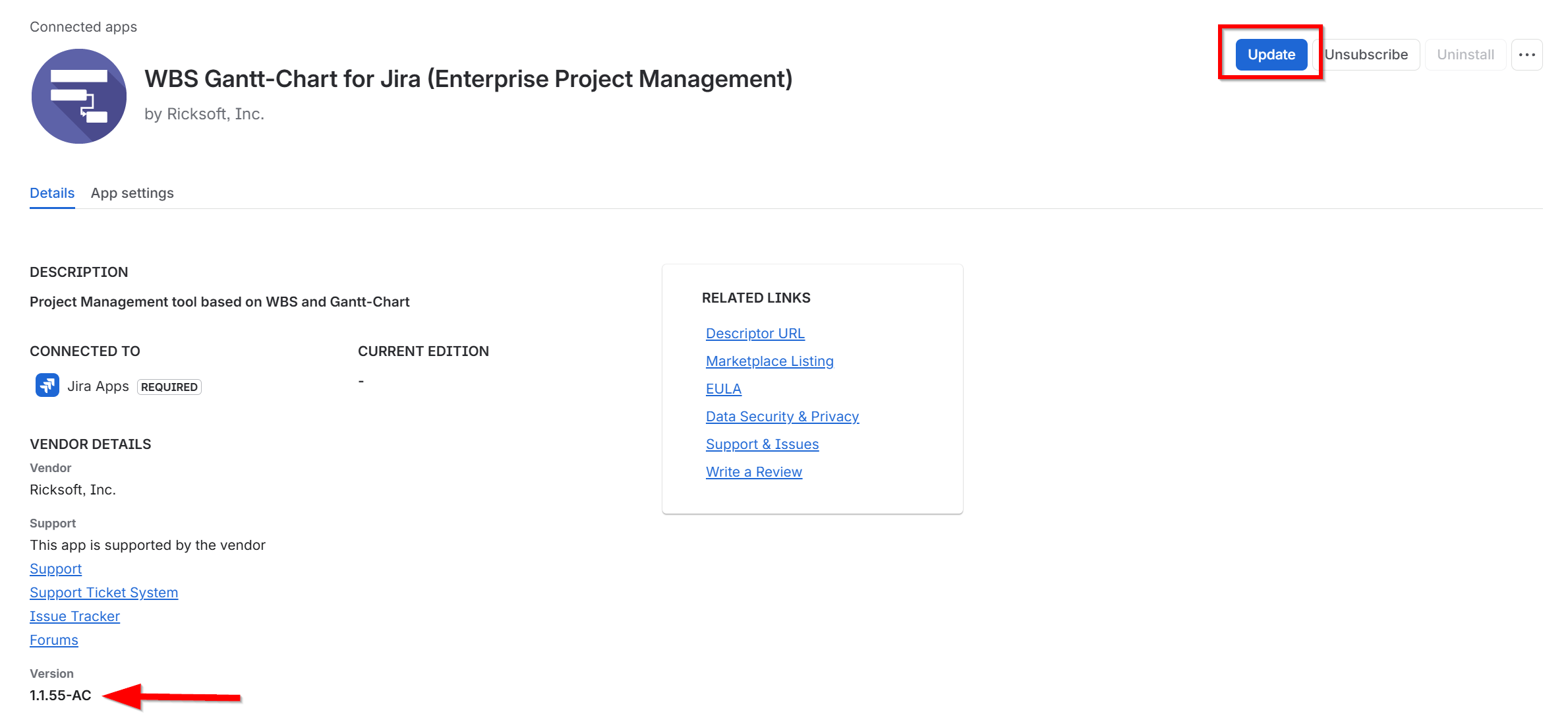
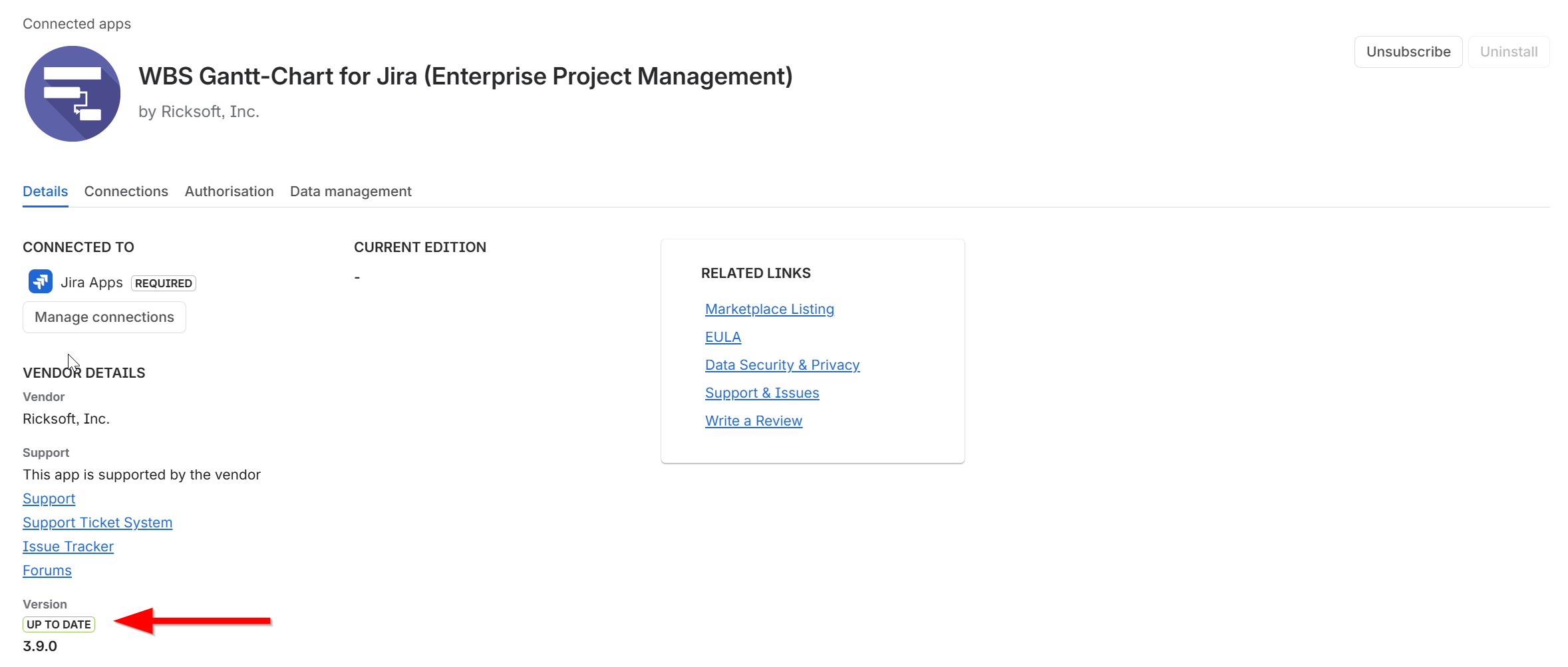
Check the Version section is up to date. If the version is labelled UP TO DATE, no further action is required. Else, click the Update button.
-
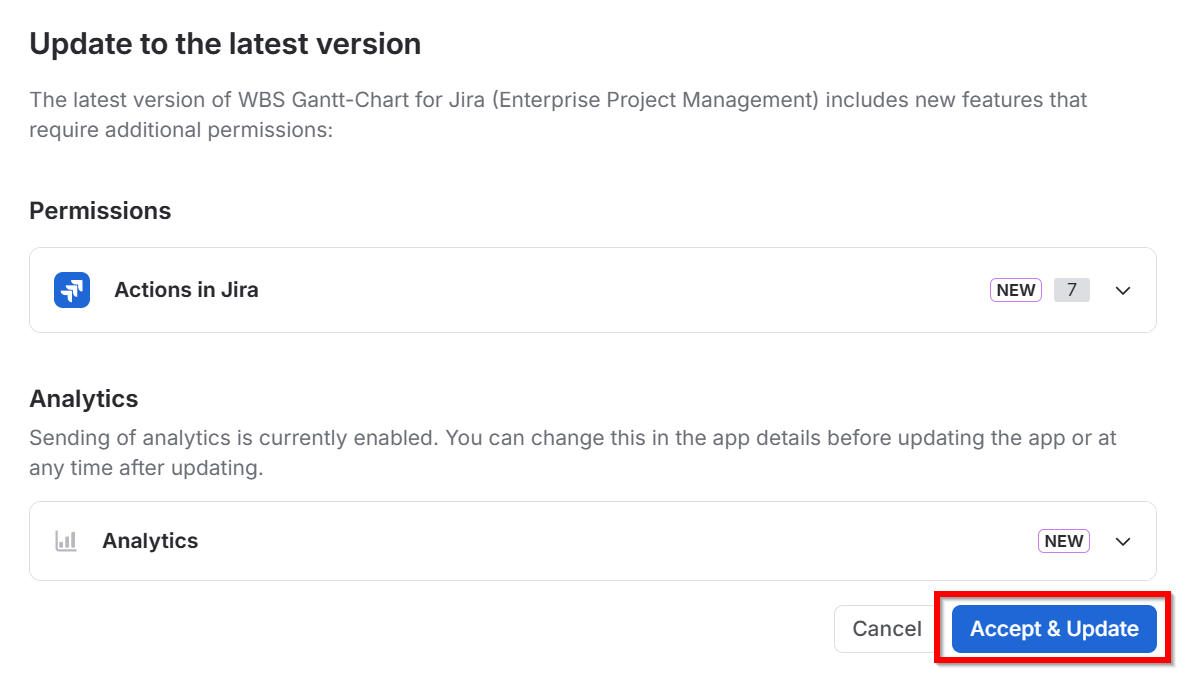
Review the permission changes, if any, then click Accept & Update.
-
Once finished, verify that the Version section displays the UP TO DATE label, confirming that the latest version has been installed.
If your app has been outdated for a while
If your instance has been stuck on an older version for an extended period, you may have missed several updates in a row — each with its own permission approval step.
In this case:
-
Repeat the Update → Review permissions → Accept & Update steps above until the Version section shows UP TO DATE. You may need to do this more than once if multiple major versions were skipped.
-
If the Update button doesn't appear or the app still shows as outdated after following these steps, please contact support and we'll help investigate.