How to sync content with external Confluence sites
An external site is a unique Confluence instance. You will need to install Space Sync for Confluence app on all sites that you want to establish the synchronization.
Please follow the same steps described here to create a new sync: https://docs.ricksoft-inc.com/space-sync-for-confluence/how-to-establish-synced-spaces
-
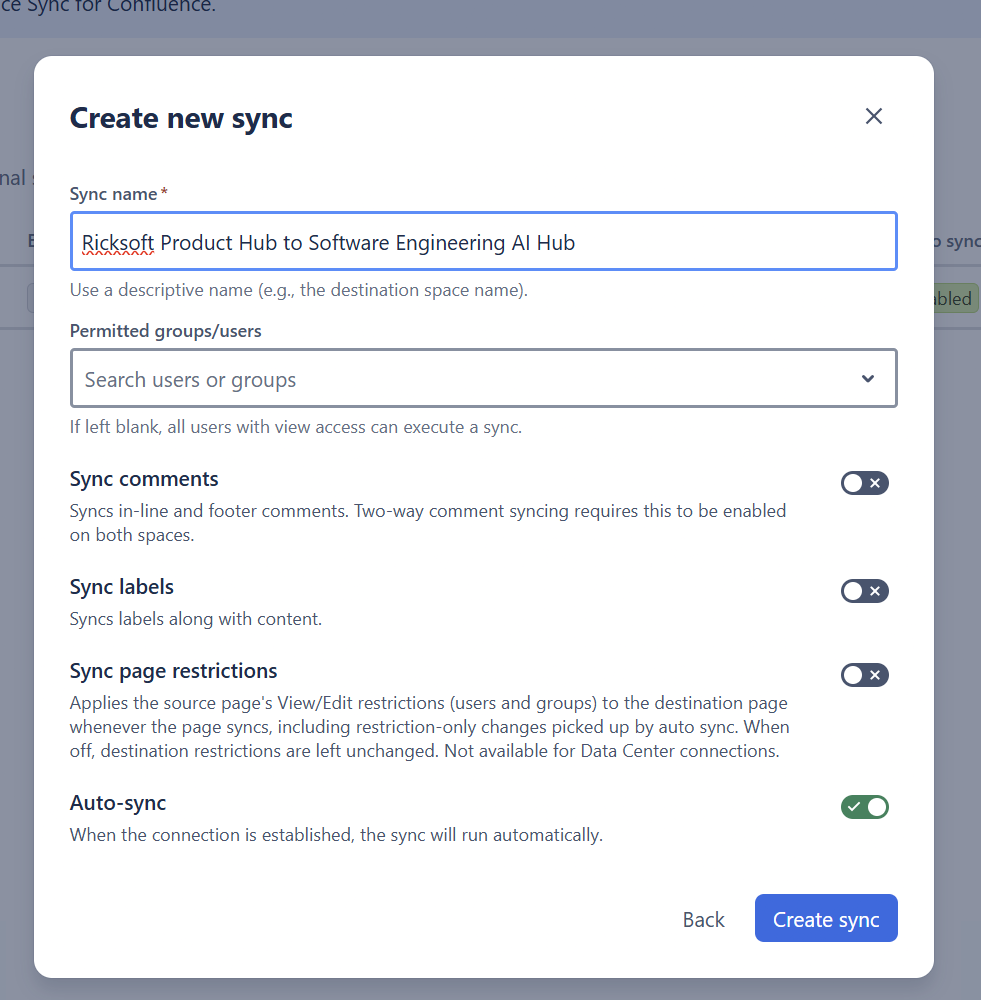
On the source Confluence site, open Synced spaces list → Establish sync → Create a new sync. Review the settings, select Create sync, then share the token through Send token, Download token, or Share later:
-
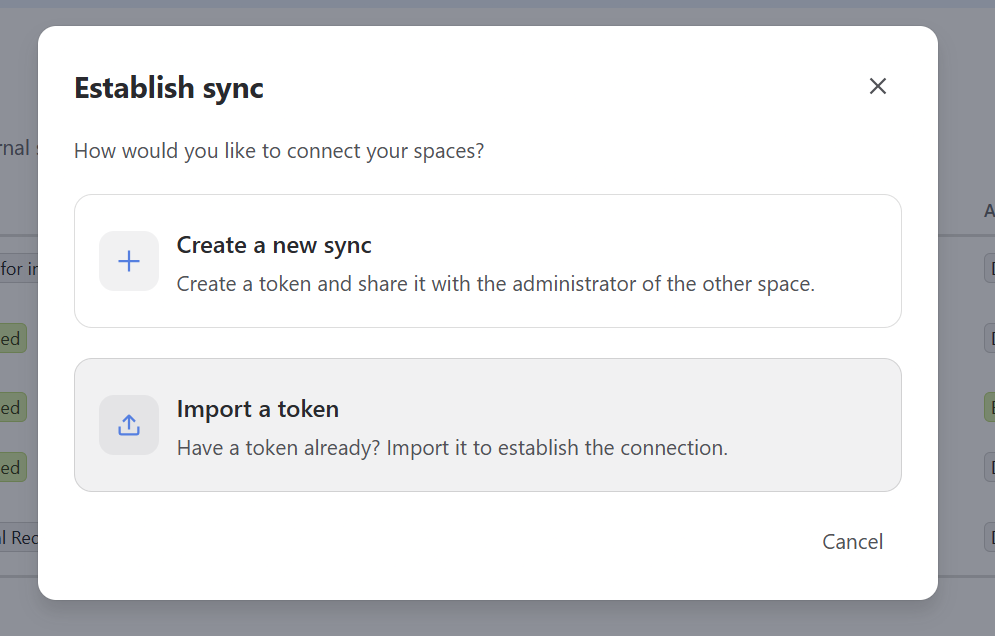
On the destination site, open Establish sync → Import a token. Choose or drag in the token file, review the settings and select Import:
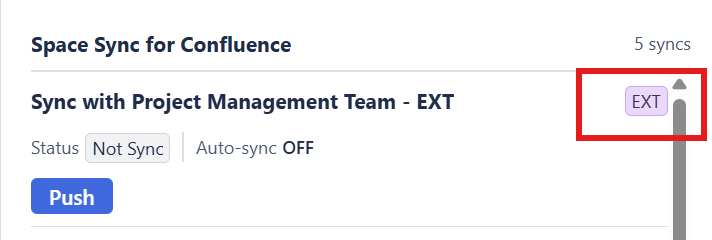
And that’s it! You’ll see the EXT label indicating the external site sync.
Enable @user mention in external sites
Space Sync for Confluence supports mention users in external sites.
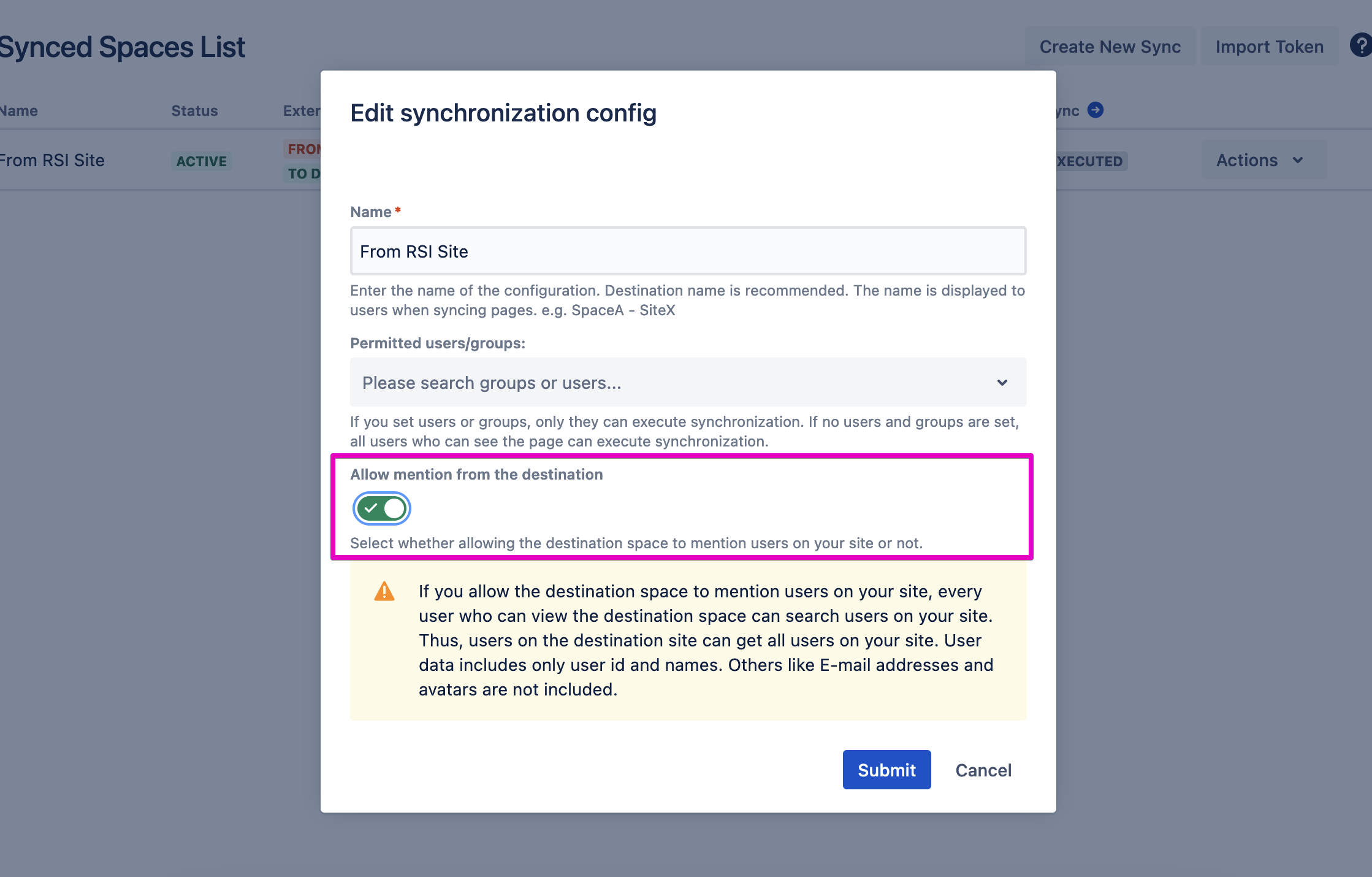
To enable it, you, who is a space administrator, explicitly allow the destination site to mention users in your site.
If you allow the destination space to mention users in your site, every user who can view the destination space can search users in your site. Thus, users in the destination site can get all users on your site. User data includes only user id and names. Others like E-mail addresses and avatars are not included.
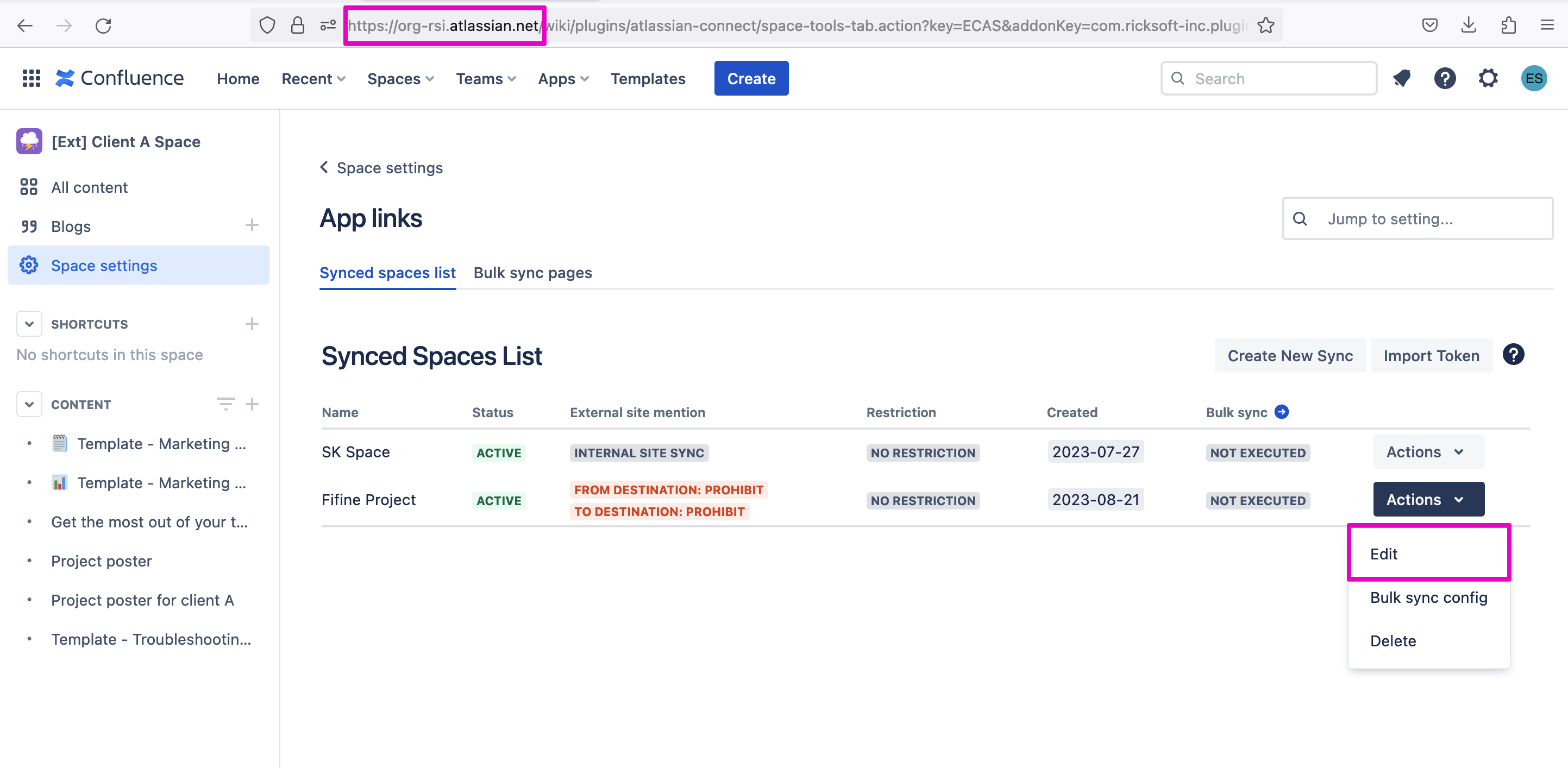
The operations are executed in the Add-ons tab in the Space setting screen.
-
Open edit screen for the setting you want to change whether mention from the external site is enabled.
-
Change toggle under “Allow mention from the destination” label.
This toggle is only shown for established sync with an external site. You have to establish sync before changing allowing mention.