
Navigate to any Confluence Data Center page of the Space that you have established the connection. At the top of the page, you can see a button Not Synced.
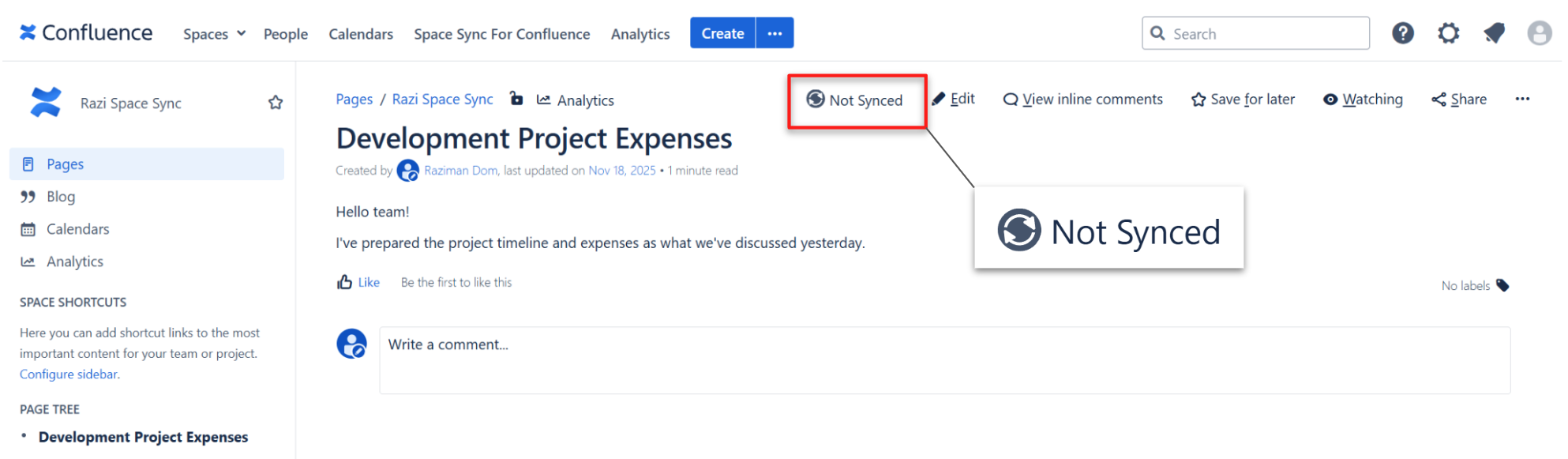
Click that button to open the Sync panel.
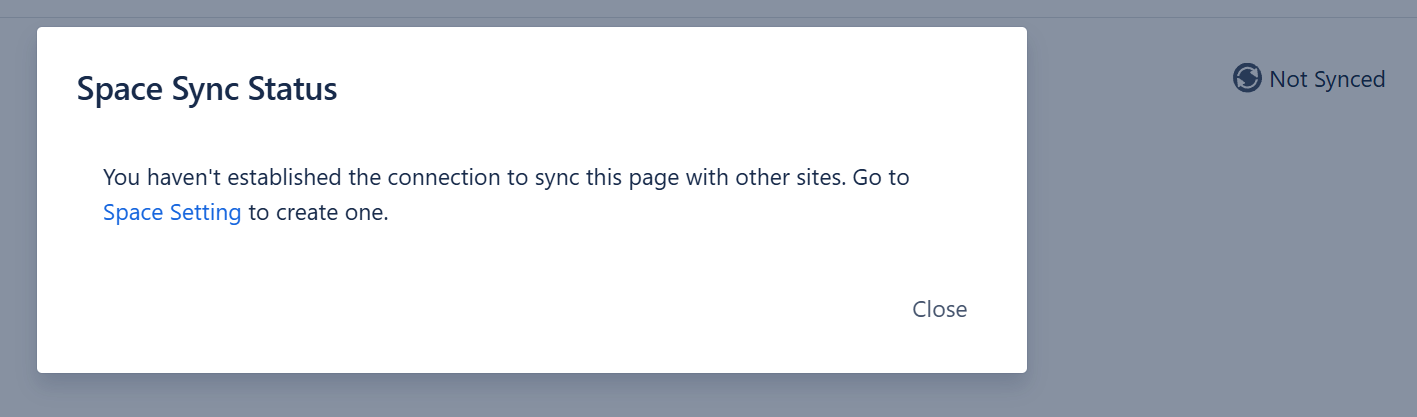
If you haven’t complete this step “How to establish synced spaces“. You will receive an error below that you haven’t configure it yet.
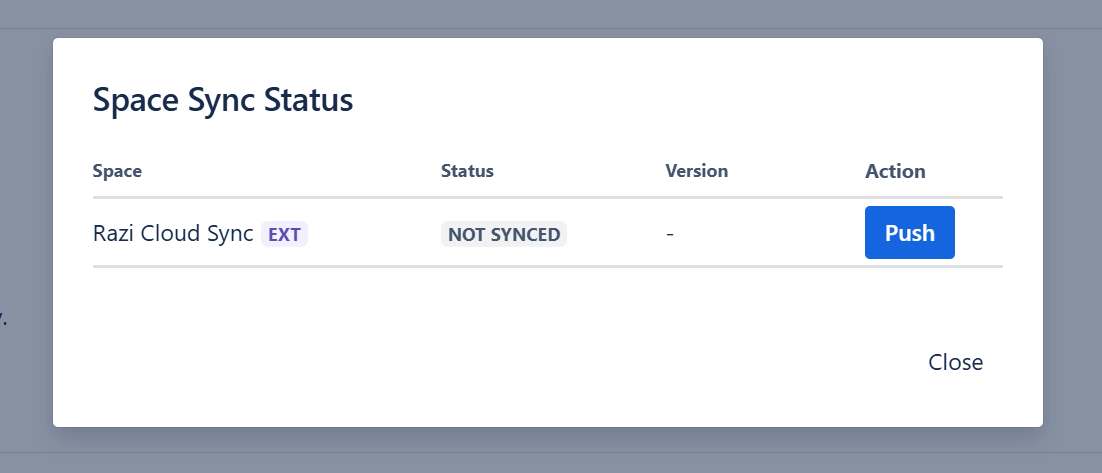
If you have established the synced spaces, you should see a below dialog with a list of space that you can sync with.
Since you haven’t push it, the status will show as Not synced and you only can Push it.
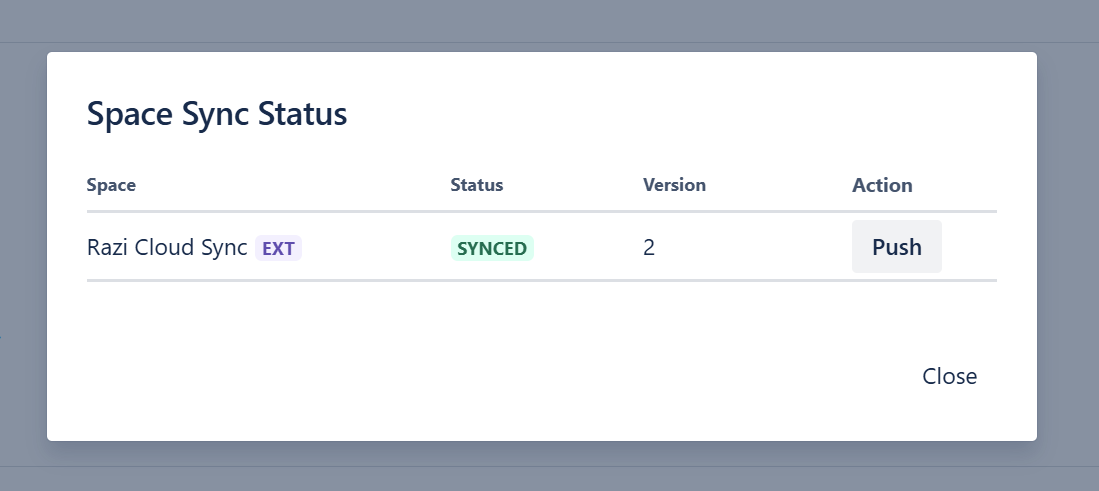
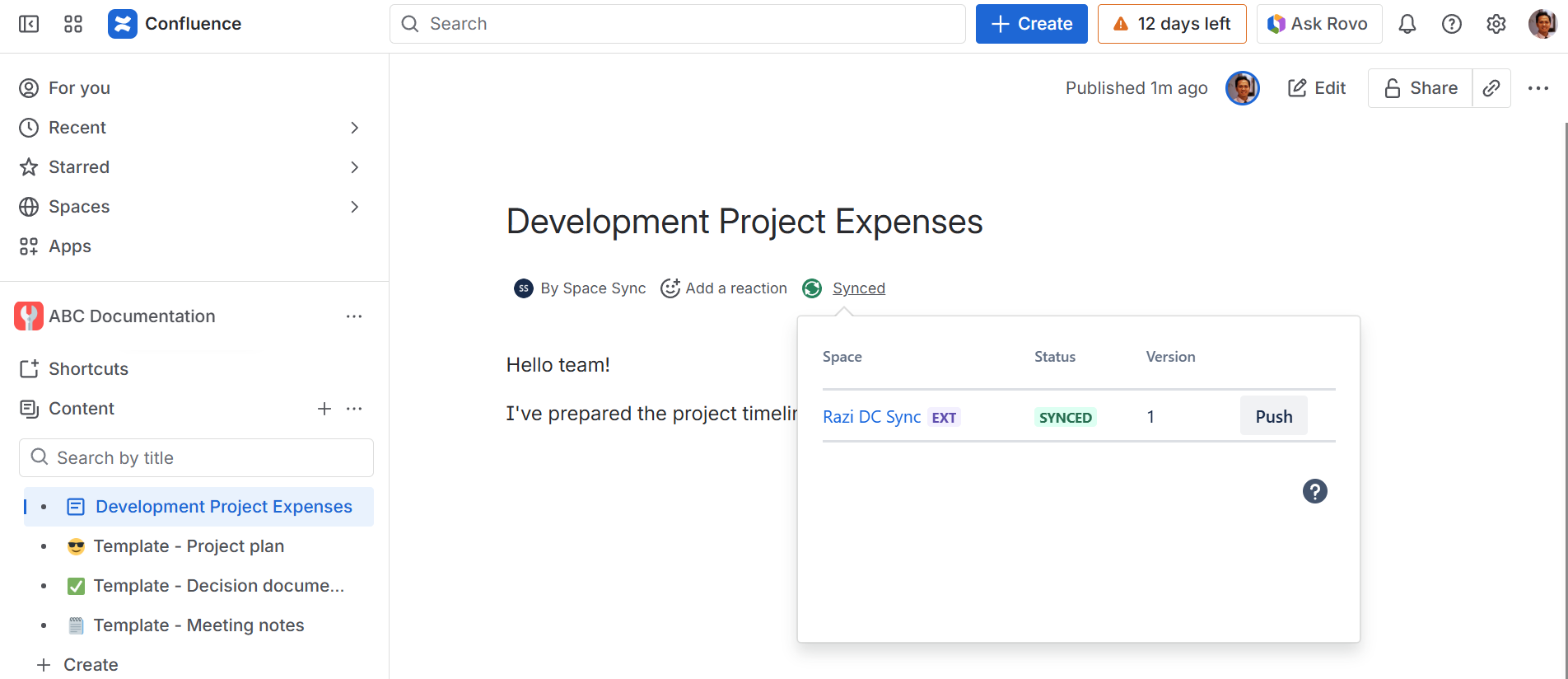
Once it is synced, you can the status changed to synced .
If you go back to your Cloud site, you can see your page has been synced. Below is the screenshot from Cloud and the author will be Space Sync.
If you don’t see the PUSH button, it means you don’t have the permission to push the page.
Please ask the space administrator to remove restriction if required.
If a synced page version is outdated, editing an older version will overwrite changes on the other page.
It’s not possible to merge page updates due to Confluence limitations. You’ll see the warning message in case of potential conflicts due to sync status.
Please see check page sync status to learn more about the sync status panel.